How to Permanently Stop Spam Emails on Gmail (2026)
Introduction
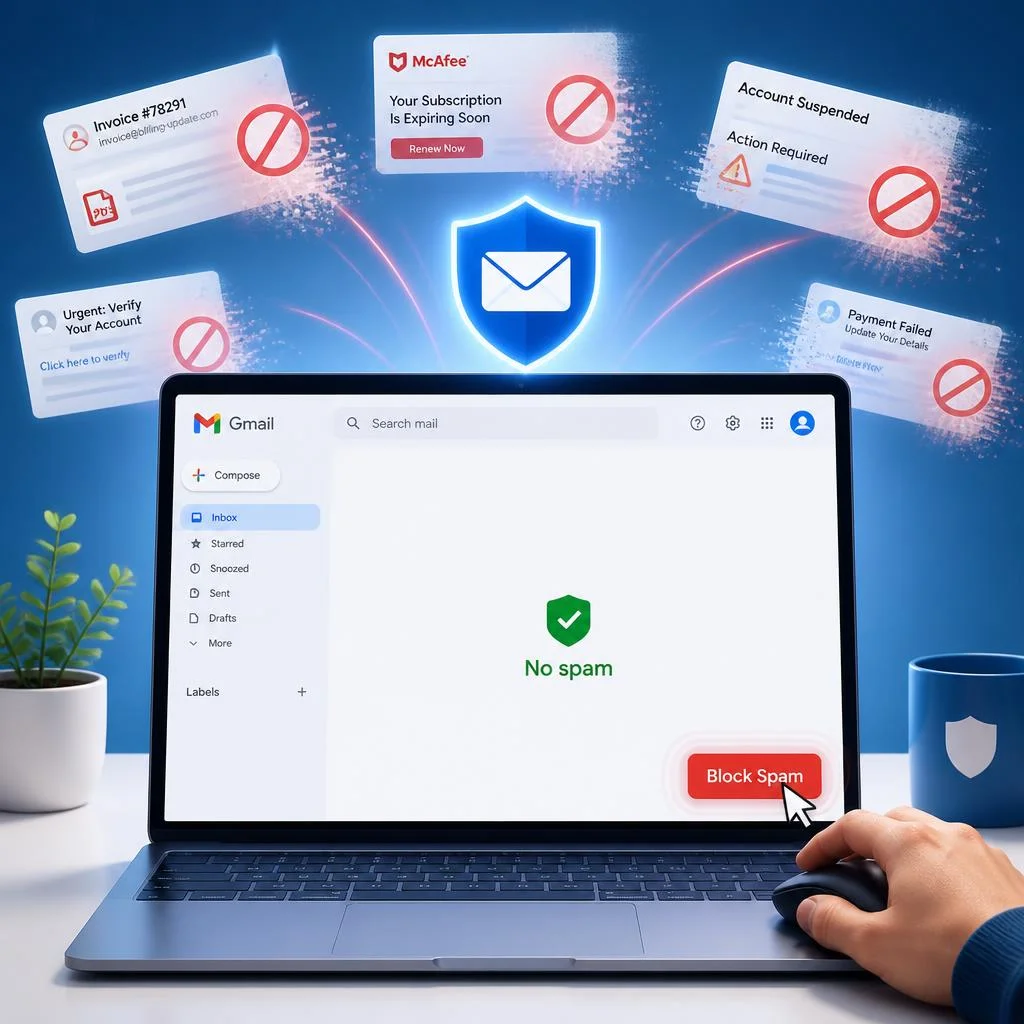
You open your Gmail inbox to check an important message, but instead you’re greeted by dozens of unwanted emails. A fake Amazon invoice. A suspicious “McAfee subscription renewal” charging $299. Random weight-loss ads. Even a scary email claiming to be from Apple Support warning that your account has been hacked.
Unfortunately, this has become normal for many Gmail users in 2026.
Spam emails are getting smarter, more aggressive, and harder to recognize. Many scammers now use AI-generated phishing emails that look almost identical to real company messages. Some fake emails even include official-looking logos, payment receipts, and urgent warnings designed to trick you into clicking dangerous links.
If you’ve been searching for answers like “How do I get rid of spam emails in Gmail?” or “How do you stop spam emails on Gmail permanently?”, you’re in the right place.
The good news is that Gmail already includes powerful tools to fight spam — you just need to know how to use them correctly. With a few simple changes, you can reduce junk emails, block fake senders, stop phishing attempts, and keep your inbox clean and secure.
In this guide, you’ll learn 7 proven methods to stop spam emails on Gmail, prevent future spam, and protect your account from dangerous scams.
What you’ll learn:
- Why you’re suddenly drowning in spam
- How Gmail’s spam filter actually works
- 7 step-by-step ways to block spam permanently
- How to spot dangerous phishing emails
- The best free tools to clean thousands of spam emails fast
Let’s get your inbox back under control.
Why You’re Suddenly Getting Spam Emails in Gmail
Spam isn’t random. In 2026, your email address is likely exposed in multiple places. Here’s why you’re seeing more junk than ever.
Data breaches – Your email was leaked in a company hack (think: LinkedIn, Adobe, or that random forum you joined in 2018). Spammers buy leaked email lists in bulk.
Email leaks – When you sign up for a website, they sell your address to third-party advertisers. That’s legal in many countries.
Fake giveaways – “Win an iPhone 16 – enter your email here!” Those giveaways are spam traps.
AI spam bots – In 2026, AI generates millions of spam emails per minute. They look more real, use better grammar, and bypass basic filters.
Public email exposure – Your Gmail address is on social media, GitHub, or public forums. Spammers scrape these pages daily.
Website signups – Every newsletter, discount offer, or free PDF you downloaded shared your email with partners.
The result? Your Gmail gets flooded. But you can stop it.
How Gmail Spam Works
Before you fight spam, understand the battlefield.
Gmail spam filters use machine learning to scan every email. It looks at:
- Sender reputation (who sent it)
- Content (keywords like “free gift,” “invoice,” “urgent”)
- Attachments (suspicious .exe or .zip files)
- Links (known malicious domains)
- User behavior (you marked similar emails as spam before)
Junk folder detection – Emails that look suspicious go to the Spam folder instead of your Inbox. But clever spammers in 2026 have learned to bypass this.
Promotional vs dangerous emails – Gmail separates emails into tabs: Primary, Social, Promotions. Promotions tab is for newsletters and ads (still spam, but less dangerous). Dangerous emails (phishing, fake invoices) can sneak into your Primary tab.
AI spam filtering – Gmail’s AI now detects AI-generated spam. But it’s a cat-and-mouse game. Today’s spam bot writes emails that look human.
Bottom line: Gmail catches 99% of spam, but that 1% still reaches your inbox. And that 1% includes dangerous fake invoices.
Signs a Gmail Email Is Dangerous
Not all spam is equal. Some are just annoying ads. Others are phishing attempts that can steal your money or identity.
Here’s a checklist to spot dangerous emails instantly:
- Fake sender addresses – “support@apple-security.com” or “noreply@amazon-billing.com” (these are not real Apple or Amazon domains)
- Urgent payment requests – “Your invoice is overdue – pay within 2 hours”
- Fake invoice emails – “McAfee invoice #4832” or “Norton renewal $299.99”
- Suspicious links – Hover over the link. It shows “http://bit.ly/3xyz” instead of “amazon.com”
- Attachments – .zip, .exe, .scr, or .pdf with weird names like “invoice_2026.zip”
- Poor grammar – AI can write well, but many scammers still use broken English
- Fake Google warnings – “Your Google account will be deleted in 24 hours – click here to verify”
Never click links or download attachments from these emails. Report them as spam instead.
How to Stop Spam on Gmail Permanently
Many people believe spam emails are something you just have to live with, but that’s not true. While you may never remove 100% of spam forever, you can dramatically reduce unwanted emails in Gmail by using the right settings and habits.
If you’re trying to figure out how to stop spam on Gmail permanently, the key is combining multiple methods instead of relying on only Gmail’s automatic spam filter. Scammers constantly change their tactics, which means some junk emails can still slip into your inbox.
One of the best ways to stop spam from Gmail is to immediately report suspicious messages instead of simply deleting them. This helps Gmail learn which emails are dangerous and improves spam filtering for your account over time.
You should also block repeat senders, unsubscribe from promotional mailing lists you no longer use, and create custom Gmail filters for specific keywords or email addresses. These small actions can make a huge difference in keeping your inbox clean.
Another important step is avoiding interactions with suspicious emails. Never click unknown links, download random attachments, or reply to spam messages. Even opening certain phishing emails can confirm that your email address is active, leading to even more spam in the future.
If you’re still wondering how to stop email spam Gmail users commonly receive, the answer usually comes down to three things:
- Report spam consistently
- Use Gmail filters and blocking tools
- Protect your email address from being shared publicly
The more proactive you are, the better Gmail becomes at protecting your inbox from fake invoices, phishing attempts, promotional spam, and scam emails.
How to Permanently Stop Spam Emails on Gmail(Step-by-Step Methods)
Here are 7 methods. Do them in order for best results.
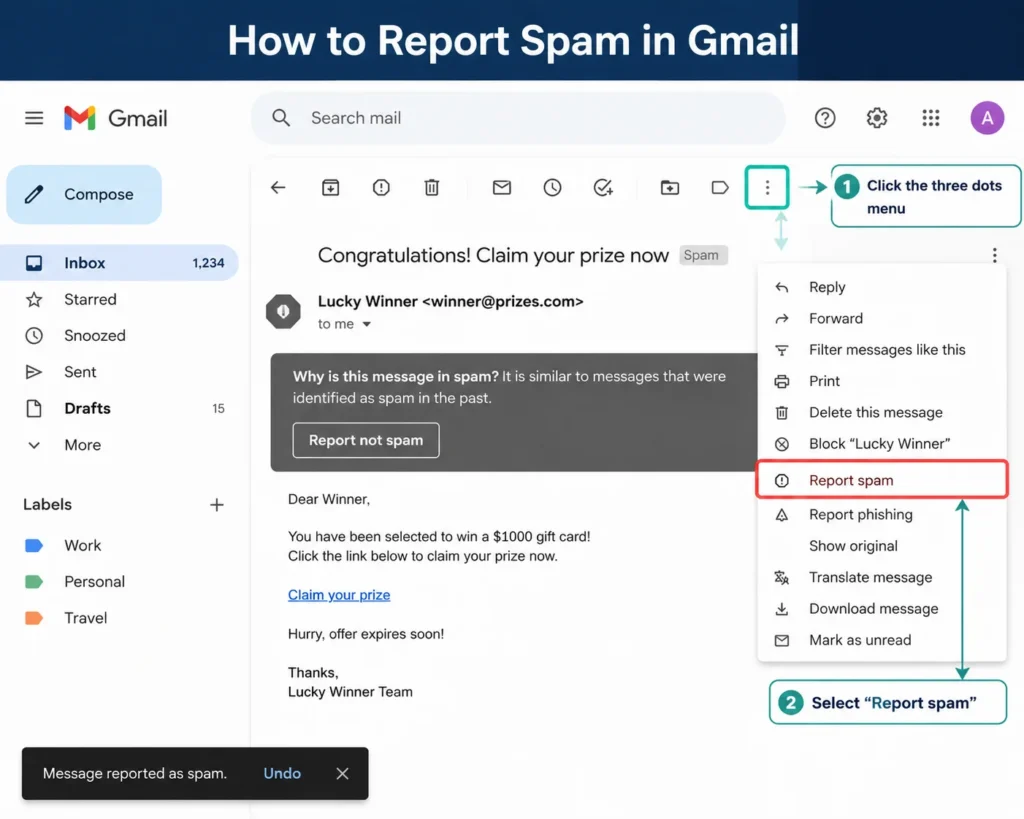
Method 1: Mark Emails as Spam
This trains Gmail’s filter. Each time you mark spam, Gmail learns.
Desktop Gmail (PC/Mac)
- Open Gmail in a browser.
- Check the box next to the spam email.
- Click the Report spam button (it looks like an exclamation mark inside a stop sign).
- The email moves to the Spam folder.
- (Optional) In Spam folder, click Delete forever to remove it permanently.
Android Gmail app
- Open the email.
- Tap the three dots (⋮) in the top-right corner.
- Tap Report spam.
- Confirm.
iPhone Gmail app
- Open the email.
- Tap the three dots (⋯) in the top-right corner.
- Tap Report spam.
- Confirm.
Pro tip: Do this for 5-10 spam emails in a row. Gmail will quickly learn to block similar emails.
Method 2: Block Spam Email Addresses
For persistent spammers, block them entirely.
How to block senders (desktop)
- Open an email from the sender you want to block.
- Click the three dots (⋮) next to the sender name in the header.
- Click Block [sender name].
- All future emails from that address go to Spam.
How to unblock if needed
- Go to Gmail settings (gear icon → See all settings).
- Click Filters and Blocked Addresses.
- Find the blocked address under “Blocked addresses.”
- Click Unblock.
Method 3: Unsubscribe From Promotional Emails
Many spam emails are actually legitimate newsletters you signed up for. Unsubscribe safely.
Safe unsubscribe method
- Scroll to the bottom of the email.
- Find the Unsubscribe link (usually small and gray).
- Click it. You’ll be taken to a page confirming you’ve been removed.
- Close the page. No need to enter your email again.
When NOT to unsubscribe
- Never click “Unsubscribe” in a suspicious email (fake invoices, phishing).
- Why? Scammers use unsubscribe links to confirm your email is active.
- Instead, report as spam and block the sender.
For bulk unsubscribing – Use a tool like Clean Email (see Method 6 below).
Method 4: Create Gmail Filters
Filters are Gmail’s most powerful spam-killer. Set them once, and they work forever.
How to Prevent Spam Emails in Gmail Using Filters
Gmail filters are one of the most powerful tools for controlling unwanted emails. If you’re trying to figure out how to prevent spam emails in Gmail, setting up custom filters can automatically block, delete, archive, or organize suspicious messages before they clutter your inbox.
Filters are especially useful for repeat spam emails that keep coming from similar senders or contain the same keywords like “invoice,” “subscription renewal,” or “account alert.”
Here’s How to create a Gmail filter (desktop)
- Click the search bar at the top.
- Click the down arrow (or “Show search options”).
- Fill in criteria:
- From – email address or domain (e.g., @fakestore.com)
- Subject – specific words (e.g., “invoice,” “subscription”)
- Has the words – keywords (e.g., “McAfee renewal”)
- Has attachment – check if you want to filter emails with attachments
- Click Create filter.
- Select action:
- Delete it – emails go straight to Trash
- Skip the Inbox (Archive it) – emails bypass your Inbox
- Mark as read – keeps your Inbox clean
- Apply label – label spam before deleting
- Click Create filter again.
Example filters (copy-paste these)
| Spam Type | Filter Criteria | Action |
|---|---|---|
| Fake invoices | Subject: “invoice” OR “payment due” OR “renewal” | Delete it |
| Promotions | Subject: “50% off” OR “discount” OR “sale” | Skip Inbox |
| Unknown senders | From: “@” (catch-all) AND NOT in contacts | Mark as read |
| McAfee scam | Subject: “McAfee” AND body: “order” OR “invoice” | Delete it |
Pro tip: Use OR and AND in filter criteria. Example: Subject: (invoice OR payment) AND body: (McAfee OR Norton)
Example table for quick reference
| Spam Type | Gmail Filter Action |
|---|---|
| Fake invoices | Delete automatically |
| Promotions | Skip inbox |
| Unknown senders | Mark as spam |
| Phishing attempts | Delete immediately + report |
Method 5: Turn Off Spam Notifications
Stop your phone from buzzing every time a spam email arrives.
Android Gmail app
- Open Gmail app.
- Tap the hamburger menu (≡).
- Scroll to Settings.
- Tap your account.
- Tap Notifications.
- Select High priority only or None.
iPhone Gmail app
- Open iPhone Settings.
- Tap Notifications.
- Find Gmail in the list.
- Tap Notifications again.
- Turn off “Allow Notifications” or set to “Time Sensitive” (only urgent emails).
Desktop Gmail
- Click gear icon → See all settings.
- Go to General tab.
- Scroll to Notifications.
- Select Only High Priority or None.
Method 6: Protect Your Email Address
Stop new spam before it starts. These strategies are gold.
Email aliases – Gmail allows you to add +anything to your address.
- Your real email:
john.doe@gmail.com - Alias for signups:
john.doe+spam@gmail.com - Aliases are free. All mail goes to the same inbox. If an alias gets spam, block it or change the alias.
Temporary emails – Use services like Temp Mail or Guerrilla Mail for one-time signups (forums, free trials). Never use your main Gmail.
Hide My Email – If you have an iCloud account, you get unlimited random addresses that forward to your real email. Apple’s feature is excellent.
Separate emails for signups – Create a second Gmail address exclusively for newsletters, discounts, and shopping. Keep your primary address for friends, work, and important alerts.
Don’t post your email publicly – Avoid writing email@gmail.com in social media profiles, GitHub, or forums. Use a contact form or a disposable address.
Method 7: Use Gmail Security Features
Spam often exploits weak security. Lock your account down.
2-factor authentication (2FA) – Even if a spammer gets your password, they can’t log in without your phone. Turn it on:
- Go to myaccount.google.com/security
- Click 2-Step Verification → Turn on.
- Use Google Authenticator or a physical security key.
Enhanced Safe Browsing – Protects you from malicious links in emails.
- Go to Google Security Checkup.
- Enable Enhanced Safe Browsing.
- Gmail will warn you before opening dangerous links.
Suspicious login alerts – Google notifies you if someone tries to access your account from an unknown device. Keep this on.
Google Security Checkup – Run it monthly. It scans for compromised passwords, insecure apps, and suspicious activity.
Best Gmail Spam Settings in 2026
Use these settings to maximize spam protection.
Filter settings
- Turn on Automatic filtering under “Filters and Blocked Addresses”
- Enable “Don’t skip the inbox” for suspicious senders (catch-all)
Security settings
- 2FA: On
- Enhanced Safe Browsing: On
- Less secure app access: Off
Inbox protection
- Spam folder – Check weekly, don’t let it overflow
- Promotions tab – Enable if you get many ads
- “Show star status” – Star important emails so filters don’t touch them
Privacy settings
- Stop automatic image loading (prevents tracking pixels that tell spammers your email is active)
- Settings → General → Images → Ask before displaying external images
How to Stop Fake McAfee Emails in Gmail
Fake McAfee invoices are the #1 spam trend in 2026. They look real: a logo, an invoice number, a total of $299.99, and a “Pay Now” button. They claim your antivirus subscription is renewing.
Why these scams are trending – Scammers use AI to generate invoices that mimic legitimate companies. Many people panic and click “Pay Now” or call the fake phone number.
How to identify fake invoices
- The sender is something like
invoices@mcafee-security.com(not the realmcafee.com) - The email asks for a credit card number or PayPal login
- The invoice number doesn’t match anything you have
- You never bought McAfee or your subscription expired years ago
What not to click
- Never click “Pay Now,” “View Invoice,” or “Cancel Subscription”
- Never reply to the email
- Never call the phone number listed
How to report them
- Forward the email to
phishing@mcafee.com - Report to Gmail: Mark as spam → Report phishing
- Delete the email
Pro tip: Create a Gmail filter for Subject: "McAfee" and Subject: "invoice" → Delete automatically.
How to Stop Promotional Emails in Gmail
Promotional emails aren’t dangerous, but they clutter your inbox. Here’s how to deal with them.
Promotions tab – Gmail automatically moves most offers and newsletters here. Check this tab once a week and delete what you don’t want.
Bulk unsubscribe – Use a tool like Clean Email or Unroll.me. They scan your inbox, find all subscriptions, and let you unsubscribe in one click.
Filters – Create a filter for any promotional keyword like “50% off,” “sale ends,” “free shipping,” and mark them as read or skip the inbox.
Third-party cleaners – Avoid sketchy apps that ask for full email access. Stick to trusted tools (Clean Email, Unroll.me, or Google’s own unsubscribe links).
Manual unsubscribe – Scroll to the bottom of each promotional email and click “Unsubscribe.” Do this for 5 emails per day to avoid overwhelming yourself.
Best Free Tools to Clean Gmail Spam
Here are the top free (or freemium) tools to clean your Gmail spam fast.
| Tool | Best for | Free plan | Pros | Cons |
|---|---|---|---|---|
| Clean Email | Bulk unsubscribing | 50 free actions/month | Easy to use, smart filters | Limited free tier |
| MailWasher | Blocking before download | Free for 1 email account | Works offline, blocks at server level | Interface feels dated |
| Proton Mail | Privacy-focused alternative | Free (1 GB storage) | End-to-end encrypted | Not Gmail (you’d switch) |
| Gmail filters | Permanent automated rules | Free | No third-party risk | Requires manual setup |
| SpamTitan | Business/Teams | Free trial only | Enterprise-grade | Not for personal use |
Clean Email is the best free option for most people. It scans your Gmail, shows all subscriptions, and lets you unsubscribe or delete in bulk.
Gmail Spam Mistakes to Avoid
Don’t make these common errors.
❌ Clicking unknown links – Even out of curiosity. One click can install malware or confirm your email to spammers.
❌ Replying to spam – Never reply. Spammers know they’ve found a live email address and will sell it to 100 other spammers.
❌ Downloading attachments – Attachments from spam often contain viruses, ransomware, or keyloggers.
❌ Using the same email everywhere – One email for everything = maximum spam. Use aliases or separate addresses.
❌ Trusting fake unsubscribe links – In a phishing email, “Unsubscribe” leads to a malicious site. Only use unsubscribe links you can verify (look for legitimate company logos and URLs).
❌ Keeping spam in your Inbox – Every spam email you leave in your Inbox signals to Gmail that you don’t care. Mark them as spam immediately.
Also You May Like: How to Permanently Stop Spam Emails on Gmail (2026)
Frequently Asked Questions
How do I stop getting spam emails Gmail?
To stop getting spam emails in Gmail, you need to actively train the spam filter algorithm. Instead of just deleting junk mail, always use the Report Spam button (the exclamation mark icon). Additionally, use safe unsubscribe links to remove yourself from unwanted marketing lists, and utilize Gmail’s built-in spam reporting tools regularly to keep your primary inbox clean.
How to get rid of spam emails Gmail permanently?
You can get rid of spam emails in Gmail permanently by combining the “Block Sender” feature with custom automated filters. For persistent spammers, open the email, click the three dots menu, and select Block. For recurring spam trends (like fake subscription renewals), create a custom Gmail filter targeting specific keywords (e.g., “invoice” or “payment due”) and set the automated action to Delete it.
How to stop getting spam mail on Gmail?
The best way to stop getting spam mail on Gmail is to protect your email address from being exposed in the first place. Avoid sharing your primary email publicly on social media, public forums, or suspicious giveaway sites. To prevent future spam, use Gmail aliases (by adding “+spam” to your address) or temporary email services when signing up for new websites, and ensure your Gmail security protection settings are enabled.
How do you get rid of spam emails on Gmail?
How do you get rid of spam emails on Gmail when your inbox is already overflowing? Start by using the search bar to filter common junk keywords, select all, and delete them in bulk. Next, use the spam report feature for dangerous phishing attempts, and unsubscribe safely from legitimate but unwanted promotional lists. For massive cleanups, trusted third-party tools like Clean Email can help you bulk-unsubscribe quickly.
Are unsubscribe links in Gmail safe to click?
It depends on the sender. You should only use unsubscribe links for legitimate newsletters or promotional emails from recognizable companies. If you receive a suspicious email, such as a fake McAfee invoice or a phishing attempt, never click unsubscribe. Scammers use these links to verify that your email address is active. Mark these as spam instead.
How do I stop fake invoice scams from reaching my inbox?
Fake invoices (like Norton or McAfee renewals) often bypass standard filters because they don’t contain traditional spam links. To stop them, set up a targeted Gmail filter. Search for emails containing keywords like “McAfee” alongside words like “order” or “invoice.” Click “Create filter” and choose the Delete it action so these specific scams bypass your inbox and go straight to the trash.
Why am I suddenly getting spam emails in Gmail?
Your email address may have been leaked in a recent data breach. AI spam bots are also more active in 2026. Check HaveIBeenPwned.com to see if your address was leaked.
Can Gmail stop spam emails completely?
No filter is 100% perfect, but Gmail catches over 99% of spam. With the 7 methods above, you can block the remaining 1% permanently.
Is it safe to unsubscribe from spam emails?
Only unsubscribe from legitimate newsletters you signed up for. Never click unsubscribe in a suspicious email (fake invoices, phishing). Report those as spam instead.
Why are spam emails bypassing Gmail filters?
AI-generated spam looks more human in 2026. Spammers also rotate sender addresses and use authentic-looking domains. Gmail updates its filters daily, but new tricks slip through.
How do I block spam permanently in Gmail?
Use Gmail filters, block sender addresses, and mark everything as spam. Combine these with email protection strategies (aliases, separate emails) to stop new spam from arriving.
How do I clean thousands of spam emails fast?
Use Clean Email (free for 50 actions) or create a Gmail filter for common spam keywords. Then select all emails and delete them in one click.
How do I stop fake McAfee emails?
Create a Gmail filter for Subject: “McAfee” + “invoice” → Delete automatically. Never click any link in those emails. Forward the scam to phishing@mcafee.com.
What should I do if I clicked a link in a spam email?
Immediately run a virus scan with Google Play Protect (Android) or Malwarebytes (Windows). Change your Gmail password and turn on 2FA. Check your bank account for unauthorized charges.
Does Gmail have a spam filter for promotional emails?
Yes. Promotional emails go to the Promotions tab by default. You can also set filters to skip the Inbox for any email with “sale” or “discount” in the subject.
Can I stop spam emails from my own domain?
If you use a custom domain with Gmail (e.g., yourname@company.com), you can set up a catch-all filter that deletes all unknown senders. Contact your domain provider or use Google Workspace’s advanced filtering.
How do I permanently delete spam without opening it?
On desktop: Right-click the email → Delete. On mobile: Swipe left (Android) or tap the trash can (iPhone). You don’t need to open spam to delete it.
Why is Gmail allowing spam from the same sender?
If you haven’t marked that sender as spam, Gmail assumes you want their emails. Mark one email from that sender as spam, and Gmail will block all future mail from them.
Conclusion
Now you know how to stop spam email on Gmail, avoid phishing attacks, and keep your inbox clean with Gmail’s built-in protection tools. Spam emails in Gmail are annoying, dangerous, and exhausting. But you can stop them permanently.
Here’s your 5-step action plan:
- Mark existing spam – Spend 5 minutes reporting junk emails. This trains Gmail.
- Create filters – One filter for fake invoices, one for promotions, one for unknown senders.
- Block repeat offenders – Use the Block Sender feature.
- Protect your email address – Use aliases, temporary emails, and separate addresses for signups.
- Secure your account – Turn on 2FA, Enhanced Safe Browsing, and regular security checks.
Do this today, and your inbox will stay clean in 2026 and beyond.
Bookmark this guide – share it with friends who are drowning in spam. The more people block spam, the less profitable it becomes for scammers. And that’s how we win.
Stay safe, stay spam-free.