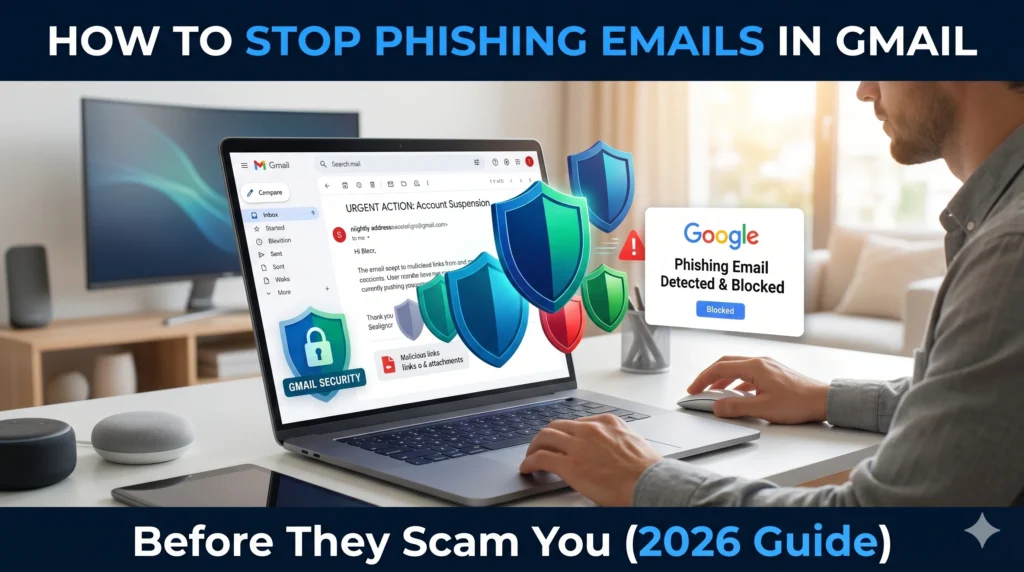
How to Stop Phishing Emails in Gmail
How to Stop Phishing Emails in Gmail Before They Scam You (2026 Guide)
Imagine waking up, checking your phone, and seeing an email that says you’ve just been charged $499 for a software subscription you never bought.
Your heart drops. Panic sets in. Your first instinct is to click the “Cancel Order” link right there in the email to get your money back.
Stop right there.
That sudden wave of panic is exactly what cybercriminals are counting on. If you click that link, you might hand over your credit card details to a scammer. Learning how to stop phishing emails in Gmail is no longer just a good idea—it is an essential survival skill for anyone on the internet today.
In this beginner-friendly guide, we are going to break down exactly how these scams work, how to spot the red flags, and the exact steps you need to take to lock down your Gmail account.
What Are Phishing Emails? (The Quick Answer)
Phishing emails are fraudulent messages designed to trick you into revealing sensitive information, like passwords, credit card numbers, or bank details. Scammers disguise themselves as trusted companies—like Amazon, PayPal, or even Google itself—to manipulate you into clicking malicious links or downloading infected attachments.
Why Are Phishing Scams Increasing?
If you feel like your inbox is seeing more junk than usual, you aren’t imagining it. Phishing scams in Gmail have skyrocketed recently for a few key reasons:
- AI Tools: Scammers are now using artificial intelligence to write perfectly spelled, highly persuasive emails. The days of easily spotting a scam because of bad grammar are ending.
- Data Breaches: Your email address has likely been exposed in various corporate data leaks over the years, landing it on spam mailing lists.
- Mobile Browsing: People check emails on smaller phone screens where it is harder to see the full, fake sender address.
Real-Life Scam Examples You Need to Know
Here are three of the most common fake Gmail emails circulating right now:
- The Fake Invoice: “Your payment of $399.99 to Geek Squad was successful. Call this number if you did not authorize this.”
- The Account Suspension: “Your Netflix account is on hold due to a billing issue. Click here to update your payment method.”
- The Storage Warning: “Your Google Drive is out of storage. Click here to claim 50GB for free or lose your files.”
The Ultimate “Clear Warning Signs” Checklist
Before you ever click a link or download an attachment, run the email through this quick checklist:
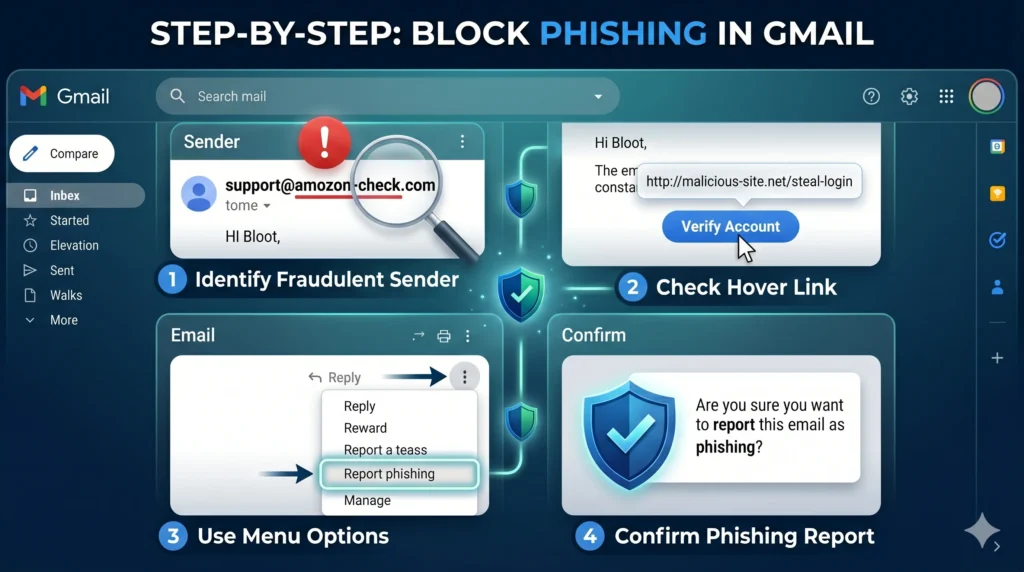
- [ ] Check the actual sender address: Does it say “PayPal Support” but the email is actually
support@paypal-update-online24.com? It’s a scam. - [ ] Look for false urgency: Are they threatening to delete your account, arrest you, or charge you a massive fee if you don’t act within 24 hours?
- [ ] Hover before you click: If you hover your mouse over a link without clicking, you can see the real destination URL in the bottom corner of your screen. Does it look suspicious?
- [ ] Beware of generic greetings: Does it say “Dear Customer” instead of your actual name?
- [ ] Check for weird attachments: Never open unexpected .ZIP, .EXE, or .HTML files.
Also You May Read: How to Stop Spam Emails in 2026 (Complete Beginner Guide)
Step-by-Step: How to Stop Phishing Emails in Gmail
Google actually has incredible built-in Gmail phishing protection. You just need to know how to use it. Here is your action plan for dealing with dangerous messages.
1. Never “Unsubscribe” from Phishing Emails
If an email is clearly a scam, never click the “unsubscribe” link at the bottom. Doing so just confirms to the hacker that your email address is active, and they will send you even more spam.
2. Use the “Report Phishing” Button (Crucial Step)
Don’t just delete a scam email. You need to train Google’s algorithm to recognize it.
- Open the suspicious email (don’t click any links inside it).
- Click the three vertical dots in the top right corner of the email message.
- Select Report phishing from the dropdown menu.This moves the email out of your inbox and helps protect millions of other Gmail users from receiving the same scam.
3. Block the Sender
If a specific scammer keeps bothering you:
- Click the same three vertical dots in the top right.
- Click Block [Sender Name]. Future emails from this address will go straight to the void.
Essential Gmail Security Tips to Protect Your Account
If you want to make your inbox a fortress, take five minutes to apply these extra security measures:
- Turn on 2-Step Verification (2FA): This is non-negotiable. Even if a scammer gets your password, they can’t log in without the code sent to your phone.
- Enable Enhanced Safe Browsing: Go to your Google Account Security settings and turn on Enhanced Safe Browsing. It provides faster, proactive protection against dangerous websites and downloads.
- Do a Google Security Checkup: Search for “Google Security Checkup” and run the official tool to see which devices are logged into your account and if any passwords have been compromised.
Frequently Asked Questions (FAQs)
What should I do if I get suspicious emails in Gmail?
Do not reply, click links, or download attachments. Click the three dots in the top right corner of the message and select “Report phishing.” If you know the sender personally but the email looks weird, contact them via phone or text to ask if they were hacked.
How does Gmail phishing protection work?
Gmail uses advanced machine learning algorithms to analyze billions of emails daily. It looks for known bad URLs, suspicious sender behaviors, and malicious attachments, automatically routing over 99.9% of spam and phishing attempts directly to your Spam folder.
What happens if I accidentally clicked a link in a fake Gmail email?
Disconnect your device from the internet immediately. Run a full antivirus scan on your computer or phone. If you entered any passwords on the fake site, change them immediately from a different, secure device. If you entered financial details, call your bank’s fraud department right away.
Conclusion
Scammers are getting smarter, but now you are too. By slowing down, checking the sender address, and using the “Report Phishing” tool, you can easily outsmart these digital pickpockets.
Remember: legitimate companies will never panic you into making an immediate payment or force you to hand over your password via email.
Want to completely clean up your inbox and stop unwanted emails for good? Check out our ultimate guide on How to Permanently Stop Spam Emails on Gmail (2026) to take total control of your digital life today!