How to Stop Spam Emails in 2026 (Beginner Guide)
How to Stop Spam Emails in 2026 (Complete Beginner Guide)
Introduction
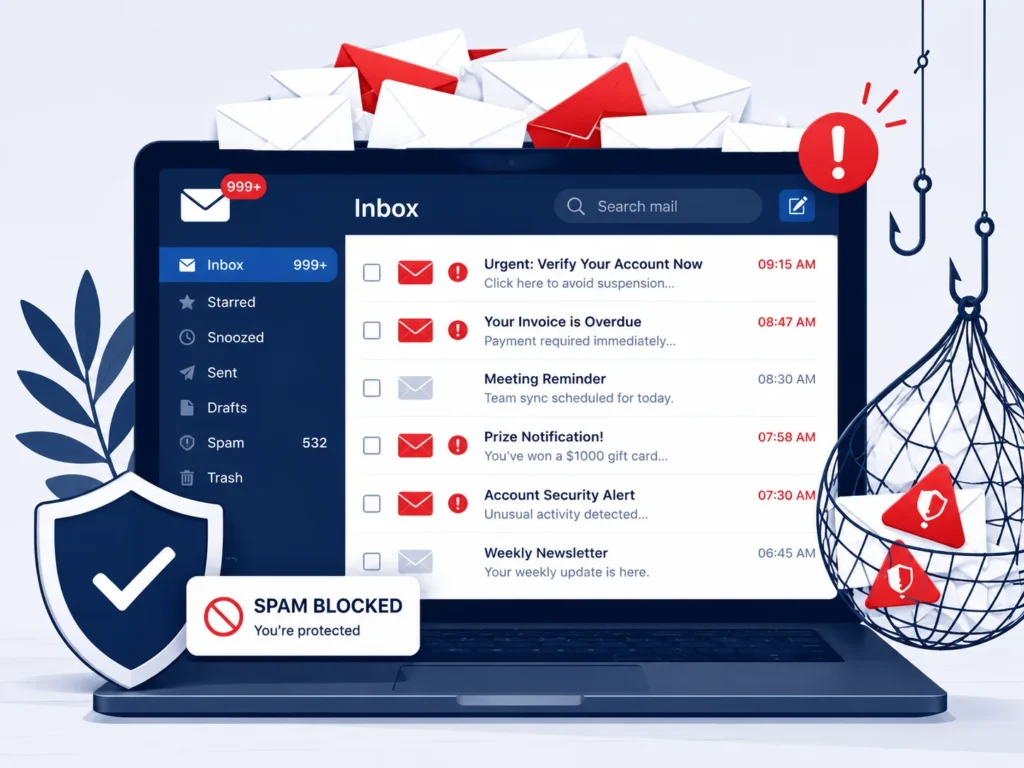
You open your inbox and — boom. Forty-seven new emails. Three are from your actual friends. The rest? Fake McAfee renewals, a “winning lottery” from a country you’ve never visited, two phishing links disguised as PayPal invoices, and something about cryptocurrency that promises to make you rich by Thursday.
Sound familiar? You’re not alone.
Spam emails have exploded in 2026. Scammers are now using AI tools to generate thousands of hyper-personalized phishing emails in seconds. They look real. They sound real. And that’s exactly what makes them dangerous.
In this guide, you’ll learn:
- Why you’re suddenly drowning in spam
- How to spot a dangerous email before you click anything
- Step-by-step methods to stop spam emails in Gmail, iPhone, Outlook, and Yahoo
- Free tools that do the filtering work for you
- What NEVER to do when you receive a suspicious email
Whether you’re a Gmail user, an iPhone owner, or someone who just inherited an old Outlook account — this guide covers everything in plain English.
Let’s clean up that inbox.
What Are Spam Emails?
Spam emails are unsolicited messages sent in bulk to thousands (sometimes millions) of people at once. Most of the time, the sender doesn’t know you personally — they just got hold of your email address somehow and added it to a list.
But not all spam is the same. Here’s a quick breakdown:
| Type | What It Is | Danger Level |
|---|---|---|
| Marketing spam | Unwanted newsletters, promotions | Low — just annoying |
| Phishing emails | Fake messages pretending to be banks, PayPal, etc. | High — designed to steal your info |
| Malware emails | Contain infected attachments or links | Very High — can hack your device |
| Scam emails | Fake prizes, fake invoices, fake job offers | High — designed to steal money |
| Spear phishing | Targeted attacks using your personal details | Extremely High |
The key difference between spam and phishing: spam is mostly just annoying clutter. Phishing is a cyberattack. Phishing emails pretend to be from someone you trust — your bank, Apple, Amazon — and trick you into giving up your password, credit card number, or personal information.
In 2026, phishing emails are harder to spot than ever because scammers use AI to write them. No more “dear beloved customer” broken English. These emails now look eerily professional.
Why Am I Getting So Many Spam Emails?
This is the question everyone asks. The short answer: your email address got out somehow. Here’s how it usually happens:
1. Data Breaches When a company you’ve signed up with gets hacked, your email address (and sometimes your password) leaks onto the dark web. Spammers buy these lists in bulk. You can check if your email has been in a data breach at HaveIBeenPwned.com.
2. Signing Up on Websites Every time you enter your email for a free ebook, a discount code, or a giveaway — you risk that address being sold to third-party advertisers. Many websites bury this in the fine print of their privacy policy.
3. Email Harvesting Bots Automated bots crawl websites, forums, social media profiles, and comment sections looking for exposed email addresses. If your email is publicly visible anywhere online, bots have probably already found it.
4. Fake Subscription Confirmations Some spam networks send fake “subscription confirmed” emails to test whether your address is real and active. If you open it, you’ve just confirmed your address is live — and you’ll get more.
5. Purchased Email Lists Shady marketing companies sell giant lists of email addresses. If a business you’ve dealt with (even a legitimate one) sold your data, your address could now be on dozens of lists.
6. AI-Powered Spam Campaigns In 2026, scammers are using AI to generate personalized spam at scale. They can pull your name, location, and employer from LinkedIn or social media and craft a convincing fake email in seconds. This is why spam has gotten so much worse recently.
Signs an Email Is Spam or Dangerous
Before you click anything, run through this quick checklist:
🚩 Red Flags to Look For:
- Suspicious sender address — The display name says “PayPal” but the actual email is something like
paypal-billing@xmail32.ru - Urgent or threatening language — “Your account will be closed in 24 hours!” “Act NOW or lose access!”
- Generic greetings — “Dear Customer” instead of your actual name (though AI spam now sometimes includes your real name)
- Unexpected attachments — Any
.exe,.zip, or.docxfile you weren’t expecting is a red flag - Suspicious links — Hover over links (don’t click) and check if the URL matches the supposed sender
- Fake invoices — A PDF invoice for a product you never bought, designed to make you panic and click
- Requests for personal info — No legitimate bank or company will ask for your password via email
- Too-good-to-be-true offers — Free iPhones, lottery winnings, unclaimed inheritance
- Poor formatting — Even if the writing is good, mismatched logos, wrong fonts, or off-brand colors are giveaways
- Wrong grammar in links —
www.paypa1.cominstead ofwww.paypal.com
If an email checks even two or three of these boxes, don’t click anything. Mark it as spam and move on.
How to Stop Spam Emails (7 Proven Methods)
Method 1: Mark Emails as Spam
This is your first and most powerful weapon. Every time you mark an email as spam, you’re training your email provider’s filters. Over time, similar emails get caught automatically before they reach your inbox.
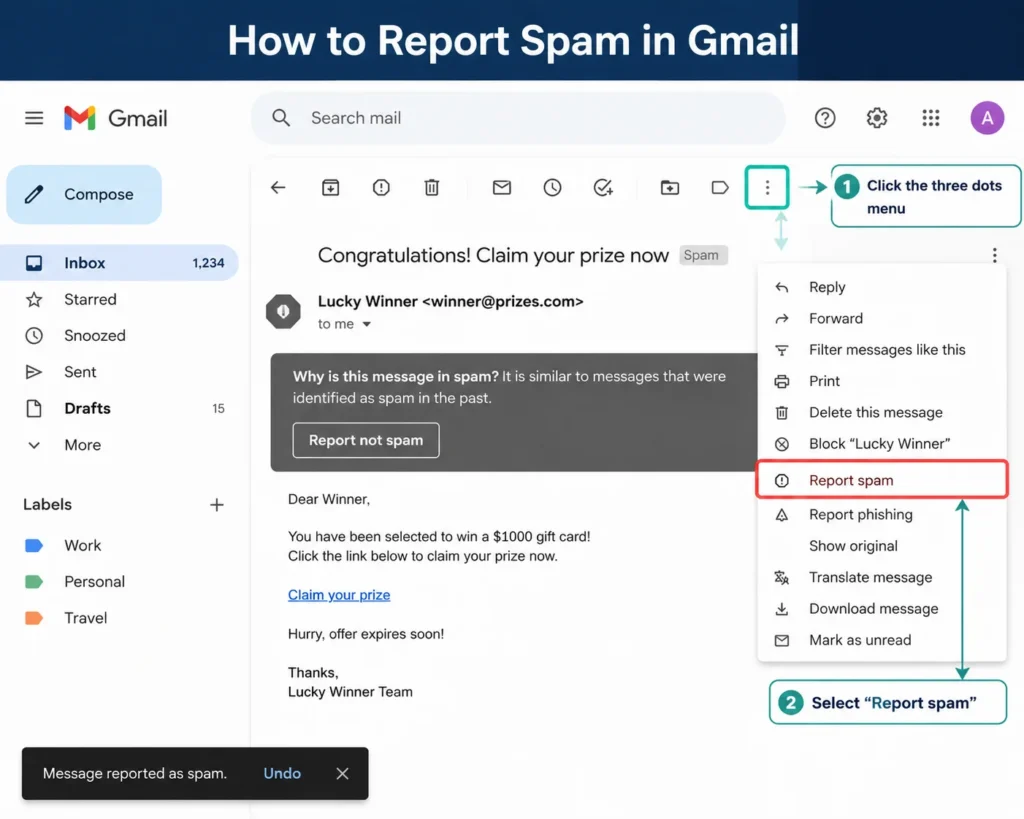
In Gmail:
- Open the email (or just select it with the checkbox — you don’t need to open it)
- Click the ⊘ Report Spam button (looks like a stop sign with an exclamation mark) in the toolbar
- Or right-click the email and select Report spam
- Gmail asks if you want to unsubscribe too — only click this if it’s a legitimate newsletter
Also You May Like: How to Permanently Stop Spam Emails on Gmail (2026)
In Outlook:
- Select the email
- Click Junk in the top toolbar
- Choose Block Sender to permanently block that address
In Yahoo Mail:
- Select the email
- Click the ⋯ More menu
- Select Mark as spam
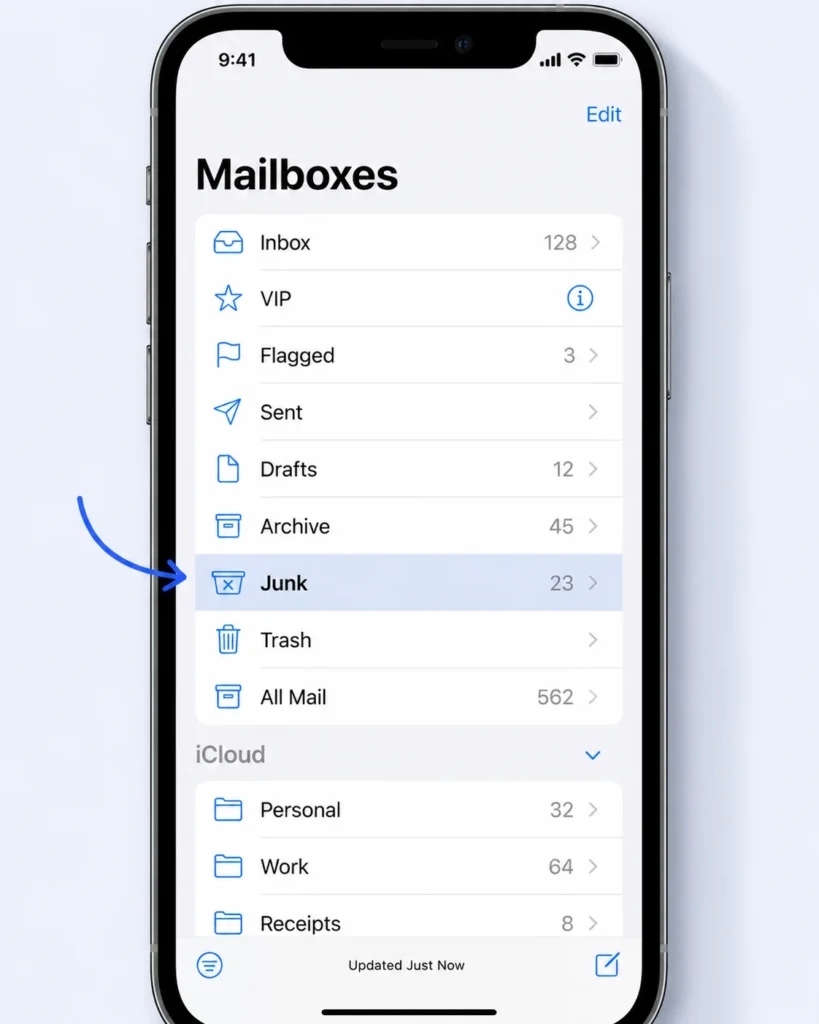
On iPhone Mail App:
- Open the email
- Tap the sender’s name at the top
- Tap Block this Contact
- Or swipe left on the email in your inbox and tap More → Move to Junk
Method 2: Block Email Addresses
Blocking stops that specific address from ever reaching your inbox again.
Gmail:
- Open the email
- Click the three-dot menu (⋮) in the top right corner of the email
- Click Block “[Sender Name]”
- Confirm — done
Outlook:
- Right-click the email
- Select Junk → Block Sender
iPhone:
- Open the email
- Tap the sender’s name
- Scroll down and tap Block this Contact
Note: Blocking one address won’t stop a determined spammer — they often use multiple addresses. Use this alongside the other methods below.
Method 3: Unsubscribe Safely (Know When It’s Safe)
Every legitimate marketing email is required by law (CAN-SPAM Act in the US, GDPR in Europe) to include an unsubscribe link. For newsletters and promotions from real companies, unsubscribing is safe and effective.
When it’s safe to unsubscribe:
- The email is from a company you actually recognize and signed up with
- The unsubscribe link goes to a branded page (e.g.,
preferences.realbrand.com) - It’s a newsletter, promotional email, or subscription you remember
When NOT to click unsubscribe:
- You don’t recognize the sender at all
- The email looks suspicious or feels “off”
- The unsubscribe link is a random URL that doesn’t match the sender
- The email contains fake invoices or urgent warnings
Clicking “unsubscribe” on a genuine spam email can actually make things worse — it confirms to the scammer that your email address is active. They’ll sell it to more spammers.
Gmail’s built-in unsubscribe: Gmail automatically detects newsletters and shows an Unsubscribe link right next to the sender’s name at the top of the email. This is safe to use for legitimate emails.
Method 4: Use Spam Filters
Most email providers already have spam filters running in the background. But you can strengthen them.
Gmail Spam Filters: Gmail’s filters are already excellent, but you can improve them by:
- Consistently marking spam as spam (never just deleting it — report it)
- Going to Settings → Filters and Blocked Addresses to set up custom rules
Outlook Junk Filters:
- Go to Settings → View all Outlook settings
- Click Mail → Junk email
- Move the filter level to Strict for maximum blocking
- Add trusted senders to the Safe Senders list to avoid false positives
Apple Mail:
- Go to Mail → Settings → Junk Mail
- Enable Enable junk mail filtering
- Choose to move junk to the Junk folder automatically
Method 5: Create Email Rules and Filters
Rules let you automatically sort, delete, or archive emails that match certain criteria — even before they hit your inbox.
Gmail Example — Block all emails with “invoice” in the subject:
- Go to Settings (gear icon) → See all settings
- Click Filters and Blocked Addresses → Create a new filter
- In “Subject” type:
invoice - Click Create filter
- Choose Delete it or Skip the Inbox (Archive it)
More useful Gmail filter ideas:
- Filter any email not addressed to you directly (
Doesn't have: [yourname@gmail.com]) - Filter emails with attachments from unknown senders
- Filter by domain (e.g., block all email from
@spammydomain.com)
Outlook Rules:
- Right-click a spam email
- Select Rules → Create Rule
- Set conditions and choose what to do (move to junk, delete, etc.)
Method 6: Hide Your Email Address
The best way to stop spam is to prevent spammers from getting your real address in the first place.
Alias Emails: Create a second email address for signing up on websites, forums, or apps you don’t fully trust. Keep your real address for important contacts only. Free options: Gmail (you can add +tag to your address — e.g., yourname+amazon@gmail.com — all mail still arrives, but you can filter it), or create a separate Gmail account entirely.
Temporary / Disposable Emails: For one-time signups, use a temporary email address. Sites like Temp Mail or Guerrilla Mail generate a throwaway address that expires after a few hours. You’ll get the confirmation email, then the address disappears.
Apple Hide My Email: If you have an Apple ID (and use iCloud+), Apple offers a feature called Hide My Email. It creates a random, unique email address for every website you sign up on. Emails are forwarded to your real inbox, but sites never see your actual address. Find it under: Settings → [Your Name] → iCloud → Hide My Email
Method 7: Stop Spam on Mobile
On Android:
- Open the Gmail app
- Open the spam email
- Tap the three-dot menu (⋮) → Report spam
- To block a sender: Tap the three-dot menu → Block [Sender]
For other email apps on Android (Samsung Mail, etc.):
- Look for a Mark as spam or Move to junk option in the email menu
On iPhone:
- Open the Mail app
- Swipe left on the email → More → Move to Junk
- Or open the email, tap the sender’s name → Block this Contact
For the Gmail app on iPhone:
- Open the email
- Tap the three-dot menu (⋮) → Report spam
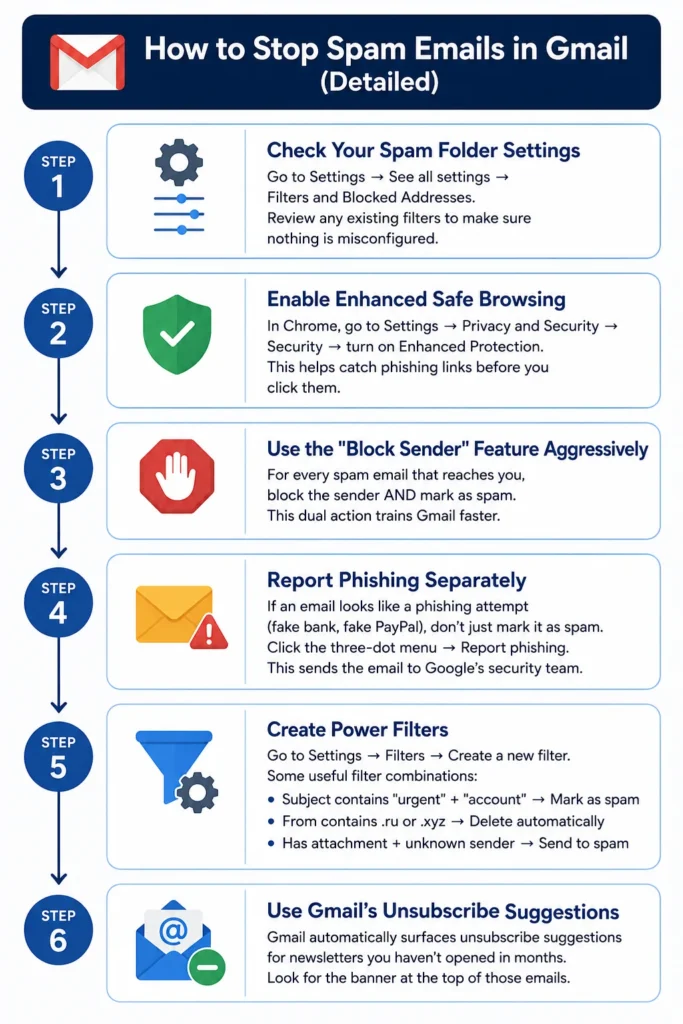
How to Stop Spam Emails in Gmail (Detailed)
Gmail is one of the best email platforms for spam filtering, but there are some extra steps power users swear by.
Step 1: Check Your Spam Folder Settings Go to Settings → See all settings → Filters and Blocked Addresses. Review any existing filters to make sure nothing is misconfigured.
Step 2: Enable Enhanced Safe Browsing In Chrome, go to Settings → Privacy and Security → Security → turn on Enhanced Protection. This helps catch phishing links before you click them.
Step 3: Use the “Block Sender” Feature Aggressively For every spam email that reaches you, block the sender AND mark as spam. This dual action trains Gmail faster.
Step 4: Report Phishing Separately If an email looks like a phishing attempt (fake bank, fake PayPal), don’t just mark it as spam. Click the three-dot menu → Report phishing. This sends the email to Google’s security team.
Step 5: Create Power Filters Go to Settings → Filters → Create a new filter. Some useful filter combinations:
- Subject contains “urgent” + “account” → Mark as spam
- From contains
.ruor.xyz→ Delete automatically - Has attachment + unknown sender → Send to spam
Step 6: Use Gmail’s Unsubscribe Suggestions Gmail automatically surfaces unsubscribe suggestions for newsletters you haven’t opened in months. Look for the banner at the top of those emails.
How to Stop Spam Emails on iPhone (Detailed)
iPhone users deal with spam across multiple email apps. Here’s how to handle each:
iCloud Mail (on web or iPhone):
- Open icloud.com/mail on a browser, or open the Mail app
- Select a spam email
- Click/tap Move to Junk (on web) or swipe left → More → Move to Junk (on iPhone)
- Apple learns from this and improves filtering over time
Apple Mail App:
- Go to Settings → Mail → Threading and enable Move Discarded Messages into Trash (this cleans up your junk flow)
- In the Mail app, go to Mailboxes and check your Junk folder regularly — sometimes legitimate emails land there
Gmail App on iPhone: The Gmail app on iPhone works exactly like Gmail on desktop for spam reporting:
- Open the email
- Tap the three-dot menu → Report spam
Pro Tip for iPhone: Go to Settings → Mail → Block Sender Options and set it to Move to Trash. This way, blocked contacts’ emails disappear entirely rather than piling up in Junk.
How to Stop Spam Emails in Outlook
Outlook (both the desktop app and Outlook.com) has solid spam protection when configured correctly.
Step 1: Set Junk Email Filter to High
- In Outlook.com: Settings → Mail → Junk email → Filters → Set to Exclusive (only emails from your Safe Senders list get through — aggressive but effective)
- In Outlook desktop: Home → Junk → Junk E-mail Options → Set to High
Step 2: Block Senders
- Right-click any spam email
- Junk → Block Sender The sender is added to your Blocked Senders list permanently.
Step 3: Add to Blocked Senders List in Bulk
- Go to Settings → Mail → Junk email → Blocked senders and domains
- You can manually type in whole domains (like
@spamsource.net) to block everything from that domain at once
Step 4: Report Phishing
- Select the email
- Click Report in the toolbar (Outlook.com) or the Phishing button (if using Microsoft 365)
- This sends the email to Microsoft’s security team
Step 5: Use Rules to Auto-Manage Spam In Outlook.com:
- Settings → View all Outlook settings → Mail → Rules → Add new rule
- Set conditions and actions (e.g., “If subject contains ‘winner’ → delete”)
How to Stop Spam Emails in Yahoo Mail
Yahoo Mail has been a particular target for spammers for years. Here’s how to tighten it up:
Step 1: Mark Emails as Spam
- Select the email, click More (three dots) → Mark as spam
- Or click the Spam button in the toolbar
Step 2: Block Senders
- Open the email
- Tap the three-dot menu → Block senders Yahoo will ask whether to also delete existing emails from that sender — say yes
Step 3: Set Up Filters
- Go to Settings → More Settings → Filters → Add new filters
- Create rules based on sender, subject, or keywords
- Choose where filtered emails go (spam folder, trash, etc.)
Step 4: Enable Two-Factor Authentication If spammers have gotten into your Yahoo account (it happens), enable 2FA immediately. Go to Account Security → Two-step verification. This prevents unauthorized access even if someone has your password.
Step 5: Check Third-Party App Access Some spam originates from apps connected to your Yahoo account. Go to Account Security → Recent activity and revoke access from any apps you don’t recognize.
How to Stop Emails From Going to Spam (For Senders)
If you’re on the other side — sending emails that keep landing in spam — here’s what you need to know.
This happens for several reasons:
1. Authentication Is Missing Email authentication protocols tell receiving servers that your email is legitimate. You need:
- SPF (Sender Policy Framework) — tells servers which IPs are allowed to send from your domain
- DKIM (DomainKeys Identified Mail) — adds a digital signature to your emails
- DMARC — tells servers what to do if SPF or DKIM fails
If you’re sending from Gmail or Outlook personally, these are already handled. If you’re sending from a website or business email, check with your hosting provider.
2. Your Sender Reputation Is Low If people frequently mark your emails as spam, your sender “reputation score” drops. Email providers then automatically filter your messages. Fix this by:
- Only emailing people who explicitly opted in
- Removing inactive subscribers from your list
- Making it easy to unsubscribe
3. Spam Trigger Words Certain words and phrases in subject lines trigger spam filters: “FREE!!!”, “Act NOW”, “Click here”, “Guaranteed”, “No risk”. Avoid these.
4. Sending Too Many Emails at Once Suddenly blasting thousands of emails from a new domain looks suspicious. Warm up new domains by sending in small batches first.
5. HTML Formatting Issues Emails with broken HTML, too many images and no text, or suspicious tracking pixels can get flagged. Balance your image-to-text ratio and test before sending.
Best Free Tools to Block Spam Emails in 2026
| Tool | Best For | Free Plan | Pros | Cons |
|---|---|---|---|---|
| Gmail Filters | Gmail users | ✅ Yes | Built-in, powerful, easy to set up | Only works in Gmail |
| Clean Email | Inbox organization | ✅ Limited | Bulk unsubscribe, smart views | Full features require paid plan |
| MailWasher | Desktop email users | ✅ Basic | Preview emails before download, bounce spam | Interface feels dated |
| Proton Mail | Privacy-focused users | ✅ Yes | End-to-end encryption, strong spam filter | Storage limited on free plan |
| Outlook Protection | Outlook users | ✅ Yes | Microsoft Defender integration, phishing detection | Best features need Microsoft 365 |
| Apple Hide My Email | iPhone/Mac users | ✅ with iCloud+ | Hides real address, easy setup | Requires iCloud+ subscription ($0.99/mo) |
| Temp Mail | One-time signups | ✅ Yes | Instant disposable address, no signup | Emails expire quickly |
Best overall for beginners: Stick with your email provider’s built-in tools (Gmail filters, Outlook junk settings) and supplement with Clean Email if you need bulk cleanup. If privacy is your priority, consider switching to Proton Mail entirely.
Common Spam Email Scams in 2026
Spammers evolve fast. Here are the most common scams filling inboxes right now:
1. Fake McAfee / Norton Renewal Emails These look exactly like real antivirus renewal notices. They claim your subscription has expired and charge you $299 for “auto-renewal.” The goal: get you to call a phone number or click a link where they steal your credit card. McAfee and Norton will never ask you to verify payment details via email.
2. Fake PayPal Invoices You get an invoice from “PayPal” saying you owe $500 for a product you never ordered. They include a phone number to “dispute the charge.” That number goes to a scammer. Never call numbers from unexpected invoices — log into PayPal directly to check your account.
3. Fake Bank Alerts “Unusual activity detected on your account. Click here to verify.” The link goes to a website that looks identical to your bank but steals your login credentials. Your bank will never ask you to click an email link to verify your account.
4. Crypto Investment Scams “I made $47,000 last week with this one trick.” These often come from people impersonating celebrities or financial advisors. In 2026, AI-generated videos (deepfakes) are now being paired with these emails to make them look more credible.
5. Package Delivery Scams A text or email from “FedEx” or “DHL” says your package can’t be delivered unless you pay a small customs fee. You click, enter your card details, and lose money. Always track packages directly on the courier’s official website.
6. AI-Generated Phishing Emails This is the scariest trend in 2026. Scammers use AI tools to craft phishing emails that reference your real name, employer, recent purchases, or social media posts. They sound uncannily personal and believable. If any email — no matter how convincing — asks you to click a link or provide credentials, verify by contacting the company directly.
What You Should NEVER Do
⛔ Never click a link in an email you weren’t expecting — even if it looks real. Go directly to the website by typing it in your browser.
⛔ Never open attachments from unknown senders — especially .exe, .zip, .docx, or .pdf files from emails you weren’t expecting.
⛔ Never call a phone number listed in a suspicious email — scammers use these to run “tech support” fraud.
⛔ Never reply to spam — even to say “stop emailing me.” This confirms your address is active.
⛔ Never unsubscribe from emails you don’t recognize — the unsubscribe link can be a trap.
⛔ Never share your email password — with anyone, including people claiming to be tech support.
⛔ Never use your main email for every signup — use an alias or temporary email for apps and websites you don’t fully trust.
⛔ Never trust email addresses at face value — always check the actual email domain, not just the display name.
Frequently Asked Questions
Q: Why am I suddenly getting lots of spam emails?
A: The most likely reason is that your email address appeared in a recent data breach, or you signed up on a website that sold your data. You can check if your address has been leaked at HaveIBeenPwned.com. Spammers in 2026 also use AI to generate high-volume campaigns targeting millions of addresses simultaneously, so bursts of spam are increasingly common.
Q: Can spam emails hack my phone?
A: Simply receiving a spam email won’t hack your phone. However, clicking a malicious link or downloading an infected attachment can install malware. Never tap links in suspicious emails, even on mobile.
Q: Is it safe to unsubscribe from spam emails?
A: It depends. If the email is from a company you recognize (a real store, a newsletter you signed up for), unsubscribing is safe. If you don’t recognize the sender or the email looks suspicious, do NOT click unsubscribe — it can confirm your address is active and lead to more spam.
Q: How do I permanently stop spam emails?
A: There’s no single magic switch, but combining these steps gets close: consistently mark spam as spam, block repeat senders, set up strong filters, use an alias email for signups, and consider switching to a privacy-focused provider like Proton Mail. The key is ongoing maintenance — not a one-time fix.
Q: Why are my legitimate emails going to spam?
A: This usually happens due to missing email authentication (SPF, DKIM, DMARC), a low sender reputation, spam trigger words in subject lines, or sending to unengaged recipients. For personal emails, make sure you’re not sending huge batches at once.
Q: How do I stop spam emails on Gmail?
A: Mark spam emails using the Report Spam button, block senders through the three-dot menu, set up custom filters in Gmail Settings, and use Gmail’s built-in unsubscribe feature for newsletters. Enable Enhanced Safe Browsing in Chrome for extra protection.
Q: How do I stop spam emails on iPhone?
A: In the Apple Mail app, swipe left on the email → More → Move to Junk. Go to Settings → Mail → Block Sender Options and set it to Move to Trash. For Gmail on iPhone, use the three-dot menu → Report spam. Apple’s Hide My Email feature (available with iCloud+) is one of the best long-term solutions.
Q: What’s the difference between spam and phishing?
A: Spam is bulk junk mail — annoying but usually not immediately dangerous. Phishing is a targeted cyberattack disguised as a legitimate email, designed to steal your password, financial info, or personal data. Phishing emails are much more dangerous and should be reported, not just marked as spam.
Q: Will blocking an email address stop all spam?
A: Not entirely. Blocking stops that specific sender address, but spammers often rotate through many addresses. Blocking works best as part of a broader strategy that includes filters, alias emails, and consistent spam reporting.
Q: How do I stop spam emails in Outlook?
A: Set your Junk Email filter to High (or Exclusive), right-click spam emails and select Block Sender, add whole domains to your Blocked Senders list, and create rules to auto-delete emails matching certain criteria. Reporting phishing separately (via the Report button) helps Microsoft improve filtering for everyone.
Q: Are there free tools to block spam emails?
A: Yes. Gmail, Outlook, Yahoo, and Apple Mail all have free built-in spam filtering that works well when configured correctly. Third-party tools like Clean Email (limited free plan), Proton Mail (free tier), and Temp Mail (disposable addresses) add extra layers without costing anything.
Conclusion
Spam emails aren’t going away — if anything, they’re getting smarter and more personalized in 2026 thanks to AI tools that help scammers craft convincing fakes at scale. But the good news is that you have more control than you think.
To recap the most important steps to stop spam emails:
- Mark every spam email as spam — don’t just delete it
- Block repeat offenders in Gmail, Outlook, Yahoo, or your iPhone’s Mail app
- Unsubscribe from legitimate newsletters, but never click unsubscribe on suspicious emails
- Set up filters and rules to auto-sort or delete common spam patterns
- Use an alias or disposable email for website signups
- Use Apple’s Hide My Email if you’re on iPhone and use iCloud+
- Report phishing separately so it reaches security teams at Google, Microsoft, or Apple
- Stay skeptical of any urgent email asking you to click a link or provide personal info
Good email hygiene takes about ten minutes to set up and saves hours of frustration. Share this guide with someone who’s always complaining about their inbox — they’ll thank you for it.