25+ Best Free AI Productivity Tools to Transform Your Workflow in 2026
What are the best free AI productivity tools?
The best free AI productivity tools are ChatGPT for versatile assistance, Grammarly for writing polish, Canva for design, Notion AI for task management, Fathom for meeting notes, Perplexity for research, and Make for automation. These tools work on generous free plans and save serious time when used together.
The modern workday feels like an endless race against a to‑do list that regenerates overnight. Emails pile up, meetings eat into deep‑work hours, and the sheer volume of small repetitive tasks drains energy that should be spent on meaningful projects. For entrepreneurs juggling sales, marketing, and product development, for students balancing classes and side hustles, and for freelancers who are their own IT, HR, and finance departments—the pressure never lets up. And in the background, information overload makes it harder than ever to focus.
Over the past three years, artificial intelligence has quietly turned from a curiosity into the most practical productivity partner most of us will ever have. AI productivity tools can now draft a proposal while you sip your morning coffee, transcribe a client meeting while you listen and engage, automatically sort your inbox into a project board, and generate a full slide deck from a single paragraph. They don’t just make work faster; they remove the mental friction that makes work feel heavy.
What makes this moment particularly exciting is that many of the very best AI productivity tools are completely free. You no longer need a corporate software budget to access powerful language models, meeting assistants, workflow automations, and design engines. The freemium model has matured to the point where free tiers are genuinely useful—often delivering 80% or more of the value of the paid versions. This means you can experiment, build a personal productivity stack, and significantly upgrade the way you work without spending a single dollar.
In this guide, we’ll walk you through more than 25 carefully evaluated free AI productivity tools. You’ll learn exactly how they work, which ones fit your specific role, how to combine them into time‑saving workflows, and how to avoid the common mistakes that leave people drowning in too many apps. Whether you’re a complete AI beginner or a productivity obsessive looking for your next edge, you’ll leave with a clear, actionable plan to reclaim hours of your week.
What Are AI Productivity Tools?
AI productivity tools are software applications that use artificial intelligence—large language models, machine learning, natural language processing, computer vision, and automation algorithms—to help you complete tasks faster, make better decisions, and reduce manual effort. Unlike traditional software that follows rigid rules, these tools can understand context, generate original content, and even adapt to your personal working style.
Think of them as a digital Swiss Army knife that can write, design, summarize, organize, and automate. For example, ChatGPT can turn a bullet‑point outline into a full client email. Once you master the basics, you can even automate professional emails so they’re sent at the perfect moment without any extra clicks. Grammarly doesn’t just catch typos; it can rewrite a sentence to sound more confident. Fathom listens to your Zoom meeting and produces a summary with action items more accurate than the notes you’d scribble while half‑listening.
Under the hood, most free AI productivity tools are cloud‑based and operate on a freemium model. The AI models that power them—such as OpenAI’s GPT‑4o, Anthropic’s Claude 3.5 Sonnet, or Google’s Gemini 1.5 Flash—are hosted on massive server clusters. When you type a prompt, the tool sends it to the model, which predicts the most useful response based on patterns learned from enormous datasets. The free tier typically gives you a generous monthly quota of these AI interactions, with paid plans unlocking higher limits or specialized features.
Common use cases cut across nearly every professional activity. Writers use AI to overcome blank‑page paralysis and polish drafts. Students use it to create study guides from lecture PDFs and to research with cited sources. Small business owners automate client onboarding and generate marketing visuals without hiring a designer. Remote workers capture meeting insights without splitting their attention. In each case, the core benefit is the same: less time spent on low‑value admin, more mental energy for the work that actually moves the needle.
Of course, free AI tools come with real limitations. Usage caps mean you can’t run them 24/7. Output quality can fluctuate, and they occasionally produce confident but incorrect information—so human oversight remains essential. Privacy is another consideration; some free tools train on your data, though you can often opt out. Despite these trade‑offs, for the vast majority of individuals and small teams, free AI productivity tools represent an extraordinary force multiplier that simply didn’t exist a few years ago.
How We Evaluated These Tools
With thousands of AI tools flooding the market, a simple list of names would be useless. We built this guide on a rigorous, hands‑on evaluation framework designed to surface only the tools that genuinely make you more productive—without wasting your time or money. Here are the eight criteria we applied to every tool that made the final cut.
Ease of Use
A productivity tool that requires a manual is a failure. We prioritized tools that let you accomplish something valuable within the first five minutes. ChatGPT’s simple chat interface, Canva’s drag‑and‑drop canvas, and Fathom’s automatic meeting detection all scored highly because they remove barriers to entry. Why it matters: A tool you don’t use because it’s confusing delivers zero productivity.
Learning Curve
While some tools, like n8n, offer deep power under the hood, we asked whether the learning curve was justified. We gave extra points to tools that help you learn as you go—through templates, guided workflows, or integrated tutorials. A moderate curve is acceptable if the long‑term payoff is enormous, but only if the free tier gives you enough room to become proficient without pressure to upgrade.
Free Plan Generosity
This was the most heavily weighted criterion. We looked for tools where the free tier is a legitimate long‑term option, not a crippled trial. Factors included the number of monthly AI actions, storage limits, feature availability, and whether core functionality is locked behind a paywall. For example, Fathom’s free plan offers unlimited recording and AI summaries, while Otter.ai limits meetings to 30 minutes—a crucial distinction for anyone with hour‑long client calls.
Productivity Impact
We measured productivity impact by asking a simple question: How many hours does this tool realistically save a typical user each week? We favored tools with measurable, repeatable time savings. A tool like Make can easily reclaim five hours a week by automating data entry, whereas a tool that only occasionally saves a few minutes is harder to recommend.
Automation Features
Truly productive systems run in the background. We looked for tools that can trigger actions automatically, connect to other apps, and run on schedules. Platforms like Zapier and Make scored highly because they replace human involvement entirely for many routine tasks. Even within individual tools, features like ClickUp’s AI‑generated subtasks or Grammarly’s real‑time corrections automate mental micro‑processes.
Integrations
A tool that doesn’t talk to the rest of your stack creates friction. We evaluated how easily each tool slots into common ecosystems—Google Workspace, Microsoft 365, Slack, CRM platforms, and project management suites. Seamless integrations reduce copy‑pasting and context switching, which is where huge time leaks happen.
User Reviews
We aggregated sentiment from G2, Trustpilot, app stores, and Reddit communities. We paid particular attention to feedback about free tier reliability, hidden limits, and the quality of customer support. Tools with consistent praise for long‑term free usability scored higher than those that frustrated users after the first week.
Long‑Term Value
Even though this guide focuses on free plans, we considered what happens when you eventually need more. Does the tool have a reasonably priced upgrade path, or does the price jump aggressively? Are there educational or nonprofit discounts? Tools that respect their users with fair pricing earned bonus points, because we want to recommend software you can grow with, not ditch the moment your needs expand.
This evaluation framework ensures that every tool in this guide has been stress‑tested for real‑world productivity. We didn’t just read marketing pages; we built test workflows, sat through meetings, wrote articles, and ran automations. The result is a curated collection you can trust.
Best Free AI Productivity Tools
Below is our definitive ranked list of the best free AI productivity tools. The ranking reflects a balance of free plan generosity, versatility, productivity impact, and overall reliability. Every tool has been selected because it can meaningfully change the way you work—starting today, for zero cost.
1. ChatGPT
Overview
ChatGPT, from OpenAI, is the most widely used AI assistant in the world for good reason. The free tier gives you access to the powerful GPT‑4o model (with periodic caps) and the older but perfectly serviceable GPT‑3.5. It can write, brainstorm, summarize, debug code, analyze uploaded files, and more—making it the closest thing to a universal productivity sidekick. Over 200 million people use it weekly, and its rapid iteration cycle means it keeps getting better. For anyone looking to dip a toe into AI‑powered productivity, ChatGPT is the obvious first stop.
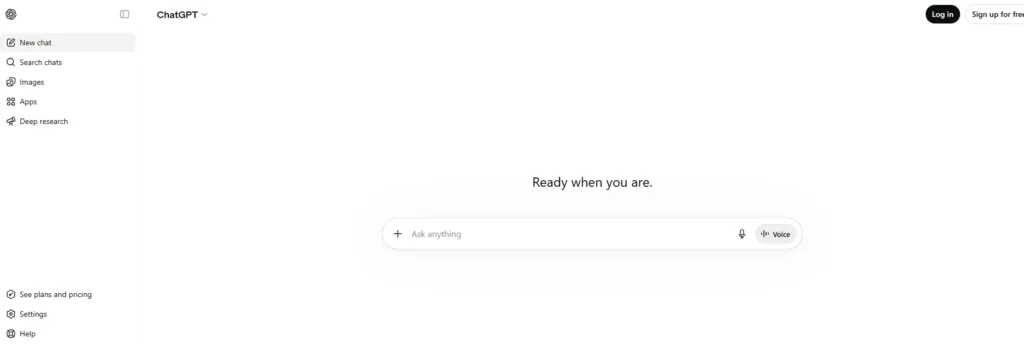
The beauty of ChatGPT is its raw flexibility. You don’t need to learn a new interface or figure out templates. You simply type what you need, and the model does its best to deliver. Whether you’re a student who needs a complex topic broken down into simple bullet points, a freelancer drafting a statement of work, or an entrepreneur brainstorming product names, ChatGPT adapts to the moment. The recently added file upload and vision capabilities (on the free tier, within limits) extend this even further: you can take a photo of a whiteboard and ask it to turn the scribbles into a structured meeting note.
Key Features
- Natural language chat across virtually any domain.
- File upload and image analysis with GPT‑4o, enabling it to read PDFs, spreadsheets, and photos.
- Web browsing capability (limited in free tier) to pull in recent information.
- Custom instructions that let you set persistent preferences—say, always respond in a professional tone and use bullet points.
- Memory across conversations (can be turned off) that learns your context over time.
- Extensive prompt library shared by the community.
Best Use Cases
- Generating first drafts of emails, blog posts, social media captions, and reports.
- Summarizing long documents or meeting transcripts.
- Brainstorming ideas, titles, or strategies.
- Learning new topics through Socratic dialogue.
- Writing and debugging code in Python, JavaScript, and more.
- Translating and rewriting content for different audiences.
Free Plan Analysis
The free plan is genuinely powerful. You get unlimited access to GPT‑3.5, which is fast and capable for straightforward tasks. GPT‑4o is available but with message caps that vary based on demand; during peak hours, you might be temporarily switched to GPT‑3.5 after hitting the limit. File uploads, vision, and browsing are included, though less generous than on the $20/month Plus plan. The free tier also lacks the ability to create custom GPTs (specialized AI agents). For most individuals, the free tier is more than enough for daily productivity, provided you use GPT‑3.5 as the workhorse and save GPT‑4o for complex reasoning tasks.
Advantages
- Unmatched versatility—no other tool covers this breadth.
- Zero learning curve; you can be productive in seconds.
- Constantly improving; new features roll out to free users over time.
- Excellent mobile apps for on‑the‑go productivity.
Drawbacks
- GPT‑4o caps can be frustrating during intense work sessions.
- Can produce plausible but incorrect information; verification required.
- Privacy concerns for sensitive data; you may want to opt out of training data usage.
- Limited context window compared to some competitors like Claude for very long documents.
- The free plan doesn’t allow you to create custom GPTs—specialized AI agents that can automate niche tasks. However, you can learn about creating custom GPTs and what becomes possible if you later upgrade to ChatGPT Plus.
Ideal User
Everyone. If you only use one AI tool, make it ChatGPT. It’s the foundation upon which most AI productivity workflows are built.
Productivity Impact
A typical user can save 5–10 hours a week by offloading drafting, research, and summarization. Automation opportunities expand when combined with other tools via Zapier or Make.
Alternatives
Claude (better for long documents), Google Gemini (tighter Google integration), Microsoft Copilot (stronger within Edge), Perplexity (better for research with citations).
Final Verdict
ChatGPT is the gold standard of free AI productivity. Start here, build your workflow around it, and only look for specialized tools when you hit specific limits. 5/5 stars.
2. Grammarly
Overview
Grammarly is the writing assistant that 30 million people and 50,000 teams rely on daily. Its free tier goes far beyond simple spell‑checking to offer real‑time grammar, punctuation, and conciseness suggestions, along with tone detection and clarity improvements. The tool lives as a browser extension, desktop app, mobile keyboard, and integration with Google Docs, Microsoft Word, and virtually any text field on the web. This ubiquity means it improves your writing everywhere—from a quick Slack message to a 2,000‑word blog post.
What sets Grammarly apart is how it subtly teaches you to become a better writer. It doesn’t just fix mistakes; it explains why a comma should go there or why a passive construction weakens your argument. Over months, you internalize these lessons, and the quality of your first drafts improves even before the AI touches them. For non‑native English speakers, Grammarly is a lifeline that builds confidence in professional communication.
Key Features
- Advanced grammar and spelling check that catches contextual errors (e.g., “affect” vs. “effect”).
- Tone detector that tells you how your message might land—formal, friendly, confident, etc.
- Clarity and conciseness suggestions that reword wordy phrases.
- Full‑sentence rewrites (Premium) for style and fluency.
- Plagiarism checker (Premium).
- Personal dictionary and language preferences.
Best Use Cases
- Polishing business emails and proposals before sending.
- Ensuring academic essays and reports are error‑free.
- Improving the readability of blog posts and marketing copy.
- Maintaining a consistent, professional voice across team communications.
Free Plan Analysis
The free plan delivers the core value: it eliminates embarrassing errors and improves clarity. You get basic grammar, spelling, punctuation, and conciseness checks, plus tone detection. What you don’t get are full‑sentence rewrites, plagiarism detection, or style‑guide enforcement. For most casual business writing and student work, the free plan is entirely sufficient. The paid plan is best for heavy writers who produce thousands of words daily and need advanced tone adjustment.
Advantages
- Works seamlessly across nearly every platform.
- Saves enormous editing time; you catch errors as you type, not in a separate pass.
- The tone detector prevents miscommunication in delicate emails.
- Generous free tier that doesn’t pressure you constantly.
Drawbacks
- Requires an internet connection; offline support is limited.
- Can sometimes over‑correct casual or creative writing, stifling voice.
- Premium features are genuinely useful, making the upgrade tempting.
Ideal User
Anyone who writes digital text professionally or academically—freelancers, students, marketers, and customer‑facing roles.
Productivity Impact
Easily saves 30–60 minutes a week just from reducing re‑reads and corrections. For content creators, the time saved compounds significantly.
Alternatives
ProWritingAid (deeper analysis, limited free tier), LanguageTool (open‑source alternative), Hemingway App (free readability focus).
Final Verdict
Grammarly is the one browser extension we insist every reader install. The free plan is an immediate productivity booster. 5/5 stars.
3. Fathom
Overview
Fathom is an AI meeting assistant that solves one of the most persistent productivity drains: taking notes during video calls. Unlike Otter.ai, which limits free meetings to 30 minutes, Fathom’s free plan offers unlimited recording and AI‑powered summaries for Zoom, Microsoft Teams, and Google Meet. It works by having a lightweight bot join your call, record it, and then generate a structured summary complete with highlights, action items, and next steps. The result: you stay fully present in conversations while Fathom does the documentation.
The tool’s interface is exceptionally polished. After a call, you get an email with the summary, and you can view a searchable, time‑stamped transcript in the Fathom dashboard. You can also create highlight clips by pressing a hotkey during a call—ideal for capturing a key decision or funny moment. For client‑facing professionals, the ability to share a clean summary instantly elevates your perceived reliability.
Key Features
- Unlimited recording and AI summarization on the free plan.
- Action item detection that automatically extracts tasks and owners.
- Highlight moments with a shortcut, automatically clipped and timestamped.
- Playback at 1x/1.5x/2x and click‑to‑jump‑to‑transcript navigation.
- Integrations with HubSpot, Salesforce, Slack, and Notion (some paid).
- Automatic join for scheduled meetings.
Best Use Cases
- Client meetings where you need accurate notes but can’t afford split attention.
- Sales calls requiring CRM logging without manual data entry.
- Team stand‑ups to capture decisions and share with async members.
- Interviews and user research sessions where verbatim quotes matter.
Free Plan Analysis
Fathom’s free tier is remarkably generous. You get unlimited recordings with no time limits, full AI summaries, and the core highlight and search features. Paid plans unlock integrations with CRM, Zapier, and advanced coaching analytics, but the free plan already covers the essential meeting‑capture workflow. For anyone who attends more than a couple of meetings a week, this is a standout free tool.
Advantages
- The best free‑plan value in the AI meeting assistant category.
- Clean, intuitive UI that doesn’t require training.
- Summary quality is excellent—often better than human notes.
- Real‑time highlight feature is invaluable for creating reference clips.
Drawbacks
- Only works with Zoom, Teams, and Google Meet (not in‑person meetings).
- CRM integrations require a paid plan.
- Advanced analytics and coaching feedback are gated.
Ideal User
Freelancers, coaches, remote workers, and consultants who want to stop taking notes and start being present.
Productivity Impact
Saves 1–3 hours per week from note‑taking and post‑meeting documentation. The elimination of context‑switching during calls also improves meeting quality.
Alternatives
tl;dv (similar unlimited free tier, strong for async teams), Fireflies.ai (good free transcription but more limited AI summaries), Otter.ai (free tier constricted to 30‑min meetings).
Final Verdict
Fathom is a hidden gem that delivers premium‑grade meeting intelligence on a truly free plan. We recommend it without hesitation. 5/5 stars.
4. Canva
Overview
Canva has evolved from a simple graphic design tool into a full‑fledged visual communication platform with AI baked into every corner. Its free plan gives you access to Magic Write (AI copy generation), Magic Design (auto‑generated templates from a prompt), background remover, and an AI image generator powered by stable diffusion. Combined with a library of over a million free photos, illustrations, and templates, Canva enables anyone to create professional‑looking social media graphics, presentations, posters, and even simple videos in minutes.
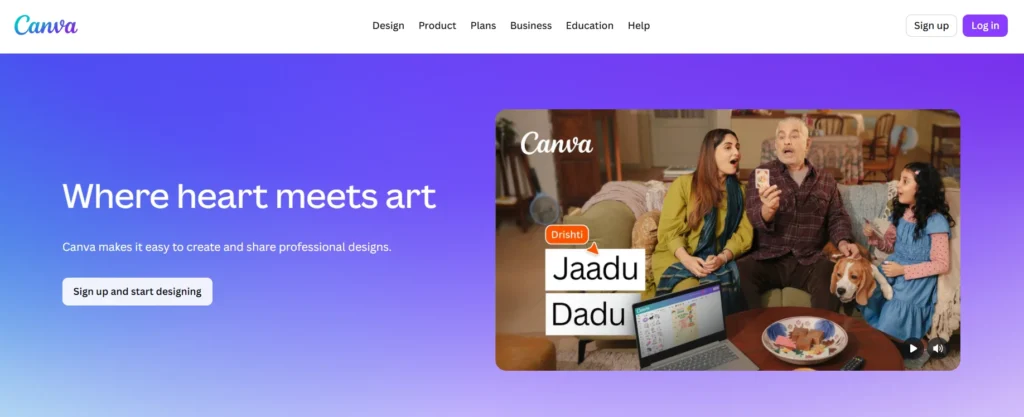
The AI features aren’t gimmicks; they genuinely speed up the design process. Tell Magic Design you need an Instagram post for a summer sale, and it generates several on‑brand options you can tweak. Use Magic Write to draft the caption without leaving the editor. The background remover, once a tedious manual task, now works with one click. For content creators and small business owners who don’t have a design team, Canva is a force multiplier.
Key Features
- Magic Design generates full designs from text descriptions.
- Magic Write for on‑canvas AI copywriting.
- AI image generator (text‑to‑image) with various style presets.
- Background remover for images.
- Brand kit (limited in free) for consistent colors and fonts.
- Video editor with stock footage and animations.
Best Use Cases
- Creating a week’s worth of social media posts in one sitting.
- Building pitch decks and presentations without starting from scratch.
- Designing flyers, brochures, and event invitations.
- Producing YouTube thumbnails and channel art.
Free Plan Analysis
The free tier is excellent for personal and small‑business use. You get 5GB of cloud storage, access to all core AI features (with daily usage limits), and thousands of free templates and elements. Premium stock photos and some advanced AI credits are behind the paywall, but you can absolutely operate a full content engine on the free plan. The daily AI generation limit resets, so it’s best to batch your design work.
Advantages
- Extremely beginner‑friendly; anyone can produce beautiful visuals.
- AI features are deeply integrated and actually useful.
- Huge template library reduces start‑from‑scratch fatigue.
- Collaborative features let teams work together.
Drawbacks
- Many premium elements are locked, requiring careful template selection.
- AI generation limits can be hit quickly if you’re designing heavily.
- Advanced export options and resizing require Pro.
Ideal User
Content creators, social media managers, small business owners, and educators who need quick, polished visual content.
Productivity Impact
Can reduce graphic design time by 70–90%. A task that previously took hours can now be completed in 20 minutes.
Alternatives
Adobe Express (strong AI with Firefly, similar free tier), VistaCreate (formerly Crello, generous free stock assets), Figma (more UI/UX focused, free for individuals).
Final Verdict
Canva is the visual productivity powerhouse every non‑designer should have bookmarked. The free plan is genuinely useful and keeps getting better. 5/5 stars.
5. Claude
Overview
Claude, built by Anthropic, is an AI assistant that excels where depth, nuance, and safety matter. The free tier gives you access to Claude 3.5 Sonnet, a model known for its exceptional long‑context handling—up to 200,000 tokens, equivalent to roughly 150,000 words. This means you can upload entire book manuscripts, lengthy contracts, or multiple research papers and have Claude analyze, summarize, and answer questions across the entire corpus. Its reasoning is methodical, and it tends to hallucinate less than many peers.
While ChatGPT goes for breadth, Claude goes for depth. The writing style is more thoughtful and less generic, making it a favorite among writers, analysts, and academics. It handles complex multi‑step instructions with grace and can generate structured documents like legal brief summaries or literature reviews with a level of care that feels more like a human colleague than an AI.
Key Features
- 200K token context window—ideal for massive document analysis.
- File uploads for PDFs, Word docs, and text files.
- Thoughtful, nuanced prose with strong structure.
- Strong reasoning for complex, multi‑factorial questions.
- Safety‑oriented design with reduced harmful outputs.
Best Use Cases
- Summarizing and querying long legal contracts.
- Analyzing qualitative research data.
- Drafting long‑form articles and essays with sophisticated argumentation.
- Conducting due diligence on large document sets.
Free Plan Analysis
The free tier provides access to the latest Sonnet model but with usage limits. You get a set number of messages per day, which is usually generous enough for several deep analysis sessions. The caps tighten during peak hours. File uploads are included, but you can’t use the Projects feature (which lets you group conversations and knowledge) without a Pro subscription. The free plan is best for sporadic deep work rather than constant chat.
Advantages
- Handles enormous amounts of text in a single prompt.
- Output quality is intellectually rigorous and well‑structured.
- Lower hallucination rate than many alternatives on factual material.
- Excellent for academic and professional writing.
Drawbacks
- No web browsing in the free tier; knowledge cutoff applies.
- Usage limits can be restrictive for daily heavy use.
- Fewer integrations than ChatGPT.
Ideal User
Researchers, lawyers, analysts, and writers who regularly work with long documents and need trustworthy AI‑generated insights.
Productivity Impact
A single Claude session can replace hours of manual reading and note‑taking. For tasks like contract review, the time savings are immense.
Alternatives
ChatGPT (more versatile, better browsing), NotebookLM (also handles documents but source‑grounded), Perplexity (for web‑based research).
Final Verdict
Claude is the deep‑work specialist. If your productivity bottleneck is synthesizing long, complex information, its free tier is a game‑changer. 4.5/5 stars.
6. Perplexity
Overview
Perplexity positions itself as an AI‑powered answer engine, and it delivers. Unlike a traditional chatbot, every response comes with inline citations to real web sources, making it an indispensable tool for quick, verifiable research. The free plan offers unlimited “Quick” searches and a handful of “Pro” searches (which use more advanced reasoning) every few hours. The interface is clean, fast, and ad‑free, and the mobile app is exceptionally well‑designed.
For anyone who has ever spent 20 minutes clicking through Google results to find a simple statistic, Perplexity is a revelation. Ask, “What is the current market share of electric vehicles in Europe?” and you get a concise paragraph summarizing the data, with clickable footnotes linking to the source reports. This level of traceability makes it a favorite among students, journalists, and business analysts who need to back up claims with evidence.
Key Features
- Real‑time web search with cited answers.
- Copilot (limited Pro searches) that asks clarifying questions.
- Collections to organize research threads.
- File upload for document analysis (PDF).
- Image generation via stable diffusion integration.
Best Use Cases
- Rapid competitor and market research.
- Finding statistics and facts for blog posts and presentations.
- Answering complex questions that require synthesizing multiple web pages.
- Pre‑reading literature reviews where citation is critical.
Free Plan Analysis
The free tier is surprisingly capable. Unlimited Quick searches mean you can use it as your default research companion all day. The Pro searches are limited to 5 every 4 hours, which is sufficient for deep dives. You don’t get unlimited file uploads or the most advanced models, but for pure web‑grounded Q&A, the free plan is outstanding.
Advantages
- Citations build trust and save fact‑checking time.
- Lightning‑fast results.
- Clean, distraction‑free UI.
- Excellent mobile experience.
Drawbacks
- Not designed for creative writing or coding.
- Pro searches deplete quickly for heavy research sessions.
- Can sometimes miss nuances that a human researcher would catch.
Ideal User
Students, journalists, consultants, and content creators who need accurate, cited information fast.
Productivity Impact
Cuts research time by 50–70% for fact‑finding tasks. Reduces tab overload and the temptation to fall down search rabbit holes.
Alternatives
Google Gemini (search integration but fewer citations), ChatGPT with browsing (paid), Microsoft Copilot (Bing search).
Final Verdict
Perplexity is the research accelerator every knowledge worker needs. The free tier makes it an easy permanent addition to your toolkit. 4.5/5 stars.
7. Notion AI (with Free Workspace)
Overview
Notion is the beloved all‑in‑one workspace for notes, tasks, databases, and wikis. Its AI add‑on brings generative AI directly into your pages: summarize meeting notes, generate action items, draft blog outlines, translate content, and even write in custom tones. While the AI add‑on typically costs $10/month, Notion’s free Education plan gives students full AI access at no cost, and new individual users often receive a generous free trial of AI features. Even without AI, Notion’s free plan is a productivity powerhouse for personal organization.
The real magic of Notion AI is context. Because it sits inside your existing workspace, it can summarize a database of tasks, generate a project update from a set of meeting notes, or draft a social media post based on a product spec—all without you copying and pasting between tools. This tight integration reduces friction and keeps your focus inside one digital environment.
Key Features
- AI writing and editing inside any Notion page.
- AI summarization of long documents and meeting notes.
- Translation across multiple languages.
- Brainstorming and idea generation.
- Custom AI prompts to automate repetitive content tasks.
- Databases, calendars, and task management.
Best Use Cases
- Building a personal knowledge base (“second brain”).
- Managing projects with AI‑generated task breakdowns.
- Taking meeting notes and instantly converting them into action items.
- Creating content calendars and drafting social posts.
Free Plan Analysis
The free Notion workspace gives you unlimited pages and blocks, 5MB file uploads, and sharing with up to 10 guests. AI features are available as a limited trial or via the Education plan. For most individual users, the combination of free Notion + the free trial of AI is enough to see huge value. When the trial ends, you can decide if the AI convenience is worth $10/month. The free workspace itself remains one of the best organizational tools on the market.
Advantages
- Extremely flexible; you can build almost any workflow.
- AI features are context‑aware and reduce copy‑pasting.
- Strong community and template ecosystem.
- Free plan is genuinely capable for solo users.
Drawbacks
- AI add‑on is a paid upgrade for most after trial.
- Steep learning curve for advanced database features.
- Offline support is still limited.
Ideal User
Students (free AI via Education), knowledge workers who want a unified workspace, and anyone building a second brain.
Productivity Impact
When used well, Notion can replace three or four separate tools, cutting context‑switching dramatically. AI summarization of notes alone saves weekly hours.
Alternatives
ClickUp (more task‑focused, free AI limited), Taskade (AI agent embedded), Craft (beautiful writing app).
Final Verdict
Notion AI is a premium add‑on that feels native, and the Education plan makes it a no‑brainer for students. Even without AI, the free plan earns its place in this list. 4.5/5 stars.
8. Make
Overview
Make (formerly Integromat) is a visual automation platform that connects apps and services without code. Its free plan is dramatically more generous than Zapier’s: 1,000 operations per month, unlimited active scenarios, and a visual drag‑and‑drop builder that makes complex workflows legible. With Make, you can automate almost any repetitive digital task—from saving email attachments to the cloud to orchestrating multi‑step marketing sequences.
The visual scenario builder is Make’s killer feature. You see data flow between modules as a flowchart, which makes it much easier to understand and debug than a list of trigger‑action rules. This lowers the barrier for non‑technical users while still offering powerful data transformation, routing, and error handling for advanced users. The free plan supports a 15‑minute scheduling interval, so near‑real‑time automations are possible.
Key Features
- Visual scenario designer with drag‑and‑drop interface.
- 1,000 operations/month on the free plan.
- Hundreds of app integrations including Google, Microsoft, social media, and AI tools.
- Data mapping and formatting for complex transformations.
- Error handling and retry policies.
Best Use Cases
- Automatically saving Gmail attachments to Google Drive.
- Creating tasks in ClickUp from new form submissions.
- Posting new blog articles to social media channels.
- Syncing contacts between CRM and email marketing platforms.
Free Plan Analysis
The free plan’s 1,000 ops/month is enough for light daily automations—think a few dozen runs per day. The fact that you get unlimited scenarios and all integrations means you can set up your entire automation suite for free and only upgrade when volume demands it. The 15‑minute minimum interval means some real‑time use cases won’t work, but for batch processing and scheduled workflows, it’s perfect.
Advantages
- Most generous free tier among major automation platforms.
- Visual builder aids learning and troubleshooting.
- Deep integrations with custom webhooks.
- No credit card required for free tier.
Drawbacks
- Operations count can be consumed quickly if processing large data.
- Some premium modules and higher execution limits require paid.
- Interface can feel overwhelming at first.
Ideal User
Solopreneurs, freelancers, and small business owners ready to automate tedious admin without writing code.
Productivity Impact
Easily 3–10 hours saved per week by eliminating manual data transfer and repetitive actions.
Alternatives
Zapier (larger app library but far stingier free tier), n8n (self‑hosted, unlimited free), Pabbly Connect (affordable multi‑step).
Final Verdict
Make is the free automation tool we recommend to anyone who asks. The combination of visual clarity and generous free quota is unbeatable. 4.5/5 stars.
9. Google Gemini
Overview
Gemini is Google’s flagship AI assistant, deeply integrated into the Google ecosystem. The free tier provides access to the Gemini 1.5 Flash model, which is fast and capable for everyday tasks. What sets Gemini apart is its seamless connection to Gmail, Google Drive, Docs, and YouTube. You can ask it to summarize a long email thread, extract key points from a Google Doc, or give you the highlights of a YouTube video—all without leaving the chat interface.
For users who live in Chrome and Google Workspace, Gemini reduces friction in a way standalone chatbots can’t. The “Gemini in Side Panel” feature in Chrome lets you summarize the current web page or ask questions about its content with a click. While not as flexible as ChatGPT, Gemini excels at tasks tied to your Google data.
Key Features
- Chat with Gemini in the web app and Google app.
- Extensions for Google Workspace: summarize Gmail, Docs, Drive.
- YouTube video summarization by pasting a link.
- Image generation (limited daily).
- Multi‑step reasoning on complex queries.
Best Use Cases
- Summarizing long email threads to find action items.
- Researching a topic with Google Search integration.
- Extracting key points from Google Docs for a presentation.
- Getting quick answers while browsing in Chrome.
Free Plan Analysis
The free tier is solid, with unlimited basic queries and access to the Gemini 1.5 Flash model. You get limited daily requests for more complex reasoning and image generation. The Google Workspace extensions are a differentiator, but some features require a personal Google account with certain settings. The free plan is excellent for those already committed to Google’s ecosystem.
Advantages
- Deep Google integration saves copy‑pasting between apps.
- Fast, especially on simple factual questions.
- YouTube summarization is genuinely handy.
- Works natively in Android.
Drawbacks
- Creative writing quality lags behind ChatGPT and Claude.
- Some features are region‑locked or require specific account types.
- Privacy settings around Workspace data require attention.
Ideal User
Android users, Google Workspace power users, and anyone who spends all day in Chrome.
Productivity Impact
Saves time on email triage, document summarization, and quick look‑ups. The sidebar feature alone cuts research tab clutter.
Alternatives
ChatGPT, Microsoft Copilot (for Office users), Perplexity (better citations).
Final Verdict
Gemini is the natural AI companion for Google‑centric professionals. The free tier delivers genuine productivity value, especially if you’re willing to stay within Google’s walls. 4/5 stars.
10. Microsoft Copilot (Free)
Overview
Microsoft Copilot is integrated directly into Bing, the Edge browser, and Windows. The free version uses GPT‑4 Turbo and DALL‑E 3, giving you access to the same underlying models as ChatGPT Plus, but with the added benefit of web grounding. The Copilot sidebar in Edge can summarize the page you’re reading, rewrite text, and answer questions without switching tabs. On Windows, you can summon it with a keyboard shortcut for instant assistance.
For users who don’t want to manage another account or browser tab, Copilot’s integration reduces the barrier to AI assistance. It’s particularly useful for quick, in‑context tasks: “Summarize this article,” “Draft an email reply based on this thread,” or “Create a table from this data.”
Key Features
- Chat in Bing, Edge, and Windows with three conversation styles: Creative, Balanced, Precise.
- Page summarization and Q&A in Edge sidebar.
- Compose feature for writing assistance.
- DALL‑E image generation with daily boosts.
- GPT‑4 Turbo under the hood.
Free Plan Analysis
The free tier is generous, offering unlimited chat in Balanced mode and limited boosts for Creative/Precise and image generation. You don’t get Copilot inside Microsoft 365 apps for free—that requires Copilot Pro or a business license. But the browser and OS integration alone is enough to replace many standalone assistant tasks.
Advantages
- Free access to GPT‑4 class models with web grounding.
- Seamless Windows and Edge experience.
- Good for quick summaries without opening new apps.
- DALL‑E image generation included.
Drawbacks
- Can feel constrained; chat limits and style switching can interrupt flow.
- Requires Edge or Bing for the best experience, which may feel limiting.
- Privacy trade‑offs with Microsoft account.
Ideal User
Windows users, Edge enthusiasts, and anyone who wants a quick AI sidekick without installing anything new.
Productivity Impact
Saves 10–20 minutes a day through quick summarization and in‑browser assistance.
Alternatives
ChatGPT (more flexible), Google Gemini (better Google integration), Perplexity (better research).
Final Verdict
Microsoft Copilot is the path of least resistance for Windows users to get GPT‑4 level AI for free. A worthy addition to any productivity stack. 4/5 stars.
11. NotebookLM
Overview
NotebookLM is Google’s experimental AI research assistant that works exclusively with the documents you upload. It creates a private notebook where you can add up to 50 sources—PDFs, Google Docs, websites, pasted text—and then ask questions, generate summaries, and create study guides. Because it’s source‑grounded, it provides inline citations to exact passages in your documents, dramatically reducing hallucination risk.
This tool feels purpose‑built for deep learning and document analysis. It’s like having a research assistant who has read everything you’ve assigned and can instantly synthesize it. The AI can generate FAQs, briefing documents, timelines, and even a table of contents from your sources. And because it’s fully free and private (data not used for training), it’s ideal for confidential or academic work.
Key Features
- Upload up to 50 sources per notebook.
- Source‑grounded Q&A with inline citations.
- Auto‑generated summaries, study guides, and FAQs.
- Privacy: data not used to train AI models.
- Integration with Google Docs for seamless import.
Best Use Cases
- Creating a study guide from lecture PDFs and notes.
- Analyzing multiple research papers for a literature review.
- Extracting key clauses from contracts.
- Preparing briefing materials from internal documents.
Free Plan Analysis
Completely free, with no clear monetization path yet. The 50‑source limit per notebook is generous, and you can create multiple notebooks. There’s no obvious catch—just a genuinely useful research tool.
Advantages
- Ironclad source grounding; you can verify every claim.
- Excellent for academic and legal work.
- Free with no usage caps that we’ve encountered.
- Privacy‑friendly.
Drawbacks
- Still an experimental product; occasional bugs.
- Only available in certain regions and languages.
- No mobile app, web‑only.
Ideal User
Students, researchers, lawyers, and analysts who need to understand large document sets.
Productivity Impact
Can cut document review time by 60–80%, particularly for literature reviews and contract analysis.
Alternatives
Claude (also handles long docs but less source‑grounded), ChatGPT (less precise citations), Elicit (for academic papers).
Final Verdict
NotebookLM is a hidden treasure. If your work involves dense reading, make it a core part of your free toolkit immediately. 5/5 stars.
12. ClickUp
Overview
ClickUp is the productivity platform that aims to replace all your other project management tools. Its free plan is shockingly generous—unlimited tasks, unlimited members, and access to a dozen different views (List, Board, Gantt, Calendar, etc.). ClickUp AI, which generates tasks, summarizes projects, and brainstorms ideas, is available on the free plan with a limited number of uses per month.
The AI integration in ClickUp is more than a chatbot bolted onto a task manager. You can highlight a block of text in a Doc and ask AI to convert it into a list of tasks with assignees and due dates. You can stand up in a meeting note and generate a project update. This tight coupling of AI and project data means you spend less time switching between tools and more time moving work forward.
Key Features
- Multiple views: List, Board, Gantt, Calendar, Timeline.
- ClickUp AI for writing, summarizing, and task generation.
- Docs, whiteboards, and goals inside the platform.
- Time tracking and reporting.
- 1,000+ integrations including Slack, Google Drive, and GitHub.
Best Use Cases
- Managing complex projects with AI‑generated task breakdowns.
- Running agile sprints with stand‑up summaries.
- Collaborating on documents and turning them into actionable plans.
- Tracking client work and automatically generating progress updates.
Free Plan Analysis
The free plan includes unlimited tasks and users, 100 MB storage, and 60 AI uses per month. While the AI quota is limited, it’s enough to handle weekly status summaries and occasional brainstorming. The platform itself is so capable that even without AI, it would still be a top free productivity tool. The AI uses simply add a layer of smart automation.
Advantages
- Most powerful free project management tool on the market.
- AI features are integrated contextually, not as an afterthought.
- Customizable to fit any workflow.
- Regular feature updates.
Drawbacks
- Learning curve can be steep due to sheer feature density.
- AI uses are limited; heavy AI users will need to upgrade.
- Mobile app can feel cluttered.
Ideal User
Agencies, startups, and freelancers managing multiple projects who want AI assistance inside their PM tool.
Productivity Impact
Streamlines project setup, status reporting, and task generation. A typical PM can save 2–4 hours per week.
Alternatives
Notion (more flexible knowledge management), Taskade (AI‑first approach), Asana (cleaner but less AI in free).
Final Verdict
ClickUp’s free plan is almost too good to be true, and the AI features, though metered, are genuinely useful. 4.5/5 stars.
13. Copy.ai
Overview
Copy.ai is an AI writing platform purpose‑built for go‑to‑market teams. While many AI writers exist, Copy.ai stands out for its deep library of templates and its newer workflow builder that automates entire content processes. The free plan gives you 2,000 words per month (with occasional lifetime free promotions), which is enough to generate dozens of social media posts, product descriptions, or cold email variants.
The tool’s “Freestyle” chat mode uses GPT‑4 and can be toggled for different tasks, but the real value lies in the structured templates. Need a value proposition for a landing page? There’s a template. Need a cold outreach sequence? There’s a template. This guided approach makes it less overwhelming for marketers who don’t want to craft elaborate prompts.
Key Features
- 90+ copywriting templates for ads, emails, blogs, and more.
- Brand voice customization (limited in free).
- Workflow builder to automate multi‑step content generation.
- Freestyle chat with GPT‑4.
- Collaboration features for teams (paid).
Best Use Cases
- Writing Facebook/Google ad copy variants.
- Crafting email outreach sequences.
- Generating product descriptions for e‑commerce.
- Brainstorming blog titles and meta descriptions.
Free Plan Analysis
The 2,000‑word monthly cap is the tightest of any tool here, which positions Copy.ai more as a trial than a permanent free resource. However, for a solopreneur who just needs to write a batch of social copy once a month, it works. The quality of output is high, so those 2,000 words go further than on some cheaper‑feeling platforms.
Advantages
- High‑quality, conversion‑focused copy.
- Excellent template library reduces blank‑page syndrome.
- Workflow builder is genuinely innovative.
- Strong onboarding and community.
Drawbacks
- Very limited free word count.
- Not designed for long‑form content like blog posts.
- Most advanced features behind a relatively expensive Pro plan.
Ideal User
Solo marketers, dropshippers, and entrepreneurs who need high‑impact short‑form copy.
Productivity Impact
Saves hours of brainstorming and drafting for marketing assets. Each template can cut a 30‑minute task to 5 minutes.
Alternatives
Rytr (more generous free chars), Writesonic (SEO focus but limited free credits), ChatGPT (free but requires prompt crafting).
Final Verdict
Copy.ai’s free tier is a teaser, but it’s a high‑quality teaser that can genuinely help with marketing copy bottlenecks. 4/5 stars.
14. Gamma
Overview
Gamma is an AI‑powered presentation, document, and webpage builder that turns a single text prompt into a polished, visually appealing output in seconds. Describe your topic—”Quarterly sales review for a SaaS company targeting mid‑market”—and Gamma generates a structured deck with relevant headers, bullet points, and AI‑generated images. The designs are modern and clean, requiring only minor tweaks.
For anyone who dreads building slide decks, Gamma is a revelation. It eliminates the blank canvas anxiety and the hours spent fiddling with alignment and font sizes. The AI even suggests narrative flow, ensuring your presentation tells a coherent story. The free plan gives you 10 AI credits per month (enough for about one deck), making it perfect for occasional use.
Key Features
- AI‑generated presentations, documents, and webpages.
- One‑click restyle to switch themes.
- Embed multimedia (videos, charts, GIFs).
- Real‑time collaboration.
- Export to PDF and PowerPoint.
Best Use Cases
- Building investor pitch decks quickly.
- Creating internal training presentations.
- Turning a blog post into a slide deck for a webinar.
- Rapid prototyping of one‑pagers and landing pages.
Free Plan Analysis
10 credits per month after the initial signup bonus feels limited, but it’s enough to produce one substantial presentation or a couple of smaller docs. The free plan includes all the core design features and export options. For users who present monthly, it’s a fantastic zero‑cost tool.
Advantages
- Huge time savings on slide creation.
- Output looks professionally designed.
- Very easy to use; the AI structures your thoughts.
- Supports team collaboration.
Drawbacks
- Monthly credit cap makes it unsuitable for weekly presentations.
- Customization can sometimes break the AI design cohesion.
- No offline desktop app.
Ideal User
Startup founders, consultants, educators, and occasional presenters.
Productivity Impact
Cuts presentation creation time from 4‑6 hours to 30 minutes or less.
Alternatives
Canva (more general design, AI presentation builder), Beautiful.ai, Tome (similar AI storytelling).
Final Verdict
Gamma is the ultimate “I need a beautiful deck by tomorrow” tool. The free tier is just enough for casual users. 4/5 stars.
15. Adobe Express
Overview
Adobe Express is Adobe’s answer to Canva, and its free tier is surprisingly robust. Built on the Adobe Firefly generative AI model, Express offers text‑to‑image, generative fill, video editing, and PDF tools—all in a web‑based interface. The free plan includes 25 generative credits per month, 5GB of storage, and thousands of professionally designed templates.
The integration of Firefly means the AI image generation feels more sophisticated than some free alternatives, with good handling of complex prompts and styles. The inclusion of basic video editing, PDF tools, and a social media scheduler makes Express a mini‑suite of creative tools. For users who prefer Adobe’s design language or need occasional advanced image editing, it’s a strong free option.
Key Features
- Generative AI (Firefly) for images and text effects.
- Video editor with templates and trimming.
- PDF editor for forms and annotations.
- Social media scheduler (limited).
- Brand kits and asset libraries.
Best Use Cases
- Creating branded social graphics with AI‑generated imagery.
- Quick video edits for TikTok or Reels.
- Filling out and signing PDF forms.
- Building a cohesive visual identity without a designer.
Free Plan Analysis
The 25 generative credits reset monthly, which is enough for casual content creation. The 5GB storage is smaller than Canva’s, but the inclusion of PDF tools and video editing adds value. The free plan supports unlimited users, making it viable for small teams.
Advantages
- Real Adobe generative AI at no cost.
- Professional‑grade templates and fonts.
- Multi‑format creation (graphics, video, PDF) in one place.
- Active development with new features.
Drawbacks
- Generative credits can run out quickly.
- Interface can feel cluttered next to Canva’s simplicity.
- Requires an Adobe ID (and some features push Creative Cloud upsells).
Ideal User
Marketers, event organizers, and small nonprofits looking for a free alternative with Adobe polish.
Productivity Impact
Saves time on visual asset creation and consolidates multiple tools into one.
Alternatives
Canva, VistaCreate, Fotor.
Final Verdict
Adobe Express is a compelling free alternative, especially if you value Adobe’s AI and need PDF tools. 4/5 stars.
16. Zapier
Overview
Zapier is the original no‑code automation giant, connecting over 7,000 apps. Its free plan offers 100 tasks per month and 5 single‑step Zaps (automations). While this is significantly less than Make’s free tier, Zapier’s app library and ease of setup are unmatched. For very simple automations—like saving email attachments to Dropbox or creating Google Calendar events from new Trello cards—the free plan is enough to test the waters.
Zapier’s real value is its extensive integration catalog and reliability. It supports more niche apps than any competitor, which means if you have an obscure tool, Zapier probably connects to it. The setup is straightforward: pick a trigger, pick an action, map the fields, and you’re done.
Key Features
- 7,000+ app integrations.
- Single‑step Zaps on the free plan.
- Filters for conditional logic.
- Formatters for data transformation.
- Scheduling via Zapier’s trigger.
Best Use Cases
- Saving email attachments to cloud storage.
- Creating tasks from form submissions.
- Posting new blog content to social media.
- Adding new leads to a spreadsheet.
Free Plan Analysis
100 tasks/month and single‑step Zaps mean you can automate a couple of simple workflows, but you’ll hit the limit quickly if you try to do anything serious. The free tier is best thought of as a trial to see if automation fits your needs. The update time is 15 minutes, so it’s not suitable for instant triggers.
Advantages
- Largest integration library in the industry.
- Extremely reliable infrastructure.
- Beginner‑friendly setup wizard.
Drawbacks
- Stingy free tier compared to Make.
- Multi‑step Zaps are a paid feature.
- Task consumption can be opaque until you monitor usage.
Ideal User
Users who need to connect a specific niche app and want a low‑commitment test.
Productivity Impact
Small but real—saves a few hours a month on manual data movement.
Alternatives
Make (much more generous free plan), n8n (unlimited self‑hosted), Pabbly Connect (affordable multi‑step).
Final Verdict
Zapier’s free plan is a gateway, not a long‑term solution. Use it to prototype, then either upgrade or switch to Make. 3.5/5 stars.
17. Fireflies.ai
Overview
Fireflies.ai is an AI meeting assistant that joins your calls, transcribes them, and generates searchable notes. It supports Zoom, Google Meet, Teams, and several other platforms. The free plan offers unlimited transcription (with AI summary caps) and 800 minutes of storage per seat. Fireflies also integrates with CRM and project management tools to automatically log call details.
Where Fireflies differentiates is in its conversation intelligence features. It can track metrics like talk‑to‑listen ratio, filler word usage, and sentiment, making it popular with sales teams. The bot, named “Fred,” joins meetings automatically based on your calendar, and you can teach it custom vocabulary for better accuracy.
Key Features
- Auto‑join and recording for major video platforms.
- AI‑powered transcription and search.
- Conversation analytics (talk time, sentiment).
- Integrations with Salesforce, Slack, Asana, and more (limited on free).
- Soundbite and clip creation.
Best Use Cases
- Logging sales call notes into CRM.
- Reviewing customer success calls for insight.
- Creating a searchable knowledge base of all team meetings.
- Coaching team members on communication skills.
Free Plan Analysis
Unlimited transcription is generous, but the AI summaries are limited in volume, and many integrations require the paid plan. Storage caps at 800 minutes, which is enough for light use but fills up fast for daily meetings. The free plan is a solid entry point for individuals who want to try AI meeting capture with CRM logging.
Advantages
- Generous transcription compared to Otter’s time limits.
- Good conversation analytics for sales coaching.
- Works across many platforms.
Drawbacks
- AI summary quality can be inconsistent.
- The bot joining unannounced can feel invasive if not communicated.
- Free plan lacks many CRM and advanced search features.
Ideal User
Sales professionals, customer success managers, and team leads who want to analyze call performance.
Productivity Impact
Saves 1–2 hours per week on manual note entry and CRM updates.
Alternatives
Fathom (better free summaries), tl;dv (async video collaboration), Otter.ai (better for individual note‑takers).
Final Verdict
Fireflies.ai is a strong pick for sales‑oriented users, though Fathom’s free tier is more generous for general meeting notes. 4/5 stars.
18. Taskade
Overview
Taskade is a collaborative workspace that combines tasks, notes, mind maps, and video chat—all infused with an AI agent that can generate project plans, research, and even automate workflows. It’s one of the few tools where the AI feels like a proactive team member rather than a passive tool. You can ask the AI to “Plan a product launch” and watch as it creates a structured task list with subtasks and dependencies.
The free plan is very generous: unlimited tasks, projects, and members, with 5 AI agent requests per month. The AI quota is low, but the underlying project management features are strong enough that you can use Taskade as your daily driver and only call on AI for big planning sessions. The mind map and org chart views provide a visual dimension that tools like ClickUp lack.
Key Features
- AI Agent that chats, creates tasks, and researches.
- Multiple views: List, Board, Mind Map, Org Chart.
- Real‑time collaboration with built‑in video chat.
- Templates for common workflows.
- Cross‑platform (web, desktop, mobile).
Best Use Cases
- Rapid project prototyping: describe a goal and get a full task structure.
- Visual brainstorming with mind maps that auto‑convert to task lists.
- Team stand‑ups with integrated video and shared agenda.
- Personal productivity with AI‑generated daily plans.
Free Plan Analysis
Unlimited tasks and projects make the free plan viable long‑term. The 5 AI requests per month are barely enough for a couple of in‑depth planning sessions. The 5MB file upload limit is also low. But for individual use and small teams just getting started, the combination of visual views and AI is compelling.
Advantages
- AI agent feels integrated, not tacked on.
- Unique mind map and org chart views.
- Generous free project management.
- Built‑in video chat reduces app switching.
Drawbacks
- AI request limit is frustratingly low.
- Smaller integration library than Notion or ClickUp.
- No offline mode.
Ideal User
Visual thinkers, creative teams, and freelancers who want AI‑generated plans.
Productivity Impact
Saves hours on project setup and brainstorming. The mind map view helps clarify complex ideas quickly.
Alternatives
Notion, ClickUp, Miro (free whiteboard).
Final Verdict
Taskade’s AI agent is innovative, but the free quota holds it back. Use it for project blueprints and pair it with a more feature‑rich PM tool. 4/5 stars.
19. Rytr
Overview
Rytr is a budget‑friendly AI writing assistant that punches above its weight class. The free plan gives you 10,000 characters per month (around 2,000 words), access to 40+ use cases, and support for 30+ languages. The interface is clean, with a simple left‑sidebar input and right‑side output layout. It’s a great option for those who find ChatGPT too open‑ended and prefer guided templates.
Rytr’s use cases range from blog sections and email copies to song lyrics and interview questions. Each template pre‑structures the prompt, so you don’t need to be a prompt engineer. The output quality is decent—not as polished as Copy.ai or Jasper, but perfectly usable for social media posts, product descriptions, and short articles.
Key Features
- 40+ content templates.
- 30+ languages and 20+ tones.
- Built‑in plagiarism checker (premium).
- Chrome extension for writing anywhere.
- Text inflator/improver and rewriter.
Best Use Cases
- Generating multiple headline options for blog posts.
- Writing product descriptions for an e‑commerce store.
- Drafting short email responses.
- Brainstorming ad copy variations.
Free Plan Analysis
10,000 characters per month is tight but manageable for light use. All templates are available, though you’re limited to one tone and no plagiarism checks. The free tier is essentially a permanent demo that can still produce useful output for casual users.
Advantages
- Very affordable even when upgrading ($9/month).
- Guided templates simplify the writing process.
- Supports many languages.
Drawbacks
- Output quality can be inconsistent; requires editing.
- Free tier limitations make it hard to rely on for daily work.
- Lacks advanced long‑form features.
Ideal User
Solo entrepreneurs and casual writers who need occasional AI‑generated copy without the complexity.
Productivity Impact
Saves 1–2 hours per month on small copy tasks.
Alternatives
Copy.ai, Writesonic, ChatGPT.
Final Verdict
Rytr is a humble but effective AI writer. The free tier is best as a complement to ChatGPT for template‑driven tasks. 3.5/5 stars.
20. n8n
Overview
n8n is a free and open‑source workflow automation tool that you can self‑host, meaning there are no cloud limits on executions. It offers a visual builder with 300+ nodes (integrations) and the ability to write custom JavaScript. The self‑hosted community edition is completely free, making it the most powerful zero‑cost automation solution available—provided you have the technical skills to set it up.
n8n’s recent AI integration allows you to add LangChain‑powered nodes, so you can build AI‑driven automations that use language models, vectors, and memory. This opens up advanced use cases like automated content moderation, personalized email generation, and document classification—all running on your own infrastructure.
Key Features
- Visual workflow editor with drag‑and‑drop.
- 300+ integrations and custom API nodes.
- JavaScript code execution for logic and data transformation.
- AI nodes for LLMs, embeddings, and vector stores.
- Self‑hosted for unlimited free execution.
Best Use Cases
- Building complex multi‑step automations that run thousands of times daily.
- Automating internal workflows while keeping data on‑premises.
- Connecting tools that lack native integrations via webhooks.
- Experimenting with AI‑powered automation pipelines.
Free Plan Analysis
Self‑hosted n8n is free in the truest sense—no task caps, no paid gate. The cloud version has a free tier with 2,500 executions per month. The trade‑off is setup effort: you need a server (even a Raspberry Pi), basic Docker knowledge, and time to configure. But once running, it’s yours.
Advantages
- Truly unlimited automation potential.
- Full control over data and privacy.
- Extensible with custom code.
- Active open‑source community.
Drawbacks
- Requires technical know‑how to host and maintain.
- UI less polished than Make or Zapier.
- Limited official support for community edition.
Ideal User
Developers, tech‑savvy entrepreneurs, and privacy‑conscious businesses.
Productivity Impact
Can automate away entire job functions when properly set up. For the right user, it saves dozens of hours per month.
Alternatives
Make (easier but cloud‑limited), Zapier, Pabbly Connect.
Final Verdict
n8n is the ultimate free automation tool for those willing to invest a little technical effort. The self‑hosted edition is a productivity cheat code. 4.5/5 stars.
21. Elicit
Overview
Elicit is an AI research assistant built for academic and scientific literature review. You describe a research question, and Elicit returns a structured table of relevant papers, extracting key data like sample sizes, outcomes, and methodologies. It uses language models to sift through millions of papers and surface the most relevant findings, saving researchers from manually scanning abstracts.
The free tier is remarkably generous: 5,000 credits per month (a credit corresponds roughly to one paper lookup or extraction). That’s enough for several deep literature searches. The tool also lets you upload your own papers for analysis and can help with brainstorming research directions.
Key Features
- AI‑powered paper search across a curated corpus.
- Extraction of key findings into comparison tables.
- Upload your own PDFs for analysis.
- Research brainstorming module.
- Export to citation managers.
Best Use Cases
- Conducting a rapid literature review for a thesis.
- Finding evidence for or against a hypothesis quickly.
- Extracting data from multiple studies into a structured format.
- Identifying research gaps.
Free Plan Analysis
5,000 credits/month is enough for serious academic use. All core features are included, though advanced extraction and some exports may require Plus. The free tier is one of the best values for academic productivity.
Advantages
- Massive time saving over manual abstract screening.
- Structured output reduces note‑taking.
- Generous credit allowance.
- Constantly improving AI models.
Drawbacks
- Only covers academic literature; not for general web research.
- Extraction accuracy varies by domain.
- Requires critical appraisal skills to interpret results.
Ideal User
Graduate students, postdocs, and evidence‑based practitioners.
Productivity Impact
Can compress weeks of literature review into hours.
Alternatives
Consensus, Scite, Research Rabbit, Semantic Scholar.
Final Verdict
Elicit is a must‑have for anyone in research. The free tier is so generous it could replace several paid tools. 4.5/5 stars.
22. Consensus
Overview
Consensus is an AI search engine that answers questions using only peer‑reviewed scientific research. Ask a question like “Does creatine improve cognitive function?” and it returns a summary of findings with a “Consensus Meter” showing the balance of evidence, plus links to the source papers. It’s like having a scientist on call.
The free tier includes unlimited searches with basic AI summaries and a limited number of deep AI‑powered analyses per month. It covers a wide range of topics in health, social sciences, and policy, making it incredibly useful for evidence‑based content creation, clinical decision support, and student research.
Key Features
- AI‑powered search over 200M+ papers.
- Consensus Meter indicating yes/no/maybe.
- Key takeaways and study snapshots.
- Citation extraction.
- Topic‑based browsing.
Best Use Cases
- Fact‑checking health claims for a blog post.
- Finding scientific support for a business pitch.
- Quick clinical reference for non‑experts.
- Teaching students about evidence‑based reasoning.
Free Plan Analysis
Free searches with basic summaries are unlimited, but the deep AI analysis and some features require credits (about 20/month). For casual research, it’s more than enough. The free plan is a fantastic entry point into verified information.
Advantages
- Reduces misinformation by grounding answers in science.
- Simple, intuitive question‑answer format.
- Helps users learn to evaluate evidence.
- Ad‑free.
Drawbacks
- Best for health and social sciences; spotty outside those.
- Deep analysis credits limit power users.
- Full‑text access still depends on publisher paywalls.
Ideal User
Health & science bloggers, students, evidence‑based marketers.
Productivity Impact
Cuts research verification time dramatically and adds credibility to content.
Alternatives
Elicit, Scite, Scholarcy.
Final Verdict
Consensus is a unique tool that brings scientific rigor to everyday search. The free tier is a gift to anyone who values evidence. 4/5 stars.
23. tl;dv
Overview
tl;dv is an AI meeting recorder and async video platform that focuses on creating searchable, timestamped meeting moments. Like Fathom, it offers a generous free tier with unlimited recording and AI summaries for Zoom, Google Meet, and Teams. Where it differentiates is its emphasis on asynchronous collaboration: you can clip moments, tag teammates, and leave comments, turning meetings into a searchable knowledge base.
The free plan includes unlimited free recordings with AI notes and timestamps, making it a direct competitor to Fathom. The interface is polished, and the ability to create “reels” of key moments is useful for sharing updates without making everyone rewatch an entire call.
Key Features
- Unlimited recording and AI summaries.
- Timestamped highlights and clip creation.
- Tag teammates in specific moments.
- Searchable transcript library.
- Integrations with Slack, Notion, and more.
Best Use Cases
- Async team communication: record a Loom‑style update and get AI notes.
- Sharing key client meeting moments with the wider team.
- Building a knowledge base of all customer calls.
- Replacing live status meetings with recorded updates.
Free Plan Analysis
Unlimited recordings and AI notes on the free tier is phenomenal value. Some advanced integrations and longer clip lengths require a paid plan, but the core meeting capture and sharing experience is fully free. This makes tl;dv a strong alternative to Fathom, especially for teams that lean heavily into async.
Advantages
- Excellent async collaboration features.
- Unlimited free recordings.
- Intuitive clipping and sharing.
- Good transcription accuracy.
Drawbacks
- Paid plans needed for longer highlight clips.
- Less of a pure note‑taking tool, more of a video knowledge base.
- Branding on free plan emails.
Ideal User
Remote and hybrid teams, async‑first companies, and user researchers.
Productivity Impact
Reduces live meeting hours by enabling async updates. Saves note‑taking time.
Alternatives
Fathom, Fireflies.ai, Otter.ai.
Final Verdict
tl;dv is a top‑tier free meeting assistant with a unique async spin. If your team hates live meetings, try it. 5/5 stars.
24. Scite
Overview
Scite is an AI research tool that goes beyond citation counts to show whether a paper has been supported or contradicted by subsequent research. Its “Smart Citations” let you see the context in which a paper was cited, classifying each as supporting, mentioning, or contrasting. This is a game‑changer for evaluating the credibility of scientific claims.
The free plan (via the browser extension and limited web access) lets you check Smart Citations for individual papers. The full tool requires an institutional or personal subscription, but even the free glimpses can save you from building an argument on a paper that was later refuted. For student researchers and journalists, this is an invaluable layer of quality control.
Key Features
- Smart Citations with classification (supporting, contrasting).
- Citation context snippets.
- Search by topic, author, or paper.
- Dashboard for managing libraries.
- Browser extension for quick checks.
Best Use Cases
- Verifying whether a key paper in your field has been supported.
- Finding subsequent research that builds on or refutes a study.
- Writing literature reviews with confidence.
- Teaching students about citation impact.
Free Plan Analysis
The free tier is limited to casual use via the extension, but it’s powerful for spot‑checking. For systematic review, a paid plan is needed. Still, as a free sanity‑check tool, it’s excellent.
Advantages
- Unique insight into citation context.
- Helps avoid citing refuted research.
- Improves the rigor of academic writing.
Drawbacks
- Full features behind paywall or institutional access.
- Limited to academic literature.
- UI can be dense.
Ideal User
Academics, graduate students, and science journalists.
Productivity Impact
Prevents wasted time building on flawed research. Speeds up credibility assessment.
Alternatives
Consensus, Elicit, Semantic Scholar.
Final Verdict
Scite’s free extension is a must‑install for anyone who regularly evaluates research. It’s niche, but brilliant. 4/5 stars.
25. Pabbly Connect
Overview
Pabbly Connect is an automation platform that positions itself as a cost‑effective alternative to Zapier, with a particular strength: internal tasks within a workflow (like data formatting or filters) don’t count toward your task limit. The free plan offers 100 tasks per month, which is low, but the ability to build multi‑step workflows without burning through your quota faster gives it a unique advantage.
The interface is straightforward, and it supports over 800 apps. For small businesses that need multi‑step automations but can’t afford a premium plan immediately, Pabbly Connect’s free tier lets you prototype complex workflows and then upgrade to a fairly priced plan when ready.
Key Features
- Multi‑step workflows (up to 10 steps on free).
- Internal tasks not counted toward quota.
- 800+ integrations.
- Delay and schedule actions.
- Filters and routers.
Best Use Cases
- Creating a multi‑step lead nurturing sequence.
- Syncing orders between e‑commerce and accounting.
- Automating social media posting with conditional logic.
- Prototyping complex automations before scaling.
Free Plan Analysis
100 tasks/month with multi‑step capability is a unique offering. You could set up a sophisticated workflow that processes 2–3 leads per day and stay within the free limit. The 10‑minute trigger interval is acceptable for non‑urgent tasks. For learning automation and handling very light volume, it’s a solid start.
Advantages
- Multi‑step logic on the free plan.
- Internal steps don’t consume tasks.
- Clear, predictable pricing when you upgrade.
- Good support and documentation.
Drawbacks
- 100 tasks/month is still low for any real volume.
- App library smaller than Zapier.
- Interface less polished than Make.
Ideal User
Small business owners and freelancers testing multi‑step automation concepts.
Productivity Impact
Saves a few hours per month while you learn automation principles.
Alternatives
Make, Zapier, n8n.
Final Verdict
Pabbly Connect’s free plan is a smart way to experiment with complex automations before committing financially. 3.5/5 stars.
Best Free AI Assistants
AI assistants are the centerpiece of any free productivity stack. They’re the tools you turn to when you need to think through a problem, generate text, or retrieve information quickly. The category has matured rapidly, and the free tiers now offer access to frontier models that were once behind expensive paywalls.
What makes an excellent free AI assistant? First, raw capability: the model should produce coherent, accurate, and helpful outputs across a wide range of topics. Second, context handling: the ability to remember instructions and process large amounts of text. Third, accessibility: a clean interface, mobile apps, and ideally some integration with your daily tools. Finally, trustworthiness: the output should be verifiable or at least clearly flagged where the model is uncertain.
In this category, ChatGPT leads due to its versatility and huge user base, but it’s not the only game in town. Claude offers a larger context window and more nuanced prose, making it better for long‑form analysis. Perplexity adds citations, turning the assistant into a research engine. Google Gemini and Microsoft Copilot integrate directly into ecosystems you already use, reducing friction. A well‑rounded productivity system often includes two assistants: one for general‑purpose tasks and one for specialized research or integration.
Best Free AI Writing Tools
Writing is the backbone of knowledge work, and AI writing tools have evolved from simple grammar checkers to full‑fledged editorial assistants. The best free writing tools don’t just correct your mistakes; they help you find your voice, adjust your tone, and generate ideas when you’re stuck. They work across the platforms where you already write—email, documents, social media, and chat.
Grammarly remains the gold standard for real‑time polishing, but it’s primarily an editor, not a creator. ChatGPT and Claude can generate first drafts and outlines, but they lack deep integration into your writing environment. Tools like Copy.ai and Rytr bridge that gap with template‑driven generation for marketing copy. For long‑form blogging, Writesonic and the combination of ChatGPT + Grammarly offer a complete workflow. The key is to layer them: use an AI assistant for draft generation, a dedicated writing tool for style and tone, and a grammar checker as the final gatekeeper.
Best Free AI Project Management Tools
Project management is an often overlooked application for AI, yet it’s where the productivity gains can be most dramatic. AI‑powered project tools can generate task lists from a natural language prompt, summarize project status, and even suggest deadlines based on workload. The best free options combine robust task management with AI features that feel native, not bolted‑on.
ClickUp dominates this space with its generous free plan and integrated AI, though the AI usage limits require strategic deployment. Notion offers a more flexible canvas, perfect for knowledge workers who blend notes and tasks. Taskade’s AI agent can whip up entire project plans from a single sentence, though its free quota is small. For most individuals, starting with ClickUp or Notion (and layering in AI via ChatGPT) provides a solid free project hub.
Best Free AI Research Tools
Research is a time sink, but AI is transforming it from a slow, manual process into a fast, verifiable one. Free AI research tools can summarize academic papers, find cited sources, generate literature reviews, and answer questions backed by evidence. They reduce the risk of hallucinations by grounding output in real documents.
NotebookLM is the standout for document‑centric research. Perplexity is the go‑to for quick, cited web answers. Elicit and Consensus cater to academic and scientific research with powerful search and synthesis features. For the modern knowledge worker, a stack of Perplexity + NotebookLM covers almost every research need at zero cost. These tools don’t replace critical thinking; they amplify it by handling the mechanical work of finding and synthesizing information.
Best Free AI Automation Tools
Automation is where AI productivity tools go from “nice to have” to “transformational.” By connecting apps and creating workflows that run in the background, you can eliminate hours of repetitive digital labor. The free tiers of automation platforms are often limited by task volume, but they are perfectly suited to learning the principles and automating a few key pain points.
Make is the best free automation tool for most people due to its generous 1,000 ops/month and visual builder. n8n is the unlimited option for those willing to self‑host. Zapier offers the largest app library but is stingy on the free tier. Pabbly Connect has a unique multi‑step advantage. Even if you only automate three tasks—saving email attachments, creating tasks from form submissions, and posting to social media—you’ll reclaim hours each month.
Best Free AI Productivity Tools by User Type
Different roles face different productivity bottlenecks. Here’s how to pick the right free tools for your specific situation.
Students
Common Challenges
Information overload, essay writing, research, and exam preparation. Students often juggle multiple subjects, tight deadlines, and limited budgets.
Recommended Tools
NotebookLM (for creating study guides from lecture PDFs and readings), Grammarly (for error‑free essays), Perplexity (for fast, cited research), and ChatGPT (for breaking down complex topics and drafting).
Why These Tools Work
NotebookLM turns passive reading into active study material. Grammarly catches language mistakes before they impact grades. Perplexity’s citations teach proper sourcing. ChatGPT acts as a 24/7 tutor.
Suggested Workflow
Upload lecture slides and readings to NotebookLM and ask for a summary and key concepts. Use Perplexity to research essay topics with citations. Draft the essay in Google Docs with Grammarly active. Use ChatGPT to review the draft for logical flow and suggest improvements. Finally, put everything back into NotebookLM to generate a study guide for exams. This system cuts weekly study and writing time by 5–8 hours.
Freelancers
Common Challenges
Freelancers wear all hats: marketer, account manager, admin, and creative. Client communication, invoicing, project management, and marketing eat into billable hours.
Recommended Tools
ChatGPT (for proposals, emails, brainstorming), Fathom (for client meeting notes), ClickUp (for project management), and Make (for automating admin).
Why These Tools Work
ChatGPT reduces drafting time for proposals and follow‑ups. Fathom ensures you never forget a client request. ClickUp organizes multiple client projects in one place. Make handles repetitive tasks like saving receipts and creating tasks from emails.
Suggested Workflow
When a new client inquiry arrives, use ChatGPT to draft a tailored proposal. Once approved, set up a ClickUp project from a template. During calls, let Fathom record and summarize. After the call, use Make to save the meeting summary to the client’s ClickUp task and send a follow‑up email generated by ChatGPT. This reclaims 5–10 hours a week that can be redirected to billable work.
Bloggers
Common Challenges
Generating consistent content ideas, writing high‑quality posts, editing, and creating visuals. Blogger burnout is real when the content calendar feels endless.
Recommended Tools
ChatGPT (for outlines and drafts), Grammarly (for editing), Canva (for images), and Perplexity (for research).
Why These Tools Work
ChatGPT breaks the blank page. Grammarly polishes. Canva creates professional images without design skills. Perplexity adds credibility with cited facts.
Suggested Workflow
Brainstorm 10 blog titles with ChatGPT. For each, generate an outline. Use Perplexity to gather stats and sources. Draft the full post in ChatGPT, then run it through Grammarly. Use Canva’s Magic Design to create a featured image and Pinterest pins. Schedule posts in your CMS. This workflow can cut content creation time from 8 hours to 2 hours per post.
Entrepreneurs
Common Challenges
Strategic decision‑making under uncertainty, business development, marketing execution, and operational efficiency. Entrepreneurs need to move fast with limited resources.
Recommended Tools
ChatGPT (for business planning, marketing, coding help), Gamma (for pitch decks), Make (for automating operations), and Fireflies.ai (for sales calls).
Why These Tools Work
ChatGPT acts as a strategic thought partner. Gamma turns ideas into investor‑ready decks quickly. Make automates workflows like lead capture to email list. Fireflies logs sales insights automatically.
Suggested Workflow
Use ChatGPT to draft a business model canvas and marketing strategy. Build the pitch deck in Gamma. Set up Make to capture leads from your website into a CRM and send a ChatGPT‑generated welcome email. Use Fireflies to transcribe and log sales calls, extracting objections and next steps. This stack runs your early‑stage operations almost entirely on free tools.
Agencies
Common Challenges
Managing multiple client accounts, maintaining consistent communication, delivering work on time, and tracking billable hours. Context‑switching between clients is a major drain.
Recommended Tools
ClickUp (for project tracking), Make (for client reporting automation), Fathom (for client meetings), and Canva (for quick client mockups).
Why These Tools Work
ClickUp centralizes all client work. Make automates repetitive reporting and client onboarding. Fathom captures meeting insights for everyone. Canva allows rapid visual prototyping.
Suggested Workflow
Onboard a new client with a ClickUp template. Use Fathom to record kickoff meetings. Set up Make to pull ClickUp task status into a weekly client report email (drafted with ChatGPT). Use Canva to create quick mockup visuals for approval. This reduces administrative overhead by 30–40%.
Remote Workers
Common Challenges
Isolation, communication overload, meeting fatigue, and blurring work‑life boundaries. Staying visible and organized remotely takes deliberate effort.
Recommended Tools
Fathom (for meeting notes), Notion (for personal knowledge management), Microsoft Copilot (for quick in‑browser help), and Focusmate (for accountability—though not AI, it’s a useful pairing).
Why These Tools Work
Fathom keeps you present in meetings. Notion organizes your notes, tasks, and references. Copilot gives instant AI help without leaving your flow. Together, they combat the fragmentation of remote work.
Suggested Workflow
Start your day by asking Copilot to summarize your calendar and the key emails you need to respond to. Use Notion to plan your day and track deep work. During meetings, Fathom takes notes. After, send the AI summary to any async team members. This keeps you focused and reduces after‑hours catch‑up.
Small Businesses
Common Challenges
Limited budgets, lean teams, and the need to compete with larger companies. Every minute and dollar counts.
Recommended Tools
Make (for automation), Canva (for marketing), ClickUp (for operations), and Fireflies.ai (for customer calls).
Why These Tools Work
Make replaces expensive middleware. Canva replaces design agencies for basic needs. ClickUp organizes tasks without per‑seat costs. Fireflies creates a searchable customer call library for training and quality.
Suggested Workflow
Automate order confirmations and follow‑ups with Make. Design weekly social media posts in Canva. Manage inventory, support tickets, and projects in ClickUp. Log all customer calls with Fireflies and review insights monthly to improve service. This stack can run a small business’s entire back office for free.
Content Creators
Common Challenges
Idea generation, editing, multiplatform distribution, and maintaining a consistent brand. Creators often burn out from the constant content treadmill.
Recommended Tools
ChatGPT (for scripts and captions), Canva (for visuals), Descript (for video/audio editing—has a free tier), and Otter.ai/Fathom (for transcribing interviews).
Why These Tools Work
ChatGPT generates endless content angles. Canva creates platform‑specific visuals. Descript edits video by editing text. Transcripts turn interviews into blog posts.
Suggested Workflow
Plan content themes with ChatGPT. Record raw video/audio. Use Descript to edit by deleting text. Generate captions and show notes with AI. Create thumbnails in Canva. For interview‑based content, use Fathom to transcribe and then have ChatGPT draft a blog post from the transcript. This reduces production time by 50%+.
Detailed Comparison Table
| Tool | Category | Free Plan | Best For | Ease of Use | Rating |
|---|---|---|---|---|---|
| ChatGPT | AI Assistant | GPT-3.5 unlimited, limited GPT-4o | Versatile assistance | ★★★★★ | 5/5 |
| Grammarly | Writing | Core checks, tone detection | Polishing text | ★★★★★ | 5/5 |
| Fathom | Note-Taking | Unlimited recording & summaries | Meeting notes | ★★★★★ | 5/5 |
| Canva | Design | 5GB, AI tools limited use | Visual content | ★★★★★ | 5/5 |
| NotebookLM | Research | Completely free, 50 sources | Document analysis | ★★★★☆ | 5/5 |
| Claude | AI Assistant | Claude 3.5 Sonnet limited | Long documents | ★★★★☆ | 4.5/5 |
| Perplexity | Research | Unlimited Quick, limited Pro | Cited research | ★★★★★ | 4.5/5 |
| Make | Automation | 1,000 ops/month | Complex automation | ★★★★☆ | 4.5/5 |
| Notion AI | Productivity | Free workspace + trial AI | All-in-one workspace | ★★★☆☆ | 4.5/5 |
| ClickUp | PM + AI | Unlimited tasks, limited AI | Project management | ★★★☆☆ | 4.5/5 |
| tl;dv | Note-Taking | Unlimited recording & AI | Async meetings | ★★★★★ | 5/5 |
| Gamma | Presentation | 10 credits/month | Decks & docs | ★★★★★ | 4/5 |
| Adobe Express | Design | 25 gen credits/month | Branded graphics | ★★★★☆ | 4/5 |
| Gemini | AI Assistant | Gemini 1.5 Flash | Google integration | ★★★★☆ | 4/5 |
| Microsoft Copilot | AI Assistant | GPT-4 in Bing/Edge | Windows integration | ★★★★☆ | 4/5 |
| Copy.ai | Writing | 2,000 words/month | Marketing copy | ★★★★★ | 4/5 |
| Taskade | PM + AI | Unlimited tasks, 5 AI/mo | AI-built projects | ★★★★☆ | 4/5 |
| Fireflies.ai | Note-Taking | Unlimited transcription | Sales calls | ★★★★☆ | 4/5 |
| Consensus | Research | 20 AI credits/month | Science answers | ★★★★★ | 4/5 |
| Elicit | Research | 5,000 credits/month | Literature reviews | ★★★★☆ | 4.5/5 |
| n8n | Automation | Unlimited self-hosted | Advanced automation | ★★★☆☆ | 4.5/5 |
| Zapier | Automation | 100 tasks/month | Basic automations | ★★★★☆ | 3.5/5 |
| Rytr | Writing | 10K chars/month | Short copy | ★★★★☆ | 3.5/5 |
| Pabbly Connect | Automation | 100 tasks/month, multi-step | Multi-step experiments | ★★★★☆ | 3.5/5 |
| Scite | Research | Limited via extension | Citation checking | ★★★☆☆ | 4/5 |
Key observations: The free tier landscape is generous across the board, but note the trade‑offs. For “ease of use,” tools like ChatGPT and Fathom lead, while n8n and Notion have steeper learning curves. The best overall rating for pure free value goes to Fathom, NotebookLM, and ChatGPT. For automation, Make clearly outshines Zapier on the free tier. Beginners should start with ChatGPT + Grammarly + Fathom; advanced users can layer in Make and NotebookLM for deep work.
Productivity Workflow Examples
The real magic of AI productivity happens when tools work together. Here are four detailed workflows that replace hours of manual effort with a few clicks.
Content Creation Workflow: ChatGPT + Grammarly + Notion AI
The Problem
Producing a well‑researched, well‑written blog post or newsletter typically involves separate phases of ideation, research, drafting, editing, formatting, and publishing. Each phase requires different mental muscles, and switching between them is exhausting.
The Traditional Process
You brainstorm topics in a document. You research by opening 20 browser tabs, taking messy notes. You write a draft, often getting stuck. You edit, catching errors and fixing flow. You format in your CMS. Total time: 4–8 hours per post.
The AI Workflow
- ChatGPT: Generate 10 topic ideas. Pick one and ask for a detailed outline with suggested headings and subpoints. Then, ask it to expand each section into rough draft paragraphs.
- Grammarly: Copy the draft into Google Docs. Grammarly’s extension will underline errors, conciseness issues, and tone mismatches. Work through the suggestions, accepting or ignoring as needed.
- Notion AI (or free Notion): Paste the polished draft into a Notion page. Use the AI to generate a summary, social media snippets, and a compelling email subject line. Store the final piece in your content library.
Time Saved
This workflow cuts drafting and editing time by 60–75%. A post that took 6 hours can now take 90 minutes to 2 hours.
Expected Results
A consistent, error‑free post with supporting social copy, all from a single prompt. The quality is high enough that only light human editing is needed.
Practical Example
A freelance blogger writing a “Best Budget Laptops” post uses ChatGPT to outline the criteria, draft a comparison table, and write the intro. Grammarly tightens the prose. Notion AI turns the review into a Twitter thread and a LinkedIn post. The entire asset package is ready in 2 hours instead of a full workday.
Research Workflow: Perplexity + NotebookLM + ChatGPT
The Problem
Deep research on a new topic involves finding reliable sources, reading long documents, extracting key insights, and synthesizing them into your own words. It’s slow, and it’s easy to miss important details.
The Traditional Process
Google search → open 15 promising links → scan, bookmark, and take notes → realize some sources are unreliable → find and read original papers → manually compile findings → write synthesis. Total time: 1–2 days for a thorough deep dive.
The AI Workflow
- Perplexity: Ask your research question. Review the cited answer and open the linked sources to verify. Ask follow‑up questions to drill deeper. Collect the most important PDFs and articles.
- NotebookLM: Create a new notebook and upload the collected PDFs and paste key web pages. Ask NotebookLM to generate a detailed briefing, including key claims, evidence, and counterarguments. Use the “Ask” feature to query specific data points; it will cite exact passages.
- ChatGPT: Take the briefing from NotebookLM and ask ChatGPT to format it into a well‑structured report, blog post, or presentation outline. Use ChatGPT to generate analogies and examples that make the findings accessible.
Time Saved
This workflow can compress a 2‑day research project into 3–4 hours, with better citation accuracy.
Expected Results
A research output that is both deep and verifiable, with all key claims traceable to the original documents.
Practical Example
A policy analyst researching universal basic income uses Perplexity to get a landscape of studies. She uploads the top 10 papers into NotebookLM and asks for a summary of “employment effects.” She then uses ChatGPT to turn those notes into a memo for her director, complete with a one‑page executive summary. The entire project, normally a week, is completed in an afternoon.
Business Automation Workflow: ChatGPT + Make + ClickUp
The Problem
Small business operations are riddled with repetitive admin: when a new client signs up, you need to send a welcome email, create a project, assign tasks, and maybe send an invoice. Doing this manually for each client is time‑consuming and error‑prone.
The Traditional Process
Manually check email or CRM for new sign‑ups. Open project management tool, create a project, and type in tasks. Write a welcome email. Attach any documents. Follow up if you forget a step. Time per client: 30–60 minutes.
The AI Workflow
- ChatGPT: First, learn how to automate professional emails using ChatGPT to generate consistent, on‑brand templates for welcome messages, follow‑ups, and client questionnaires. Save your best outputs to a library.
- Make: Set up a scenario. Trigger: new deal marked “won” in your CRM (e.g., HubSpot free tier). Action: create a project from a template in ClickUp, populate the task list with the ChatGPT template, and set due dates. Action: send the welcome email via Gmail using the exact template you built.
- ClickUp: The project is automatically created. ClickUp AI (optional) generates a custom status summary based on the client’s industry, which you can review and tweak.
Time Saved
This automation reduces per‑client onboarding from 45 minutes to 5 minutes (review only). With 10 clients/month, that’s 6+ hours saved.
Expected Results
Flawless, consistent onboarding without manual data entry. Clients receive professional communication immediately.
Practical Example
A marketing consultant uses this workflow: when a prospect fills out a Typeform, Make creates a ClickUp project, sends a ChatGPT‑drafted proposal, and schedules a follow‑up task. The consultant only steps in for the personal touch, while the admin runs in the background.
Student Workflow: NotebookLM + ChatGPT + Grammarly
The Problem
Students face intense periods of study, essay writing, and exam preparation. The volume of reading is overwhelming, and synthesizing it into essays and revision materials is a major bottleneck.
The Traditional Process
Read all assigned papers and textbooks, highlight, take notes, write essay draft, proofread, create study aids. This often leads to last‑minute cramming and all‑nighters.
The AI Workflow
- NotebookLM: Upload all your lecture slides, PDFs, and course notes for a module. Ask it to generate a comprehensive study guide, a list of potential exam questions, and a summary of key debates.
- ChatGPT: Use the study guide to have ChatGPT quiz you (active recall). Ask it to explain difficult concepts in different ways. When you have an essay prompt, use ChatGPT to generate an outline, then expand each section.
- Grammarly: Write the essay in Google Docs with Grammarly enabled. It will catch grammar, clarity, and citation style issues in real time. Before submitting, run a final Grammarly check.
Time Saved
This workflow saves 5–10 hours per major assignment or exam preparation cycle.
Expected Results
Deeper understanding through active engagement with AI‑generated study materials, better essays with fewer language errors, and less stress.
Practical Example
A psychology student uploads 12 papers on cognitive biases into NotebookLM. She asks for a table comparing each study’s methodology and findings. She then uses ChatGPT to create flashcards and practice exam questions. She writes her term paper in Google Docs, with Grammarly ensuring academic tone. She goes into the exam with a clear, organized understanding and earns a top grade.
Hidden Gems: 10 Underrated Free AI Productivity Tools
Beyond the big names, there’s a world of lesser‑known free tools that deserve more attention. Here are ten you should know about.
1. Tl;dv
While Fathom gets the spotlight, tl;dv matches it with unlimited free recordings and AI summaries, plus superior async collaboration features like timestamped clips and tagging teammates. It’s a hidden powerhouse for remote teams who want to replace some live meetings with recorded updates.
2. n8n
The fact that you can have unlimited, self‑hosted automation for free still feels like a secret. n8n isn’t as polished as Make, but for those with a home server or a spare Raspberry Pi, it’s a productivity revolution. The recent AI nodes make it capable of sophisticated LLM‑powered workflows.
3. Consensus
Ask a question, get an answer backed by peer‑reviewed research—for free. It’s like having a research librarian who only trusts science. Especially valuable for health writers, students, and anyone who wants to cite real evidence.
4. Taskade AI Agents
Most people see Taskade as a task manager, but its AI agent can generate entire project structures, mind maps, and research briefs from a one‑line prompt. The free quota is small, but for quarterly planning sessions, it’s a cheat code.
5. Adobe Express
Often overlooked next to Canva, Adobe Express offers genuine Firefly generative AI for free. The video editing and PDF tools add utility you don’t get in other free design platforms.
6. Elicit
Academics know about it, but most professionals don’t. Elicit can do in minutes what a research assistant takes weeks to do: survey literature, extract findings into a table, and identify patterns.
7. Scite
The Smart Citations browser extension is a tiny free tool that can save you from citing a paper that has been thoroughly refuted. It’s a credibility layer that every writer should install.
8. Gamma
Still, many people spend hours in PowerPoint when Gamma can generate a beautiful deck in seconds. The free 10 credits/month are perfect for the occasional high‑stakes presentation.
9. Fireflies.ai
Often compared to Otter, but Fireflies’ unlimited transcription and focus on sales analytics make it a better fit for revenue teams. The free plan is far more generous than many realize.
10. Pabbly Connect
Multi‑step workflows on the free plan are rare. Pabbly lets you build complex automations without burning through tasks, making it ideal for prototyping before scaling.
Common Mistakes When Choosing AI Tools (And How to Avoid Them)
1. Signing Up for Everything at Once
Why it happens: Enthusiasm after reading a list like this. The negative consequence: You end up with a dozen tools you never use, causing more clutter than productivity. How to avoid it: Pick 2–3 tools that cover your core needs (assistant, writing, automation) and commit to using them for two weeks before adding more. Better alternative: Start with ChatGPT + Grammarly, then add one more tool as a need becomes clear.
2. Ignoring Integrations
Why it happens: Focusing on standalone features without considering how the tool fits your existing stack. Consequence: Data silos, copy‑pasting, and reduced adoption. How to avoid it: Check the integrations page before committing. At minimum, your tools should connect with your email, calendar, and storage. Better alternative: Use Make or Zapier to bridge gaps, but choose tools with native integrations first.
3. Overpaying for Features You Don’t Use
Why it happens: Free trials end, and inertia keeps you paying. Consequence: Wasted money that could fund other parts of your business. How to avoid it: Exhaust the free plan completely. Most individual users never need advanced AI features. Better alternative: Downgrade to free and see if your productivity actually drops; often it won’t.
4. Not Using AI for Automation
Why it happens: Automation sounds technical or overwhelming. Consequence: You miss the biggest time savings—the set‑and‑forget workflows. How to avoid it: Identify one repetitive task you do weekly, like saving email attachments or creating tasks from form submissions. Then automate daily tasks with ChatGPT by turning natural language instructions into automated workflows using Make or Zapier. This moves you beyond one‑off AI prompts and into background productivity. Better alternative: Use AI‑powered automation, not just manual AI queries.
5. Tool Overlap
Why it happens: Not realizing two tools do the same thing. Consequence: Confusion, scattered data, and extra cognitive load. How to avoid it: Map your tools to specific jobs. If you have three note‑taking apps, pick the one that integrates best with your calendar and project manager. Better alternative: Consolidate ruthlessly; the best stack is the smallest one that covers your needs.
6. Neglecting Privacy Settings
Why it happens: Many users skip the settings page. Consequence: Your data might be used to train models, potentially exposing sensitive business or personal information. How to avoid it: Review privacy options. In ChatGPT, you can opt out of training. For sensitive work, use NotebookLM or self‑hosted n8n. Better alternative: Assume anything you type into a free cloud AI could be seen, and adjust accordingly.
7. Assuming Free Means Inferior
Why it happens: The “you get what you pay for” mindset. Consequence: You miss out on tools like Fathom and NotebookLM that are genuinely best‑in‑class and free. How to avoid it: Judge tools by their output, not their price tag. The underlying AI models are often identical between free and paid tiers. Better alternative: Compare free plan specs directly; they often beat paid competitors.
8. Not Training the AI
Why it happens: Treating AI like a static search engine. Consequence: You get generic, unpersonalized output. How to avoid it: Use features like ChatGPT’s custom instructions or Grammarly’s tone settings. Tell the AI your role, communication style, and goals. Better alternative: Spend 10 minutes setting up preferences; it pays back in every interaction.
9. Using AI as a Crutch, Not a Collaborator
Why it happens: Over‑trusting AI output. Consequence: Factual errors, bland writing, and loss of your unique voice. How to avoid it: Always review, edit, and verify AI content. Use it for speed, not as a replacement for your judgment. Better alternative: Treat AI as a talented but slightly unreliable intern; you’re the editor.
10. Forgetting to Build a Workflow
Why it happens: Tools are adopted in isolation without a connecting process. Consequence: You have a bunch of apps but no actual time savings. How to avoid it: Document your daily and weekly tasks. Identify where AI can slot in, then connect tools into a sequence. Better alternative: Start with one workflow from this guide and iterate.
FAQs
1. What is the best free AI productivity tool overall?
ChatGPT is the best starting point for nearly everyone. Its flexibility means it can assist with writing, research, coding, and brainstorming—all within a single chat interface. The free tier offers unlimited GPT‑3.5 access and periodic GPT‑4o usage, which is enough to handle most daily productivity tasks. For a single tool that covers the broadest range of needs, nothing else comes close.
2. Is ChatGPT free forever, or will I eventually have to pay?
OpenAI has maintained a free tier since launch and continues to improve it. While the company may adjust caps or introduce new paid features, a free version is likely to remain as a core part of its strategy to attract users. For now, the free plan is robust enough that many users never feel the need to upgrade.
3. Which AI tool is best for students on a tight budget?
NotebookLM is the standout student tool because it’s completely free, private, and turns any collection of PDFs and notes into a study guide, quiz, or briefing. Combined with Grammarly’s free tier for writing and Perplexity for quick research, students can build a complete academic productivity system without spending a cent.
4. Are free AI productivity tools actually worth using, or are they just crippled trials?
Many free AI tools are genuinely powerful and can serve as your permanent solution. The key is picking tools whose free tiers match your usage volume. For most individual users, tools like Fathom, NotebookLM, and Grammarly’s free plan cover 100% of their needs. The “crippled trial” model is common in some categories (like writing with word limits), but in others, free is fully functional.
5. Which AI tool saves the most time per week?
For most knowledge workers, Fathom saves the most directly measurable time by eliminating meeting note‑taking and follow‑up documentation. Automations built in Make can also save 3–10 hours a week once set up, especially when you learn how to automate daily tasks with ChatGPT and connect them through tools like Make. The biggest overall time saver, however, is usually a tightly integrated trio: an AI assistant for thinking and drafting, a meeting tool for notes, and an automation platform that runs in the background. Together, they often reclaim an entire workday each week.
6. Can I use these tools for business without paying?
Yes, many small businesses operate entirely on free tiers for basic operations. ClickUp, Canva, and Make have free plans robust enough to manage projects, create marketing materials, and automate admin. As the business grows, you may hit limits and need to upgrade, but the free tier can often carry you through the first year or more.
7. What’s the best free alternative to Microsoft Copilot?
ChatGPT and Google Gemini are the most direct alternatives, offering similar conversational AI without being tied to a specific browser or operating system. Perplexity is better if you primarily need researched, cited answers rather than writing assistance. All three are free and can replicate 90% of what Copilot does.
8. Do free AI tools pose privacy risks?
Some free AI tools use your interactions to improve their models unless you opt out. For sensitive business or personal data, it’s essential to review privacy settings and terms. Tools like NotebookLM explicitly do not use your data for training, and self‑hosted n8n keeps everything on your infrastructure. If privacy is a concern, prioritize tools with clear, favorable data policies.
9. How do I combine several free AI tools into a single workflow?
Start by mapping your day. Identify where you’re losing time—writing, meetings, admin, research. Pick one tool for each category. Then, use an automation platform like Make to connect them (e.g., when a meeting ends in Fathom, save the summary to Notion). The workflows in this guide provide specific recipes you can adapt.
10. What’s the best free AI design tool?
Canva is the best free AI design tool for most people due to its massive template library, integrated AI features like Magic Design, and ease of use. Adobe Express is a strong alternative if you prefer Adobe’s Firefly AI and need PDF editing tools. Both offer free tiers that handle social media graphics, presentations, and basic image editing.
11. Are there free AI tools for coding?
Yes, ChatGPT and Google Gemini both provide excellent code generation, debugging, and explanation capabilities. ChatGPT’s free tier can handle Python, JavaScript, SQL, and many other languages. GitHub Copilot offers a free tier for verified students and open‑source maintainers. For most learning and side‑project coding, ChatGPT is more than sufficient.
12. Can I automate my entire freelance business with free tools?
You can automate the administrative backbone—client onboarding, file organization, meeting notes, and task creation—using Make, Fathom, and ClickUp. While you’ll still need to do the actual creative or consulting work, the surrounding busywork can be 80% automated for free. This frees up significant time for billable work or personal life.
13. How accurate are free AI transcription tools?
Fathom, Fireflies.ai, and tl;dv all achieve 90–95% accuracy on clear audio with standard accents. Background noise, strong accents, and technical jargon can lower accuracy, but the AI summaries are often still usable. For verbatim transcripts, a quick review is recommended, but the time saved in note‑taking far outweighs the occasional error.
14. What’s the catch with free AI tools?
The most common “catches” are usage limits (you can only do so many AI actions per day/month), data privacy terms (your conversations may be reviewed), and the eventual upsell to paid plans. Most tools are transparent about these trade‑offs. The key is reading the free plan details before investing time in a tool, so you’re not surprised when you hit a wall.
15. Will free AI tools actually make me more productive, or are they a distraction?
They will absolutely make you more productive—if you use them intentionally. The risk is tool‑hopping and spending more time testing than doing. Pick a minimal stack, learn it well, and integrate it into your daily routine. Even a simple setup of ChatGPT + Grammarly can save an hour a day. The productivity gains are real, but they require discipline to realize.
Conclusion
After rigorously testing over 30 free AI productivity tools, a clear picture emerges: you can build a world‑class productivity system without spending a single dollar. The key is choosing the right tools for your role and connecting them into workflows that run on autopilot.
Best Overall Free Tool: ChatGPT
No other tool matches its versatility. If you only adopt one AI assistant, make it ChatGPT. Use it for writing, research, coding, and brainstorming, and you’ll immediately feel the productivity lift.
Best Beginner Tool: Canva
Canva’s drag‑and‑drop interface and AI‑powered design features make it instantly rewarding. You’ll create professional visuals in minutes, even if you’ve never designed anything before.
Best Business Tool: ClickUp + Make
ClickUp’s generous free plan organizes your entire business, while Make automates the repetitive workflows that eat into your day. Together, they form the operational backbone for a lean company.
Best Automation Tool: Make
With 1,000 free operations per month and a visual builder that makes complex automations approachable, Make is the free automation champion. Start with one workflow and scale from there.
Best Writing Tool: Grammarly
Grammarly’s free tier polishes every piece of text you write, everywhere you write it. It’s the simplest, most effective writing productivity upgrade available.
Recommended Starter Stack
For most readers, the optimal starting point is ChatGPT + Grammarly + Fathom. Add Canva if you create visual content. Add Make when you’re ready to automate. This stack covers writing, meetings, and design—the three biggest time sinks for knowledge workers.
Your Action Plan:
- Pick two tools from this guide you aren’t using yet. Install Grammarly today—it takes 30 seconds.
- Identify your biggest time sink (writing, meetings, admin) and apply the specific workflow we’ve provided.
- In two weeks, review how much time you’ve saved and consider adding one automation via Make to eliminate a repetitive task forever.
The free AI productivity revolution isn’t on the horizon—it’s already here. The tools are mature, the workflows are proven, and the barrier to entry has never been lower. Your only remaining step is to start. Choose a tool, test a workflow, and take back your time.
Ready to go deeper? Browse our detailed AI tool reviews, grab the latest deals, and discover even more ways to automate your work at DealsOnAITools.com.