How to Stop McAfee Spam Emails on iPhone (2026 Guide)
How to Stop McAfee Spam Emails on iPhone (2026 Guide)
Introduction
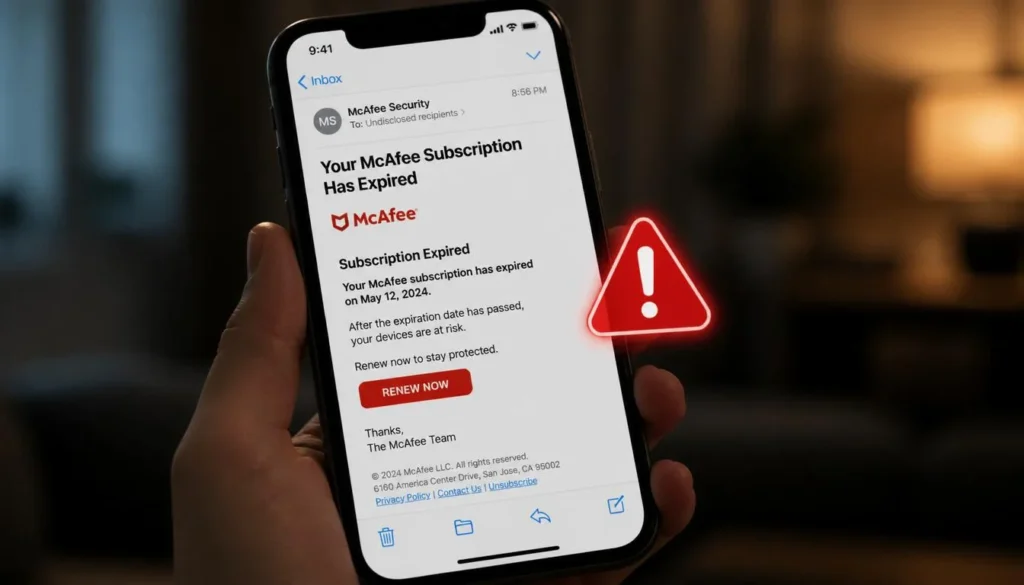
You open your iPhone email app and there it is — another alarming message with a subject line like:
“Your McAfee subscription has expired! Your device is at risk. Renew NOW to avoid data loss.”
Your heart jumps. Is your iPhone actually infected? Did you forget to renew something? Should you click that big red “Renew Now” button?
Stop. Don’t click anything.
That email is almost certainly a scam — and millions of iPhone users receive them every single day in 2026.
These fake McAfee emails have become one of the most common phishing scams targeting Apple Mail, Gmail, and Outlook users on iPhone. They look convincing. They use McAfee’s logo. They quote specific dollar amounts. They create urgent panic. And they are designed from the ground up to steal your money, your passwords, or both.
The good news? You can stop them — and protect yourself completely.
In this guide, you’ll learn:
- Why you’re getting fake McAfee emails on your iPhone
- How to tell a real McAfee email from a fake one
- Step-by-step methods to block, report, and stop spam emails on iPhone
- What to do if you’ve already clicked a suspicious link
- The best iPhone spam protection settings for 2026
Let’s get your inbox cleaned up.
Why You’re Getting Fake McAfee Emails on iPhone
You didn’t sign up for McAfee. You’ve never used McAfee. So why does your iPhone keep getting bombarded with fake McAfee subscription alerts?
Here’s what’s really happening behind the scenes.
Your email address got scraped or leaked. Data breaches happen constantly. When a website you signed up for years ago gets hacked, your email address ends up for sale on the dark web. Scammers buy these lists in bulk and blast phishing emails to thousands of people at once.
Scammers use email harvesting bots. These automated programs crawl websites, social media profiles, comment sections, and public directories looking for exposed email addresses. If your email appears anywhere online, there’s a good chance it’s already been collected.
McAfee is a widely recognized brand. Scammers don’t target obscure companies. They use trusted names like McAfee, Norton, Apple, Microsoft, and PayPal because people recognize them and react emotionally — especially to warnings about security or unpaid bills.
AI-generated scam emails are more convincing in 2026. A few years ago, phishing emails were easy to spot because of awkward grammar and obvious formatting issues. Now, scammers use AI writing tools to craft polished, professional-looking emails that are much harder to detect at a glance.
Scare tactics work. Phrases like “Your device is at RISK” or “Unauthorized access detected” are designed to trigger panic and override your common sense. The goal is to make you click before you think.
You may have signed up somewhere with your main email. Every time you use your primary email address for a newsletter, free trial, or giveaway, you risk having it passed along to third parties — including spammers.
Are McAfee Spam Emails Dangerous?
Short answer: yes, they can be — but only if you interact with them.
Simply receiving a fake McAfee email in your iPhone inbox won’t harm you. The danger comes from what happens if you click.
Here’s what these scam emails are actually trying to do:
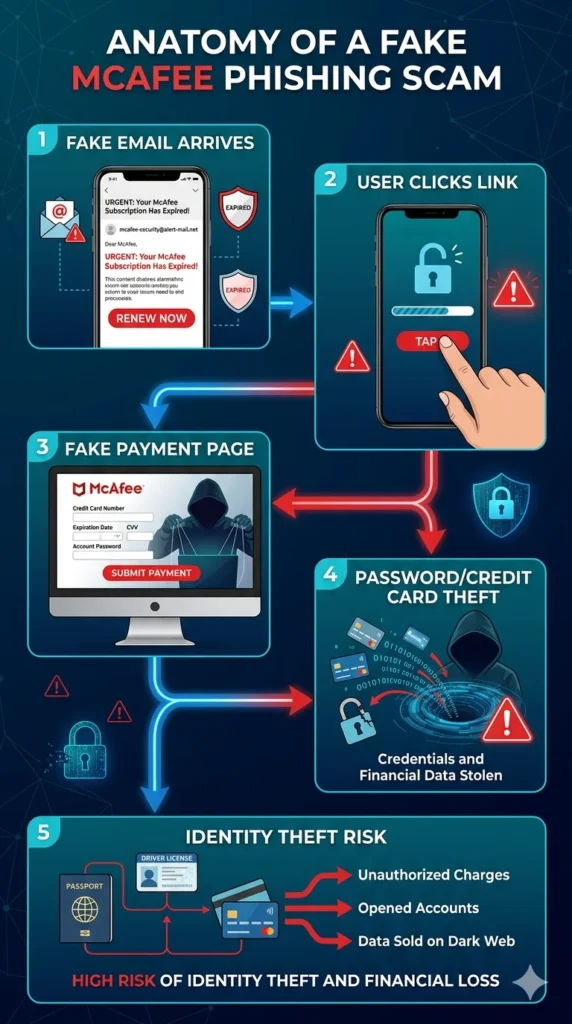
Steal your credit card. The most common goal is to get you to a fake “renewal page” that looks exactly like McAfee’s real website. You enter your card details thinking you’re paying for antivirus software — but you’re handing your financial information directly to criminals.
Harvest your passwords. Some fake emails lead to convincing login pages for Apple ID, Gmail, or other accounts. Once you enter your credentials, scammers have them instantly.
Install malware on your device. Some emails include attachments (fake invoices, receipts, or security reports) that, when opened, can install malicious software designed to monitor your activity or lock your files.
Commit identity theft. By combining stolen data points — your name, email, billing address, and card number — scammers can open accounts in your name, apply for credit, or sell your identity on dark web marketplaces.
Show you fake Apple security warnings. Some scam links redirect you to convincing fake browser pop-ups claiming “Your iPhone has a virus!” and urging you to call a fake support number. This is called tech support fraud, and it’s extremely common.
The bottom line: these emails are crafted by professionals. Don’t underestimate them.
Signs a McAfee Email Is Fake
Before doing anything else with a suspicious email, run through this checklist.
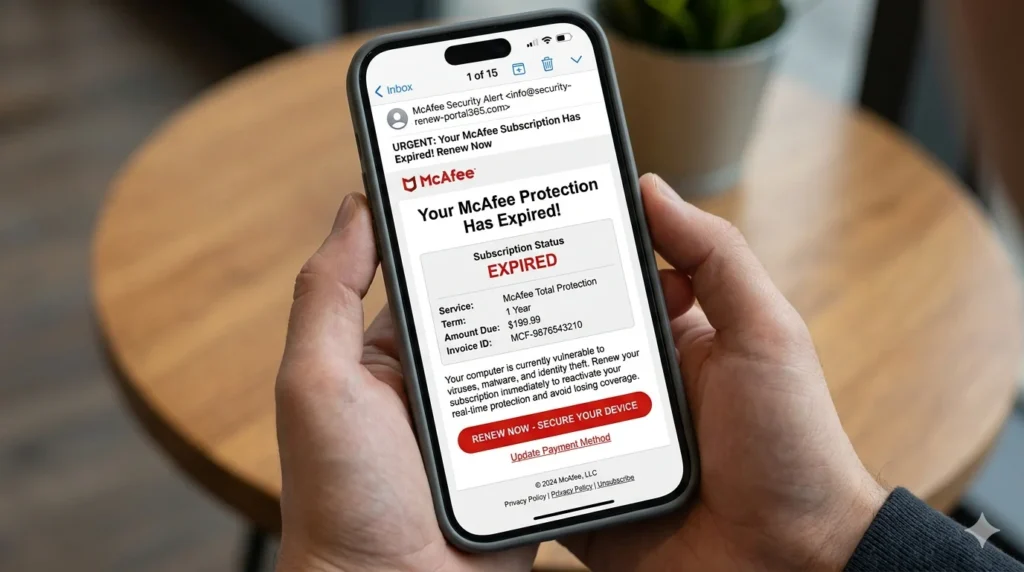
- Urgent language designed to panic you — phrases like “Act NOW,” “Your device is infected,” “Subscription expired TODAY,” or “Immediate action required” are classic scam red flags.
- You don’t have a McAfee subscription — if you’ve never purchased McAfee, any email from them about renewals or expired plans is automatically suspicious.
- The sender’s email address looks wrong — real McAfee emails come from @mcafee.com domains. Scam emails often use addresses like mcafee-billing@gmail.com, support@mcafeesecurity.net, or mcafee@renewal-alerts.com. Look closely.
- Misspelled domain names — scammers register domains that look almost right, like “mcaf3e.com” or “mcafee-renewals.org.” Always verify the exact domain.
- Fake invoice or order confirmation — you receive a receipt for a McAfee purchase you never made, often for $299–$499, designed to alarm you into calling a fake refund number.
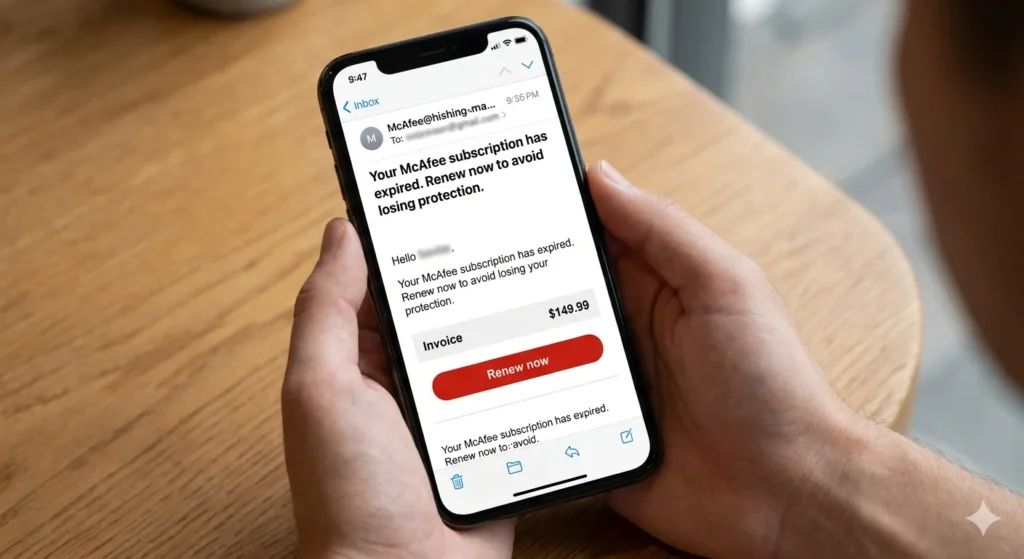
- Generic greeting — emails that start with “Dear Customer” or “Dear User” instead of your actual name are typically mass-sent phishing attempts.
- Suspicious or mismatched links — hover over any link (or long-press on iPhone) to preview the actual URL before clicking. If it doesn’t point to mcafee.com, it’s fake.
- Unexpected attachments — legitimate security companies do not send unsolicited PDF invoices or .zip files. Never open these.
- Poor grammar or odd formatting — even with AI assistance, many scam emails still contain subtle errors, inconsistent fonts, or off-brand colors.
- “Call this number to cancel” — legitimate companies don’t pressure you to call a phone number in response to an email renewal. This is a classic tech support scam setup.
If an email checks even two or three of these boxes, treat it as a scam.
How to Stop McAfee Spam Emails on iPhone
Here are seven proven methods you can start using right now.
Method 1: Mark Emails as Spam
Marking spam emails teaches your mail app’s filter to catch similar messages in the future. It’s the most important first step.
In Apple Mail (iPhone):
- Open the Apple Mail app.
- Find the suspicious McAfee email in your inbox.
- Swipe left on the email to reveal options.
- Tap More, then select Move to Junk.
- Apple Mail will start filtering similar messages automatically.
Alternatively, open the email, tap the Reply arrow at the bottom, scroll down, and tap Move to Junk.
In Gmail on iPhone:
- Open the Gmail app.
- Open the suspicious email.
- Tap the three-dot menu (⋮) in the top right corner.
- Select Report spam.
Gmail will immediately move it to your spam folder and use this information to improve future filtering for your account.
In Outlook on iPhone:
- Open the Outlook app.
- Long-press the email in your inbox.
- Tap Report Junk.
- Choose Junk or Phishing — for fake McAfee emails, select Phishing.
Method 2: Block Spam Email Addresses
Blocking a specific sender stops future emails from that address from reaching your inbox.
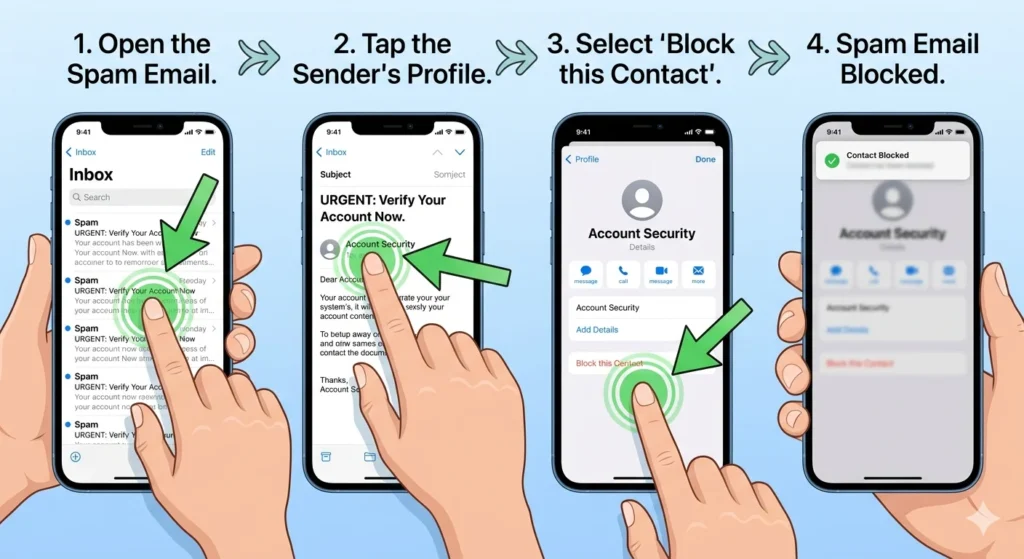
In Apple Mail on iPhone:
- Open the fake McAfee email.
- Tap the sender’s name at the top of the email.
- Tap the sender’s email address when it appears below their name.
- Scroll down and tap Block this Contact.
- Confirm by tapping Block this Contact again.
Future emails from that exact address will go straight to trash.
Important note: Because scammers constantly rotate sending addresses, blocking a single address won’t stop all fake McAfee emails. Combine this with spam marking and email filtering for better results.
To unblock a contact in Apple Mail:
- Go to Settings → Apps → Mail → Blocked.
- Swipe left on the address you want to unblock.
- Tap Unblock.
Method 3: Delete and Report Phishing Emails
Reporting phishing emails doesn’t just help you — it helps protect everyone.
When you report a phishing email, you’re contributing to shared spam databases that email providers use to improve their filters globally.
Report phishing to Apple:
Forward suspicious emails that impersonate Apple to reportphishing@apple.com. For fake McAfee emails specifically, you can also forward them to:
- spam@uce.gov (US Federal Trade Commission)
- phishing@mcafee.com (McAfee’s own abuse team)
In Gmail on iPhone:
- Open the email.
- Tap ⋮ → Report phishing.
- Tap Report Phishing Message to confirm.
Gmail uses these reports to strengthen filters across all accounts.
After reporting, always delete the email from your inbox and then empty your trash folder. Don’t leave phishing emails sitting around.
Method 4: Never Click Fake McAfee Links
This might seem obvious, but let’s be specific about the traps scammers set.
Fake invoice scams: You receive an email claiming you’ve been charged $349.99 for a McAfee renewal you didn’t authorize. The email urges you to “click here to cancel” or “call immediately to get a refund.” Both options lead to scammers.
Fake renewal pages: Clicking leads to a website that looks exactly like McAfee’s real site. You’re asked to “verify” your payment method or log in to cancel. This is pure credential theft.
Browser redirects: Some links open your Safari browser and redirect through several URLs before landing on a fake page — a tactic designed to obscure the real destination.
Fake payment portals: These collect your name, address, and credit card details under the guise of processing a refund or cancellation.
The rule is simple: If an email creates urgency around money or security and asks you to click a link, don’t. Instead, go directly to mcafee.com by typing it yourself in Safari, or call McAfee’s official customer support line directly.
Scam Type Reference Table
| Scam Type | What Scammers Want |
|---|---|
| Fake subscription renewal | Credit card details |
| Fake virus warning | Malware installation |
| Fake refund scam | Banking information |
| Fake invoice attachment | Password theft |
| Fake Apple security alert | Apple ID credentials |
| Fake tech support call | Remote access to your device |
Method 5: Use iPhone Mail Spam Protection Features
Your iPhone has built-in tools designed specifically to reduce spam and protect your privacy. Here’s how to use them.
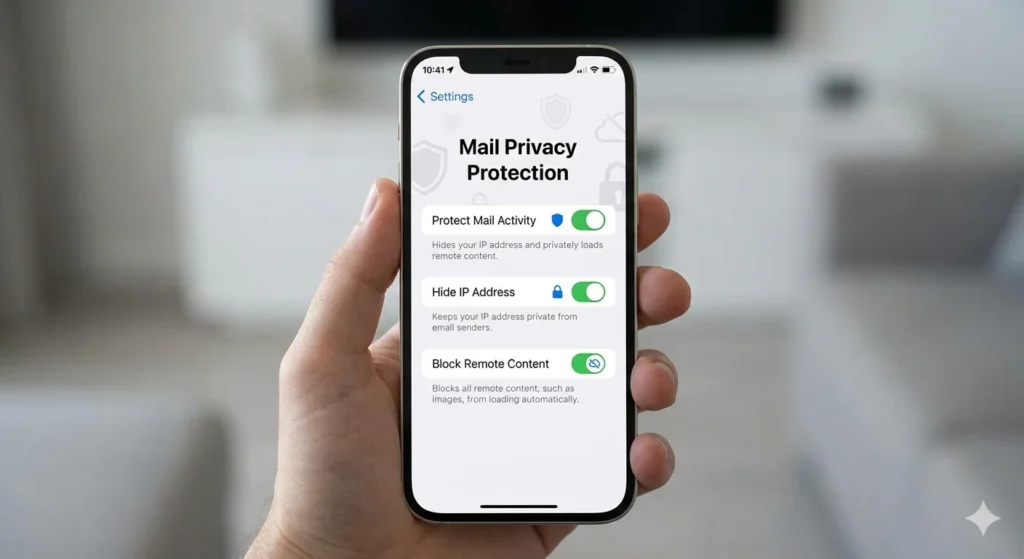
Enable Mail Privacy Protection:
- Go to Settings → Apps → Mail → Privacy Protection.
- Toggle on Protect Mail Activity.
This prevents senders from knowing when you open their emails and hides your IP address, which stops tracking pixels commonly used by spammers to confirm active email addresses.
Use Hide My Email (iCloud+):
If you have an iCloud+ subscription, you can generate random, anonymous email addresses for signups. When spam hits that address, you simply deactivate it.
- Go to Settings → tap your Apple ID → iCloud → Hide My Email.
- Tap Create New Address to generate a random alias.
This is one of the most powerful long-term spam prevention tools available to iPhone users.
Block Remote Images in Mail:
Spam emails often contain invisible tracking images that notify senders when you’ve opened an email. Blocking these helps.
- Go to Settings → Apps → Mail.
- Toggle Load Remote Images to OFF.
Enable Mail Filtering:
- Go to Settings → Apps → Mail → Threading.
- Make sure Filter Unknown Senders is on.
This automatically sorts emails from people not in your contacts into a separate “Unknown Senders” tab.
Method 6: Protect Your Email Address
The best way to reduce spam is to prevent scammers from getting your email in the first place.
Use email aliases for signups. Instead of giving your real email to every website, use a disposable alias through services like Apple’s Hide My Email, SimpleLogin, or AnonAddy.
Create a separate “junk” email address. Keep one email address purely for online shopping, newsletters, and app signups. Use your real address only for important communications.
Avoid posting your email publicly. Don’t list your email address on social media profiles, public forums, or comment sections. Bots harvest these constantly.
Don’t enter competitions or sweepstakes carelessly. Many low-quality contest sites sell participant emails to marketing lists.
Check if your email has been breached. Visit haveibeenpwned.com (type it directly) and enter your email to see if it’s appeared in any known data breaches. If it has, change your passwords immediately.
Method 7: Improve Your iPhone Security Settings
These steps strengthen your overall iPhone security so that even if a scam email slips through, it’s much harder for damage to occur.
Keep iOS updated:
- Go to Settings → General → Software Update.
- Enable Automatic Updates so you always have the latest security patches.
iOS updates frequently include patches for vulnerabilities that scammers could otherwise exploit.
Enable Two-Factor Authentication for Apple ID:
- Go to Settings → tap your Apple ID → Sign-In & Security.
- Tap Two-Factor Authentication and follow the setup steps.
Even if scammers get your password, they can’t access your account without the second factor.
Use a strong, unique password for your Apple ID. Never reuse passwords. Use the built-in Passwords app (Settings → Passwords) to generate and store strong, unique passwords for every site.
Review Apple ID login activity:
- Go to Settings → tap your Apple ID → scroll down to see all devices signed into your account.
- If you see a device you don’t recognize, tap it and select Remove from Account.
Turn on suspicious activity alerts: Make sure your Apple ID recovery email and phone number are current so Apple can alert you if something unusual happens with your account.
Best iPhone Mail Spam Settings in 2026
Here’s a quick reference checklist of the most important settings to configure right now:
Mail Settings:
- Load Remote Images: OFF
- Filter Unknown Senders: ON
- Move to Junk (mark spam aggressively): Habit to build
Privacy Settings:
- Mail Privacy Protection: ON
- Hide My Email: Enabled (iCloud+ required)
- Location access for Mail: Never
Spam Protection Settings:
- Block Remote Images: ON
- Blocked Contacts list: Review monthly
- Junk folder: Check weekly, then delete
Security Recommendations:
- Two-Factor Authentication: ON
- iOS Auto-Update: ON
- Password Manager: Set up in Settings → Passwords
- Breach monitoring: Check haveibeenpwned.com periodically
What Happens If You Click a Fake McAfee Email?
Don’t panic — but act quickly.
If you clicked a link but didn’t enter any information:
You’re likely fine, but stay alert. Close the browser tab immediately. Don’t call any numbers shown on the page. Run a quick check in Safari: go to Settings → Safari → Clear History and Website Data to remove any tracking cookies.
If you entered your credit card or banking details:
Contact your bank or card issuer immediately — call the number on the back of your card. Explain that you’ve been the victim of a phishing scam. Ask them to freeze the card and issue a new one. Monitor your statement closely for unauthorized charges for the next 30–60 days.
If you entered your Apple ID or email password:
Change your password immediately. Go to Settings → tap your Apple ID → Sign-In & Security → Change Password. Then check your account for any unfamiliar changes, like new recovery contacts or devices you didn’t add.
If you downloaded an attachment:
This is the most serious scenario. Delete the downloaded file immediately. Go to the Files app, check your Downloads folder, and delete anything you don’t recognize. Restart your iPhone. Consider contacting Apple Support if you notice any unusual behavior.
If you called a “McAfee support number” from the email:
If you gave remote access to your device or shared personal information over the phone, consider a full factory reset and contact your bank. File a report with the FTC at reportfraud.ftc.gov.
How to Stop Spam Emails on iPhone Permanently
There’s no single magic button that stops spam forever — but combining smart habits with the right settings gets you very close.
Build better email habits:
- Never click “unsubscribe” in emails from senders you don’t recognize. This confirms your address is active and often leads to more spam.
- Don’t reply to spam emails — even to tell them off. Replies confirm your address is active.
- Regularly clean up your subscriptions using the legitimate unsubscribe option only for brands you actually know.
Safer online signups:
- Use Hide My Email or a disposable alias for any site you’re unsure about.
- Avoid entering your email into forms on sites you’ve reached via pop-up ads.
- If a site requires your email just to browse, consider using a temporary email tool.
Email privacy long-term:
- Transition your primary email to a more privacy-focused provider like ProtonMail or iCloud Mail with Hide My Email.
- Gradually move important contacts and services to a new, private email and retire your old, overexposed address.
- Review app permissions annually — some apps access your contacts (and by extension, your email) without you realizing.
Best Free Tools to Reduce Spam Emails in 2026
| Tool | Best For | Free Plan | Pros | Cons |
|---|---|---|---|---|
| Apple Mail Filters | iPhone/Mac users in Apple ecosystem | Yes (built-in) | No setup needed, integrates with Hide My Email, Mail Privacy Protection | Less powerful than dedicated tools |
| Gmail Spam Filter | Gmail users on iPhone | Yes (built-in) | Excellent AI-powered filtering, phishing detection, easy reporting | Requires Gmail account |
| Proton Mail | Privacy-conscious users | Yes (limited storage) | End-to-end encrypted, strong spam filters, privacy-first design | Free tier has limited features |
| Clean Email | Users who want inbox management | Limited free trial | Powerful bulk unsubscribe, smart filters, multi-account support | Paid for full access |
| SpamTitan | Business/enterprise users | No | Enterprise-grade filtering, highly accurate | Overkill for personal use, not free |
For most iPhone users in 2026, a combination of Apple Mail’s built-in features plus a privacy-focused alias service like Hide My Email or SimpleLogin is all you need.
Common iPhone Spam Email Mistakes to Avoid
Even careful users make these mistakes. Here’s what to watch out for.
Clicking suspicious links “just to check.” Curiosity is exactly what scammers count on. A single click can trigger a browser redirect, a tracking pixel notification, or — in rare cases — a drive-by download attempt.
Downloading email attachments from unknown senders. Fake McAfee invoices and “security reports” are classic vehicles for malware. Never open attachments from people or companies you didn’t expect to hear from.
Replying to tell the sender they’ve made a mistake. Replying confirms your address is active and monitored. You’ll see more spam, not less.
Trusting the “unsubscribe” link in spam emails. Real unsubscribe links from legitimate companies are safe. Fake unsubscribe links in phishing emails do the opposite — they confirm you’re a real, active user and often lead to more scams.
Using your main email address everywhere. The more places you share your primary email, the higher your spam risk. Diversify with aliases and separate accounts.
Ignoring phishing warnings from your browser. When Safari shows a red “Deceptive Website” warning, believe it. Don’t tap “Show Details” or proceed — close the tab.
Thinking iPhones can’t be affected. iPhones are safer than many devices, but no phone is immune to phishing. The threat isn’t a virus infecting your phone directly — it’s scammers manipulating you into handing over your information.
Frequently Asked Questions
Why am I getting fake McAfee emails on my iPhone?
Your email address is likely on a list purchased from a data breach or harvested by a bot. Scammers use McAfee’s well-known name to create urgency and trick users into clicking fake renewal or security alert emails.
Are the McAfee emails I’m receiving real or fake?
If you don’t have a McAfee subscription, they’re fake. Even if you do, verify by going directly to mcafee.com and checking your account — never click links inside the email itself.
How do I stop phishing emails on iPhone?
Mark them as spam in your mail app, block the sender, report them as phishing, and enable Mail Privacy Protection in your iPhone settings. Combine these with using email aliases for new signups.
Can iPhones get viruses from spam emails?
Not typically from simply receiving or opening an email. However, clicking malicious links, downloading attachments, or entering your Apple ID credentials on fake pages can lead to serious security problems. iOS’s security model protects against most traditional malware, but social engineering attacks are still very effective.
What happens if I click a fake McAfee link on my iPhone?
If you only clicked and didn’t enter any information, close the tab and clear your Safari history. If you entered personal or financial details, contact your bank immediately and change any passwords you entered.
How do I block spam emails in Apple Mail on iPhone?
Open the email, tap the sender’s name, tap their email address, scroll down, and select “Block this Contact.” You can also go to Settings → Apps → Mail → Blocked to manage your blocked senders list.
Should I click “unsubscribe” in fake McAfee emails?
No. Clicking unsubscribe in a phishing email confirms your address is active, which often results in more spam. Only use unsubscribe links from brands you’ve legitimately signed up with.
Does marking emails as junk actually help?
Yes. Over time, marking spam teaches your mail app’s filter to recognize similar patterns. The more consistently you mark junk, the more accurately your inbox is filtered.
Is there a way to completely stop spam emails on iPhone?
You can’t eliminate 100% of spam, but you can dramatically reduce it. Use email aliases, enable Mail Privacy Protection, mark spam aggressively, avoid sharing your main email, and keep iOS updated.
What’s the safest email app for iPhone in 2026?
For most users, Apple Mail with Privacy Protection enabled is excellent. Gmail is also strong for phishing detection. If privacy is your top priority, ProtonMail offers end-to-end encryption and solid spam filtering.
Should I call McAfee if I receive a suspicious email in their name?
Only if you call the number listed directly on mcafee.com — never a number provided in the email itself. If you’re unsure whether you have a McAfee account, go to their official website directly to check.
How do I know if my email address has been in a data breach?
Visit haveibeenpwned.com (type this directly into your browser — don’t click any link claiming to be this site) and enter your email address. The service will tell you which known breaches included your email.
Conclusion
Fake McAfee emails are frustrating, alarming, and unfortunately very common in 2026. But now you know exactly what to do.
Here’s a quick summary of your action plan:
- Recognize the signs — urgent language, strange sender addresses, fake invoices, and “renew now” pressure are all red flags.
- Never click links or attachments in emails you didn’t expect, especially around security or billing.
- Mark emails as spam in Apple Mail, Gmail, or Outlook to train your filter.
- Block senders and report phishing to help protect others.
- Enable Mail Privacy Protection and Hide My Email in your iPhone settings.
- Use email aliases for signups to prevent your main address from being exposed.
- Keep iOS and your Apple ID security settings updated.
You don’t need to live in fear of your inbox. With the right settings and habits, you can take back control and make spam a rare annoyance instead of a daily problem.
Bookmark this guide so you can refer back to it — or share it with a family member or friend who might be vulnerable to these scams. The more people who know how to spot and stop fake McAfee emails, the harder scammers’ jobs become.
Looking for more iPhone security tips? Check out our complete guide to stopping Gmail spam on iPhone for additional strategies to keep your inbox clean.