10 Best Free AI Background Remover Tools in 2026
Imagine this: You just took the perfect photo for your online store, YouTube thumbnail, or social media post. But the background is messy – a cluttered room, a busy street, or bad lighting.
You don’t have editing skills. You don’t want to pay for expensive software. And you need it done in 30 seconds.
Good news. In 2026, free AI background removers are better than paid tools from five years ago. They work on any device. They handle hair, fur, and glass. And many won’t even ask you to create an account.
By the end of this guide, you’ll know exactly which free tool works for your specific need – whether you’re a student, a TikTok creator, an Etsy seller, or a freelancer working from anywhere in the world.
Let’s dive in.

10 Best Free AI Background Remover Tools in 2026
What Is a Free AI Background Remover?
A free AI background remover is a tool that automatically detects and removes the background from any image – at no cost.
Think of it like a smart pair of scissors. But instead of you carefully cutting around edges, artificial intelligence analyzes the photo. It identifies the main subject (person, product, animal, object) and separates it from everything behind it.
The result? A clean image with a transparent background (PNG format) or a solid color you choose.
How AI removes backgrounds automatically
Traditional editing required you to manually trace edges. That could take 10 minutes per photo – longer if hair or fur was involved.
AI does this in under 5 seconds.
The technology has been trained on millions of images. It recognizes what a human looks like, where hair ends and background begins, and even handles tricky edges like glasses, flowing fabric, or scattered products.
PNG vs JPG – Why format matters
- PNG (Portable Network Graphics) – Saves transparency. The background is truly gone, showing whatever is behind it (website color, video layer, etc.). Always choose PNG for background removal.
- JPG (JPEG) – Cannot save transparency. It will replace the background with white or another solid color. Fine for some uses, but not ideal for professional work.
📌 Quick tip: Most free tools let you download as PNG. If they don’t, find another tool.
Why People Around the World Use Background Removers
You don’t need to be a professional designer to benefit. Here’s who uses these tools every day – and why you should too.
Save hours of manual work
One photo manually: 5–10 minutes. Ten photos: nearly 2 hours.
One photo with AI: 5 seconds. Ten photos: less than 1 minute.
That’s time you can spend creating more content, packing orders, or learning new skills.
Create professional content on a budget
Professional photo editing software costs $20–50 per month. Many freelancers, students, and small business owners can’t afford that.
Free AI background removers give you 90% of the quality for 0% of the price.
Real-world examples (that work anywhere)
| User type | How they use background removers |
|---|---|
| Ecommerce seller | Remove backgrounds from product photos for a clean, consistent store look |
| YouTuber/TikToker | Create clickable thumbnails with subject-only images |
| Student | Edit project images without learning complex software |
| Freelancer | Deliver client-ready photos without buying Photoshop |
| Real estate agent | Isolate property photos for listings and flyers |
| Job seeker | Create professional headshots from casual photos |
Mini summary: Free AI background removers save time, money, and frustration. Anyone with a photo and an internet connection can use them.
How to Choose the Right Free Background Remover
Not all free tools are created equal. Here’s what to look for.
Web-based vs mobile apps vs desktop software
| Type | Best for | Examples |
|---|---|---|
| Web-based | Quick edits on any computer, no download | Remove.bg, Adobe Express |
| Mobile app | Editing on the go with your phone camera | Background Eraser, Picsart |
| Desktop software | Batch processing many photos | GIMP (manual, not AI) |
Beginner recommendation: Start with a web-based tool. No installation, works everywhere, nothing to update.
What to look for in a truly free tool
- ✅ No watermark on downloaded images
- ✅ PNG export option (transparent background)
- ✅ Works without account creation (or has a generous free tier)
- ✅ High resolution output (at least 1000px on the longest side)
- ✅ Privacy policy that doesn’t store your images forever
⚠️ Warning: Many tools say “free” but add a watermark unless you pay. Always test with a sample image first.
Step-by-Step: Remove Your First Background for Free
Let’s do this together right now. You don’t need any experience.
Using a web browser (works on any computer)
- Open your browser (Chrome, Safari, Edge, Firefox – any works)
- Go to Remove.bg (or any tool from our list below)
- Click “Upload Image” – select a photo from your computer
- Wait 3–5 seconds – the AI processes your image
- Review the result – check edges, especially around hair
- Click “Download” – save as PNG for transparency
⚡ Quick tip: Use a photo where the subject is clearly separated from the background. Avoid busy patterns or low light for best results.
Using a smartphone (Android and iPhone)
- Open your mobile browser (Safari on iPhone, Chrome on Android)
- Go to Adobe Express background remover (works perfectly on mobile)
- Tap “Upload photo” – choose from your camera roll
- Wait 3–5 seconds
- Tap “Download” – saves to your photos as a transparent PNG
⚡ Quick tip: Most mobile browsers work identically to desktop. You don’t usually need an app.
Mini summary: The process is nearly identical across all free tools: upload → AI processes → download. Total time under 10 seconds.
Also You May Like: 50 Best AI Tools in 2026 (Free & Paid) for Creators, Businesses & Beginners
10 Best Free AI Background Remover Tools in 2026
These are the best options for global users in 2026. Each tool is tested for watermark-free output, ease of use, and accessibility.
1. Remove.bg – Most accurate for beginners
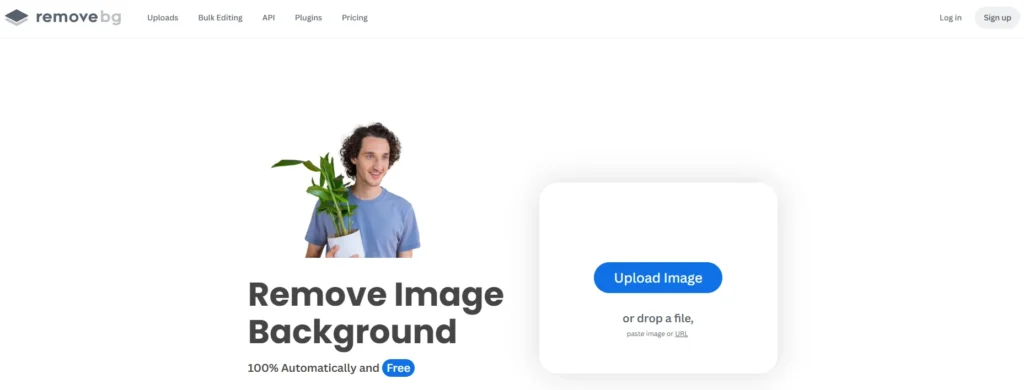
What it does: One-click background removal with excellent edge detection, especially for hair and fur.
Best feature: The free version handles complex edges better than any competitor.
Free plan availability: 1–3 preview images per day (low resolution). High-resolution download requires credit purchase – but the low-res preview is often enough for social media.
Works on: Web, Windows, Mac, iOS, Android
Beginner recommendation: ✅ Yes – the interface is literally one button.
Global accessibility: Works everywhere. No account required for preview.
2. Adobe Express Background Remover – Professional quality
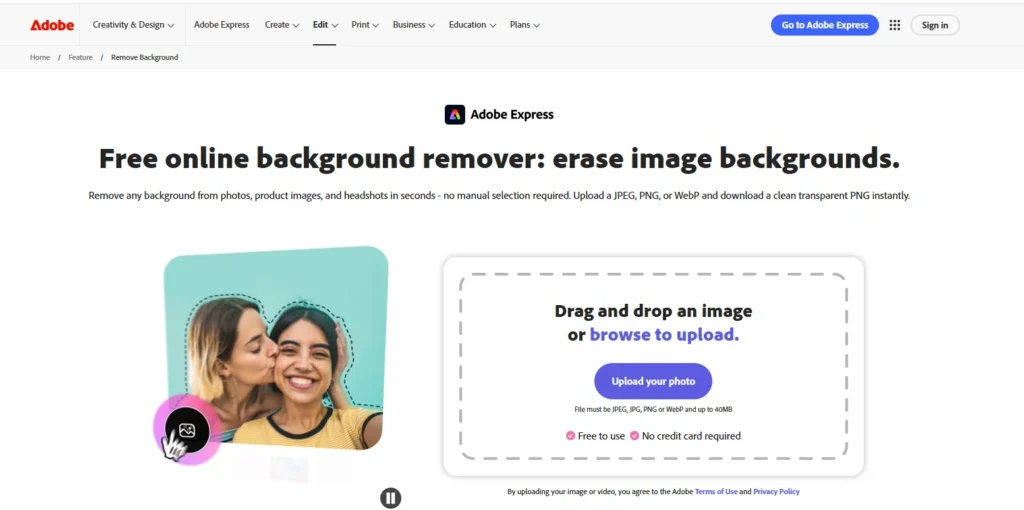
What it does: Same background removal technology as Photoshop, completely free and web-based.
Best feature: No daily limits. Remove as many backgrounds as you want, completely free, no watermark.
Free plan availability: 100% free for background removal. No account needed.
Works on: Web, iOS, Android
Beginner recommendation: ✅ Yes – and it’s the best overall free choice.
Global accessibility: Available worldwide. Runs in browser, no download.
Also You May Like: How to Use ChatGPT for Daily Work in India (Beginner Guide)
3. Canva Background Remover – Best for designers
What it does: Integrated into Canva’s free design platform. Remove background, then immediately add text, graphics, or new backgrounds.
Best feature: One-click removal then drag-and-drop into any design template.
Free plan availability: Free Canva account includes background removal (no watermark).
Works on: Web, iOS, Android, Windows, Mac
Beginner recommendation: ✅ Yes – but you need a free account.
Global accessibility: Canva is available in over 100 languages and 190 countries.
4. Erase.bg – Best for batch processing
What it does: Similar to Remove.bg but with free batch upload (multiple images at once).
Best feature: Upload up to 10 images at once. Process all for free (low resolution).
Free plan availability: Free for low-resolution output. HD requires paid plan.
Works on: Web only
Beginner recommendation: ✅ Yes – great for social media graphics where low-res is fine.
5. Trace by Sticker Mule – Best for product images
What it does: Designed specifically for ecommerce. Removes background and optimizes for product listings.
Best feature: Creates perfectly centered product images with consistent sizing.
Free plan availability: Completely free. No account needed.
Works on: Web
Beginner recommendation: ✅ Yes – ideal for online sellers.
6. Pixlr Background Remover – Best for quick edits
What it does: Simple one-click removal with manual touch-up tools if needed.
Best feature: You can paint back areas the AI missed – free without account.
Free plan availability: Free with watermark. But use the “Pixlr E” editor’s magic wand tool for watermark-free manual removal.
Works on: Web, iOS, Android
Beginner recommendation: ⚠️ Use the editor version (not the one-click tool) to avoid watermarks.
7. Zyro Background Remover – Best for absolute beginners
What it does: The simplest interface possible. Upload. Click. Download.
Best feature: No sliders, no settings, no confusion. Just one button.
Free plan availability: Completely free. No account. No watermark.
Works on: Web
Beginner recommendation: ✅ Yes – perfect if you’re nervous about technology.
8. BackgroundCut – Best for transparent objects (glass, water)
What it does: Handles tricky semi-transparent objects that other AI tools struggle with.
Best feature: Free HD downloads without watermark for first 3 images per day.
Works on: Web, iOS, Android
Beginner recommendation: ✅ Yes – especially for product photos of bottles or jewelry.
9. FocoClipping – Best for manual control
What it does: AI auto-removes background, but you can manually refine edges with brush tools.
Best feature: Free download up to 720px width – enough for most web use.
Works on: Web
Beginner recommendation: ⚠️ Only if you need manual control. Otherwise stick with Adobe Express.
10. TinyWow Background Remover – Best for no-signup privacy
What it does: Removes background without any account, email, or tracking.
Best feature: Images are deleted from their servers immediately after download.
Free plan availability: 100% free. No watermark. No limits.
Works on: Web
Beginner recommendation: ✅ Yes – best for privacy-conscious users.
Quick comparison table
| Tool | Watermark free? | Account needed? | Best for |
|---|---|---|---|
| Adobe Express | ✅ Yes | No | Overall best free |
| Canva | ✅ Yes | Yes (free) | Design integration |
| Zyro | ✅ Yes | No | Absolute beginners |
| TinyWow | ✅ Yes | No | Privacy |
| Remove.bg | ⚠️ Preview only | No | Checking quality |
| Trace | ✅ Yes | No | Ecommerce products |
Mini summary: For most beginners, start with Adobe Express or Zyro – both are completely free, require no account, and produce professional results.
Mobile-Only Background Removers (Android & iPhone)
You don’t need a computer. These apps work directly on your phone.
For iPhone & Android (free, no watermark):
- Adobe Express mobile app – Same free background remover as web version. Download from App Store or Google Play.
- Remove.bg app – Free previews, paid for HD. Good for quick checks.
- Background Eraser – Manual tool with “auto” mode. Free with ads.
Mobile tips for better results:
- Take photos with good lighting – the AI sees edges better
- Avoid shadows on the background
- Use portrait mode if your phone has it
- For products, place on a plain white surface
7 Common Mistakes Beginners Make (And How to Avoid Them)
Mistake 1: Using low-quality source images
Why it happens: You’re in a hurry and use any photo you have.
How to avoid: Always start with the highest resolution image available. AI cannot add detail that wasn’t there.
Mistake 2: Downloading as JPG instead of PNG
Why it happens: You don’t know the difference, or the tool defaults to JPG.
How to avoid: Always look for “PNG” or “transparent” option before downloading.
Mistake 3: Ignoring hair and fur edges
Why it happens: You assume the AI did a perfect job.
How to avoid: Zoom in to 100% and check edges. Switch tools if hair looks jagged.
Mistake 4: Forgetting to check the terms for commercial use
Why it happens: Free tools sometimes restrict business use.
How to avoid: Read the “Commercial use” section in terms. Adobe Express and Canva allow commercial use on free plans.
Mistake 5: Using a tool that adds watermarks
Why it happens: You didn’t test with a sample image first.
How to avoid: Always run one test image before processing many photos.
Mistake 6: Not saving the original file
Why it happens: You edit directly and overwrite.
How to avoid: Keep your original photo separate. Never edit the only copy.
Mistake 7: Believing “completely free” without checking limits
Why it happens: Marketing language is misleading.
How to avoid: Look for daily limits, resolution caps, and watermark policies before uploading many images.
Pro Tips for Professional-Looking Results
These tips work for any tool, any device, anywhere in the world.
Tip 1: Use consistent lighting for product photos
If you sell products online, take all photos in the same lighting conditions. The AI will remove backgrounds more consistently.
Tip 2: Add a new background after removal
After removing the original background, add a solid color or gradient. This often looks more professional than transparent.
Tip 3: For YouTube thumbnails, add a colored outline
After removing background, add a 2-pixel white or black stroke around your subject. Thumbnails “pop” more and get more clicks.
Tip 4: Use two different tools for tricky images
If one tool struggles with hair or fur, try a second. Different AI models have different strengths. Adobe Express + Remove.bg preview is a powerful combo.
Tip 5: Batch process with free tools
Use Erase.bg or Adobe Express (no daily limit) to process up to 50 images. Set aside 10 minutes to do all your product photos at once.
Tip 6: Upscale after removal for print
Free tools often output at 72 DPI (web quality). For print, run your PNG through a free AI upscaler like Upscale.media before sending to a printer.
Frequently Asked Questions (Global Beginners Ask These)
1. Is there a completely free background remover without watermarks?
Yes. Adobe Express, Zyro, and TinyWow all offer 100% free background removal with no watermarks and no account required.
2. Which free AI background remover works best for hair?
Adobe Express handles hair better than any other free tool. Remove.bg’s free preview is also excellent, but the download is low resolution.
3. Can I remove background from video for free?
Most free tools only work on images. For video, try CapCut (free, mobile and desktop) or Runway ML (free tier with watermark).
4. Do free background removers lower image quality?
Some do. Adobe Express and Canva maintain original resolution. Remove.bg free preview outputs at low resolution. Always check output size before relying on a tool.
5. Is it safe to upload personal photos to free background remover websites?
Use tools with clear privacy policies. Adobe Express and TinyWow state they delete images immediately. Avoid unknown tools that may store or use your photos.
6. What’s the difference between remove.bg free and premium?
Free: Low resolution preview (around 500px), watermark on HD download. Premium: Full resolution, no watermark, batch processing.
7. Can I remove background from a logo for free?
Yes. Any tool works for logos. Download as PNG to keep transparency. Adobe Express or Zyro are good choices.
8. Which free background remover works on iPhone without app download?
Adobe Express web version works perfectly in Safari on iPhone. No app needed. Also works in Chrome on Android.
9. How do I get a transparent background instead of white?
Download as PNG. JPG cannot save transparency. If your tool only offers JPG, switch to Adobe Express or Zyro which both offer PNG.
10. Can I use free background removers for commercial products (Etsy, Amazon, Shopify)?
Yes for most tools. Adobe Express, Canva, and Trace allow commercial use on free plans. Always check each tool’s terms before selling images.
Final Thoughts – Start Removing Backgrounds Today
You don’t need expensive software. You don’t need design skills. And you definitely don’t need to spend hours learning complicated tools.
In 2026, free AI background removers have made professional image editing available to everyone – no matter where you live or what device you use.
Your next step is simple:
- Pick one tool from this list (start with Adobe Express or Erase.bg)
- Upload any photo you have
- Download your first transparent background image
- Use it for your store, your social media, your portfolio, or just for fun
The more you practice, the faster you’ll get. Within one hour, you’ll be removing backgrounds faster than most professional designers could five years ago.
Now go create something amazing. 🚀